
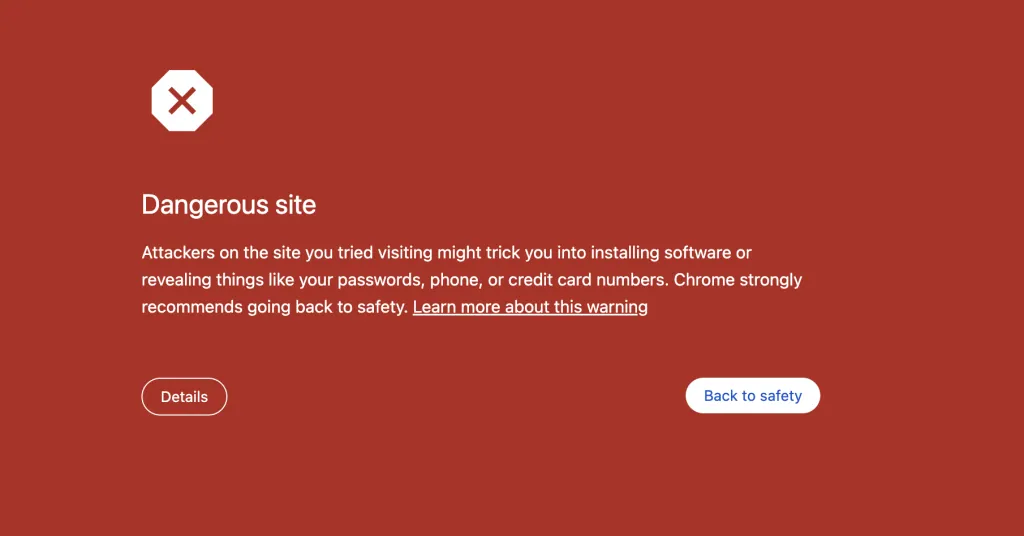
You load your site and Chrome throws up a full-page red warning: “Dangerous site” or “Deceptive site ahead.” Your heart sinks. Your PBN domain—one you spent good money on and hours building out—is now effectively dead to anyone using Chrome, which is most of the internet.
We see this happen to customers regularly. Sometimes it’s their fault. Sometimes it’s not. Either way, you need to understand what triggered it and how to get rid of it fast.
What Actually Triggers the Warning
Google Safe Browsing maintains a blacklist. When your domain lands on it, every major browser—Chrome, Firefox, Safari, Edge—will warn visitors away. The warning isn’t coming from your hosting or your CDN. It’s coming directly from Google’s systems.
The most common triggers we see:
Malware injection. Someone exploited a vulnerability in your WordPress install, an outdated plugin, or a nulled theme. They’ve injected code that redirects visitors, drops malware, or runs cryptominers. This is the most common cause by far. If you’re running WordPress with plugins you haven’t updated in six months, you’re a target.
Phishing content. Your site is hosting pages designed to steal credentials—fake login forms for banks, email providers, or social networks. This happens when attackers upload phishing kits to compromised sites. You might not even know it’s there, buried in a subdirectory you never check.
Inherited reputation. You bought an expired domain that was previously flagged. The domain itself carries the warning from its past life. This is why domain history matters—something we’ve written about extensively when discussing expired domain evaluation.
Deceptive content. Google thinks your site is trying to trick visitors. This could be fake download buttons, misleading advertisements, or content that impersonates another entity. Those static HTML templates with brand logos we keep warning people about? They can trigger this.
Unwanted software. Your site is distributing programs that do things users didn’t agree to—browser toolbars, homepage hijackers, or bundled installers full of junk.
Check If You’re Actually Flagged
Before you panic, confirm the problem. Sometimes the warning is a false positive or an issue on the visitor’s end, not yours.
Go to Google’s Safe Browsing site status tool: https://transparencyreport.google.com/safe-browsing/search
Enter your domain. Google will tell you exactly what they found—whether it’s malware, phishing, unwanted software, or nothing at all. If it says the site is safe but you’re still seeing warnings, the issue might be cached in your browser or a problem with a specific page rather than the whole domain.
If you have Google Search Console set up for the domain (and you should), check the Security Issues section. Google will give you specific details about what they found and which URLs are affected.
Finding the Malicious Content
If Google confirms your site is flagged, you need to find and remove the problem. This is where it gets tedious.
For WordPress sites:
Check your theme files, particularly functions.php and header.php. Look for base64-encoded strings—they’re a dead giveaway. Legitimate code rarely uses base64 encoding. Malicious code almost always does because it helps hide what the code actually does.
Check your plugins folder. Look for plugins you don’t recognise or plugin files with recent modification dates that don’t match when you last updated. Attackers often create fake plugins with innocent-sounding names.
Check your uploads folder. This is a common dumping ground for phishing kits and shell scripts. Look for PHP files in your uploads directory—they shouldn’t be there.
Check your .htaccess file. Malicious redirects often live here. Compare it against a clean WordPress .htaccess and look for anything that doesn’t belong.
For static HTML sites:
You have fewer places to look, which makes this easier. Check every HTML file for injected scripts, particularly in the head section and just before the closing body tag. Look for iframes pointing to external domains. Check for any PHP files that shouldn’t exist—static sites shouldn’t need PHP at all.
If you’re not comfortable doing this yourself, use a scanner. Sucuri’s free site check (sitecheck.sucuri.net) can identify common malware. For customers on our hosting, our built-in malware scanner can help identify infected files.
Cleaning Up
Once you’ve found the malicious content, remove it. But don’t stop there.
If your WordPress was compromised, the attacker probably left backdoors. They want to get back in after you clean up. Common backdoor locations include: wp-config.php (check for extra code at the bottom), random files in wp-includes with names that look legitimate but aren’t part of WordPress core, user accounts you didn’t create.
The safest approach for a badly compromised WordPress site is to start fresh. Export your content, note your settings, then delete everything and reinstall WordPress from scratch. Reinstall only plugins you actually need, downloaded fresh from wordpress.org. Don’t restore your old theme—get a clean copy.
Change all passwords. WordPress admin, database, FTP, hosting control panel. Use strong passwords this time. If you were using ‘admin’ as your username, create a new administrator account with a different name and delete the admin user.
Requesting a Review
After cleaning up, you need to ask Google to re-check your site. This won’t happen automatically, and it won’t happen quickly if you don’t request it.
In Google Search Console, go to Security Issues. If you’ve fixed the problems Google identified, click “Request Review.” You’ll need to explain what you did to fix the issue and prevent it from happening again.
Be specific. “I removed the malware” isn’t enough. Tell them you identified malicious JavaScript in header.php, removed it, updated all plugins, changed all passwords, and installed a security plugin to prevent future compromises. The more detail you provide, the better.
Review typically takes a few days. Sometimes longer. During this time, your site will continue showing warnings. There’s no way to speed this up. Be patient, and make sure you’ve actually fixed everything before requesting review—if Google finds the same problems again, your next review will take even longer.
The Inherited Problem
If you bought an expired domain that was already flagged, you have a different challenge. The domain’s reputation is damaged from before you owned it.
First, make absolutely certain there’s no actual malicious content on your site. Google won’t clear a warning if you’re still hosting the same phishing pages the previous owner was running.
Then add the site to Google Search Console and request a review. Explain that you recently acquired this domain and have rebuilt it with entirely new, legitimate content. Include the date you acquired the domain if you have documentation.
This is why checking domain history before purchase matters. Use the Wayback Machine to see what was on the domain before. Check if it’s currently flagged before you buy it. A few minutes of research can save you weeks of headaches. We cover this in detail in our domain evaluation guide.
Prevention
Getting flagged once is a problem. Getting flagged repeatedly suggests you haven’t fixed the underlying vulnerability.
Keep WordPress core, themes, and plugins updated. Enable automatic updates if you can’t do this manually on a regular basis. Our hosting includes automatic WordPress updates for exactly this reason.
Don’t use nulled themes or plugins. Ever. They’re the number one source of malware in WordPress installations. The money you save isn’t worth the risk.
Use strong, unique passwords. Don’t reuse passwords across sites. Use a password manager.
Remove plugins and themes you’re not using. Every piece of code on your site is a potential attack vector. If you’re not using it, delete it.
Consider a security plugin like Wordfence or Sucuri if you’re running WordPress. They’re not foolproof, but they add layers of protection that make you a harder target.
Check your sites regularly. Log into your PBN sites at least monthly. Visit them in a browser. If something looks wrong, investigate. The sooner you catch a compromise, the easier it is to clean up and the less damage is done to your reputation with Google.
When You Need Help
If you’re a PBN.LTD customer and you’re seeing these warnings on sites hosted with us, open a support ticket. Include the domain, when you first noticed the warning, and any changes you’ve made recently or any potential causes. We can help identify the source of the problem and guide you through cleanup.
You can also use our free advice service if you need guidance on whether a domain is worth saving or if you’d be better off cutting your losses and moving to a clean domain.
The red warning screen feels catastrophic when you first see it. But in most cases, it’s fixable. The key is acting quickly, being thorough in your cleanup, and taking steps to prevent it from happening again.