
Made a change to your site — edited your code, updated files on a Static HTML site, or tweaked something in WordPress — and it’s not showing on the front end? Almost every time, that’s caching. We automatically apply Cloudflare caching rules to keep your sites fast, and you can clear that cache yourself from your dashboard in a couple of clicks.
💡 Heads-up
Purging the CDN cache is safe and instant. It simply tells Cloudflare to fetch the latest version of your pages — it doesn’t delete anything or change your content in any way.
What’s in this guide
Why your change isn’t showing
To keep your sites loading quickly, we automatically place caching rules in Cloudflare. That means Cloudflare serves a saved copy of your pages to visitors instead of fetching everything fresh each time. It’s great for speed, but it also means a change you’ve just made — to your code, your files, or your WordPress content — can keep showing the old version until that cached copy is cleared. Purging the CDN cache forces Cloudflare to pick up your latest version.
Purging the CDN cache
Step 1 — Open the site from your dashboard
In your main dashboard, click the site name of the domain you want to purge. This opens the main overview screen for that domain.
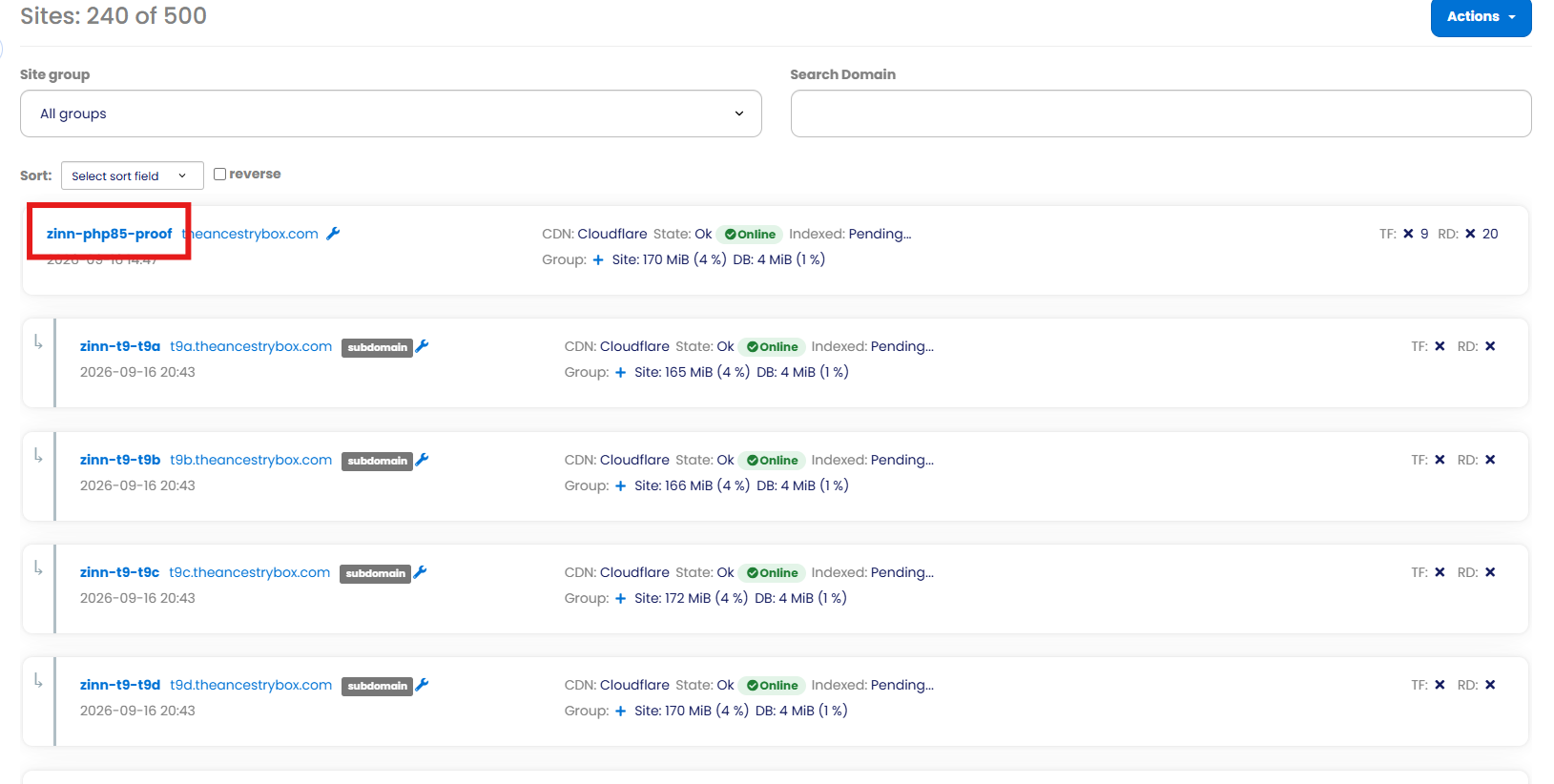
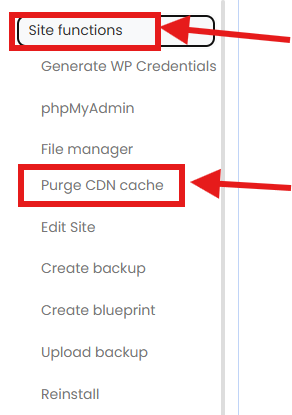
Step 2 — Open Site Functions → Purge CDN cache
In the left-hand menu, open the Site Functions tab and click Purge CDN cache.
Step 3 — Confirm
A pop-up will appear. Click Cancel if you’ve changed your mind, or Purge Cache to go ahead. As soon as you confirm, the CDN cache is cleared for that domain straight away.
After you purge
Head back to the front end of your site and refresh the page — your latest change should now be showing. If it still looks old, remember to clear any caching plugins you’re running inside WordPress (and a hard refresh of your browser doesn’t hurt either), as those cache separately from the CDN.
✅ Quick summary
If a change isn’t showing on the front end, it’s almost always the CDN cache. Open the site, go to Site Functions → Purge CDN cache, confirm, and it clears instantly. Then refresh the front end and clear any WordPress caching plugins.