
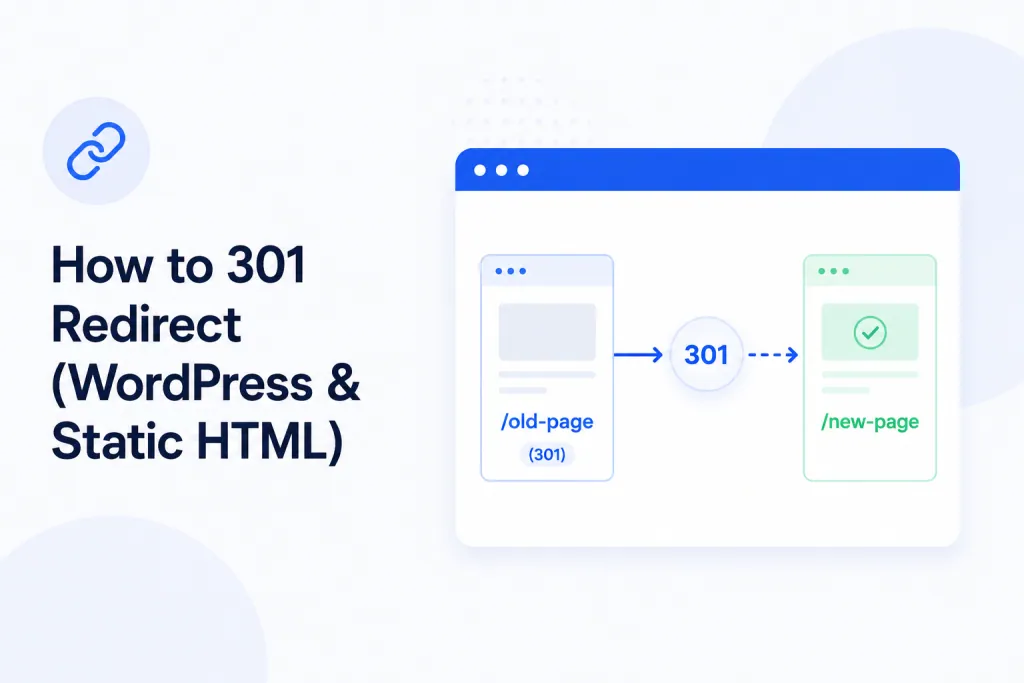
Need to send visitors (and Google) from an old URL to a new one — permanently? That’s a 301 redirect. It’s the most common and most SEO-friendly type of redirect, and it works on every PBN LTD site whether it’s WordPress or static HTML. This guide walks you through every option, in plain English, with copy-paste snippets you can use right away.
A 301 redirect tells browsers and search engines: “this page has moved permanently — please use the new URL from now on.” It’s perfect when you’ve changed page URLs, consolidated domains, moved content around, or even retired a whole site.
💡 Heads-up: on PBN LTD you don’t need FTP, SFTP or SSH. Everything in this guide is done through your PBN LTD dashboard — either via the File Manager (for .htaccess edits) or from inside your WordPress admin (for plugin-based redirects).
📑 What’s in this guide
- 🧠 What is a 301 redirect? (and how it differs from 302 / 307 / 308)
- ⚠️ Before you start — read this first
- 📦 Part 1: 301 redirects in WordPress
- 📄 Part 2: 301 redirects in Static HTML (.htaccess)
- 🌐 What about www / non-www and HTTP → HTTPS redirects?
- 🧪 How to test your redirect properly
- 🛠️ Common mistakes & troubleshooting
- ❓ FAQs
🧠 What is a 301 redirect?
A 301 is an HTTP status code that means “Moved Permanently”. When a browser, a search engine, or anything else hits an old URL and gets a 301 back, it knows two things:
- Where to go instead (the new URL).
- That the move is permanent — so it should remember it and update its records.
For SEO, this matters because Google passes (almost) all the ranking signals from the old URL to the new one. There are a few other redirect types you might bump into — here’s how they compare:
| Code | Meaning | When to use it | SEO impact |
|---|---|---|---|
| 301 | Moved Permanently | The page / domain has moved for good | ✅ Passes link equity |
| 302 | Found (Temporary) | Short-term redirect (e.g. A/B test, maintenance) | ⚠️ Doesn’t pass equity reliably |
| 307 | Temporary Redirect | Same as 302 but keeps the HTTP method (POST stays POST) | ⚠️ Temporary — no equity transfer |
| 308 | Permanent Redirect | Like 301 but keeps the HTTP method | ✅ Passes link equity |
For 99% of the things you’ll ever want to do — use a 301.
⚠️ Before you start — read this first
🚨 Always make a backup first. A single typo in .htaccess can take your whole site down with a 500 error. Before editing anything:
- In your PBN LTD dashboard, click on your domain → Site Functions dropdown → Create backup.
- If you’re only editing
.htaccess, you can also open it in File Manager and copy the entire contents into a text file on your computer as a quick rollback.
💡 Cache will lie to you. If your site is behind Cloudflare or another CDN (most PBN LTD sites are), a new redirect might not appear to work until you purge the cache. After saving any redirect, go to your dashboard → Site Functions → Purge CDN cache, then test in a fresh incognito window.
📦 Part 1: 301 redirects in WordPress
On a WordPress site you’ve got three sensible options:
- Use a plugin (easiest, recommended for most people).
- Let WordPress do it automatically when you change a post’s permalink.
- Edit
.htaccessdirectly via the File Manager (advanced, but works on WordPress too — see Part 2).
✅ Option 1: Use a plugin (recommended)
A redirect plugin gives you a friendly UI inside /wp-admin/, lets you manage redirects in one place, and even tracks 404s so you can fix broken links as they happen. The most popular free option is Redirection, but any reputable redirect plugin will work the same way.
Redirect a single page
- Install & activate your redirect plugin (e.g. Redirection).
- Go to Tools → Redirection (location varies by plugin).
- Under Add new redirection, fill in:
- Source URL:
/old-page/ - Target URL:
/new-page/(or a full URL likehttps://yourdomain.com/new-page/) - HTTP code:
301 — Moved Permanently
- Source URL:
- Click Add Redirect.
- Test it in an incognito window (after a CDN purge if applicable).
Redirect many pages with a pattern (regex)
Most redirect plugins let you tick a “Regex” box on a rule, which lets you match many URLs at once. For example, to redirect everything under /blog/ to /news/:
Source URL:  ^/blog/(.*)$        (with Regex enabled)
Target URL:  /news/$1
HTTP code:   301
That moves /blog/hello-world/ → /news/hello-world/, /blog/about/ → /news/about/, and so on — all from a single rule.
Bulk import a list of redirects
Migrating a site? Most plugins (including Redirection) have an Import/Export screen where you can paste or upload a CSV like:
/old-page-1/,/new-page-1/,301
/old-page-2/,/new-page-2/,301
/old-category/,/new-category/,301
This is much faster than adding hundreds of rules one at a time.
✅ Option 2: Let WordPress redirect automatically when you change a permalink
If you simply edit a post or page slug in WordPress (e.g. change /old-slug/ to /new-slug/) and click Update, WordPress will automatically 301 the old URL to the new one in most cases — no plugin required. This is great for one-off slug changes.
💡 Tip: this only works for posts/pages whose slug you’ve edited inside WordPress. It won’t help with redirects between totally different URLs or across domains — for those, use a plugin or .htaccess.
✅ Option 3: Edit .htaccess directly
WordPress sites on PBN LTD also have a .htaccess file in the site root — so any of the rules in Part 2 below will work on WordPress too. Just be careful not to delete the existing WordPress block (the one inside # BEGIN WordPress … # END WordPress). Add your custom redirects above that block.
📄 Part 2: 301 redirects in Static HTML (.htaccess)
For static HTML sites on PBN LTD, redirects are handled in the .htaccess file. To edit it:
- Log in to your PBN LTD dashboard and click on the domain.
- Open the Site Functions dropdown in the left-hand menu → click File manager.
- Open the site root (the folder containing your
index.html). - Find the
.htaccessfile. If it isn’t there, create a new file called.htaccess(note the leading dot — no file extension). - Right-click → Edit, add your rules, and Save.
💡 Can’t see .htaccess? Files starting with a dot are hidden by default on some systems. In the PBN LTD File Manager, hidden files are shown by default — but if you’re not seeing it, it likely just doesn’t exist yet. Create it.
🔄 Redirect a single page
Redirect 301 /old-page.html /new-page.html
Or send it to a different domain entirely:
Redirect 301 /old-page.html https://yourdomain.com/new-page.html
📁 Redirect a whole folder
To send everything under /old-folder/ to /new-folder/, keeping the rest of the path intact:
RedirectMatch 301 ^/old-folder/(.*)$ /new-folder/$1
So /old-folder/page-a.html → /new-folder/page-a.html, /old-folder/sub/page.html → /new-folder/sub/page.html, and so on.
🌐 Redirect the entire site to a new domain
Use this to forward all traffic from olddomain.com to newdomain.com, preserving the path:
RewriteEngine On
RewriteCond %{HTTP_HOST} ^(www\.)?olddomain\.com$ [NC]
RewriteRule ^(.*)$ https://newdomain.com/$1 [L,R=301]
So olddomain.com/about → newdomain.com/about, olddomain.com/contact.html → newdomain.com/contact.html, etc.
🚨 Rule order matters. Put domain-wide rewrites (like the one above) at the top of .htaccess, before any other Redirect / RedirectMatch lines. Otherwise the wrong rule may fire first.
📝 Cheat sheet — common .htaccess redirect patterns
| What you want | Rule |
|---|---|
| Single page → single page | Redirect 301 /old.html /new.html |
| Single page → external URL | Redirect 301 /old.html https://example.com/new |
| Whole folder → whole folder | RedirectMatch 301 ^/old/(.*)$ /new/$1 |
Old extension .html → .php | RedirectMatch 301 ^(.*)\.html$ $1.php |
| Whole site → new domain | RewriteRule block (see above) |
🌐 What about www / non-www and HTTP → HTTPS redirects?
Good news: on PBN LTD you usually don’t need to write redirect rules for these. They’re handled by the dashboard.
- www vs non-www: in your dashboard → click the site → Site Functions → Edit Site — toggle the www. option on or off. Whichever you choose, the other version is redirected for you.
- HTTP → HTTPS: once SSL is enabled on your site, HTTP traffic is forwarded to HTTPS automatically by the CDN / platform. See How to Enable & Use SSL (HTTPS) on Your Websites for the full setup.
🚨 Don’t double up. If you also add a www / HTTPS redirect inside .htaccess that contradicts the dashboard setting, you can end up in a redirect loop. If you’re seeing one of those, read Error: “Too Many Redirects” — Causes & Fixes.
🧪 How to test your redirect properly
After adding a redirect, don’t just type the URL into your normal browser — your browser will likely have cached the old URL, and your CDN may have cached the response too. Test it properly:
- Purge the CDN cache: dashboard → site → Site Functions → Purge CDN cache.
- Open an incognito / private window.
- Visit the old URL. You should land on the new URL.
- Use a free redirect checker like httpstatus.io or redirect-checker.org to confirm the response code is actually 301 (not 302 or a chain of redirects).
✅ A good 301 goes directly from the old URL to the final new URL in one hop. Anything longer than that (a “redirect chain”) slows your site and waters down SEO. If your checker shows multiple steps, simplify the rules.
🛠️ Common mistakes & troubleshooting
| Symptom | Likely cause | Fix |
|---|---|---|
| Redirect not happening at all | Cached old version (browser or CDN) | Purge CDN cache & test in incognito |
500 Internal Server Error after editing .htaccess | Syntax error (typo, missing line break, stray space) | Restore your backup or remove the last rule you added |
| “Too many redirects” / ERR_TOO_MANY_REDIRECTS | Two rules pointing at each other, or fighting with the dashboard www/HTTPS setting | See Too Many Redirects guide |
| Redirect goes to the wrong page | Rule order — a broader rule fires before a more specific one | Put specific rules above broad / catch-all rules |
| Redirect works without trailing slash but not with it (or vice versa) | The slash matters — /page and /page/ are different URLs to Apache | Add both, or use a RedirectMatch regex that handles both |
| Redirect works on the live site but breaks WordPress admin | You overwrote the # BEGIN WordPress block | Restore the WordPress block — add your rules above it |
💡 If your whole site went down after editing .htaccess: don’t panic. Open File Manager, restore your backup copy of .htaccess (or delete the rule you just added) and save. The site will come straight back. If things still look broken, also check your domain status and your error state guide.
❓ FAQs
Do I need FTP or SSH to set up a 301 redirect on PBN LTD?
No. PBN LTD doesn’t offer FTP, SFTP or SSH — and you don’t need any of them. Everything in this guide is done from your dashboard’s File Manager or from inside your WordPress admin.
How long does it take for a 301 to “kick in” for Google?
The redirect itself is instant once your cache is purged. For search engines to fully reassign ranking signals to the new URL it can take anywhere from a few days to a few weeks, depending on how often Google recrawls your site. Keep the 301 in place permanently — don’t remove it after a month.
Should I redirect old URLs to my homepage if I can’t think of a better target?
Generally no. Google treats mass redirects to the homepage as “soft 404s” and may ignore them for SEO. Redirect old URLs to the most relevant new page. If there’s no good match, it’s better to let the page return a clean 404 (or 410 Gone) than to fake a relevant destination.
Can I chain 301 redirects (old → newer → newest)?
You can, but you shouldn’t. Each hop adds latency and waters down the ranking signals Google passes on. Whenever you add a new redirect, update any old rules that point to the now-redirected URL so they go straight to the final destination.
Why isn’t my redirect working — I added it 30 seconds ago?
99% of the time it’s cache. Purge your CDN cache from Site Functions → Purge CDN cache, then test the old URL in an incognito window. If it still doesn’t work, double-check the rule (and rule order) in .htaccess or your redirect plugin.
My site went down after editing .htaccess — what do I do?
Open File Manager, edit .htaccess, remove the rule(s) you just added (or paste back your backup copy), and save. Your site will come back immediately. If you didn’t keep a backup and the site is broken, restore the most recent backup from Site Details → Backups in your dashboard.
What about a 302 redirect — would that work too?
A 302 will send the visitor to the new URL, but it tells search engines the move is temporary — so they won’t reassign your ranking. Unless you genuinely intend the redirect to be temporary, use a 301.
✅ Final notes
- 301 = permanent — best for SEO and almost always what you want.
- Always back up
.htaccessbefore editing it. - Always purge the CDN cache after adding a redirect, then test in incognito.
- One hop is best — avoid chains of redirects.
- Use the PBN LTD dashboard toggles for www / non-www and HTTPS — don’t reinvent those in
.htaccess. - Stuck? Open a support ticket and we’ll help.