
Every site with a database (WordPress, PHP hosting, Joomla, Drupal, PrestaShop, OpenCart, MediaWiki and Grav) comes with one MySQL database. If the site needs more – a second app, a staging copy, a shop or a separate analytics store – you can add extra databases to it. Each one runs next to the site on the same server, has its own user and password, and shows in the site’s phpMyAdmin beside the site database.
💡 Where to find it
Open the site in your dashboard and click the Extra databases tile (under Database), or the Extra databases card in the site’s Usage & add-ons tab. Every extra database in your account is listed at app.pbn.ltd/extra-databases/.
Adding a database
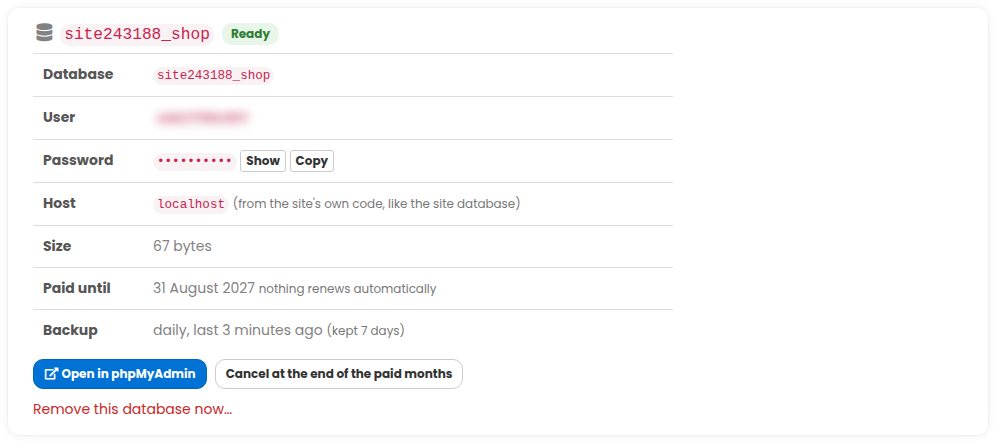
- Open the site’s Extra databases page.
- Under Add a database, give it a short name: 1 to 16 lowercase letters or digits. The full name is
site<site number>_<your name>, for examplesite12345_shop. - Choose how many months and how to pay, tick the Terms box and continue to payment.
- Once the payment is confirmed the database is created within a minute or two. The page refreshes by itself and shows Ready.
A site can have up to ten extra databases. Static HTML sites have no database server, so they cannot have extra databases.
Using it from your site or app
Connect to host localhost with the database name, user and password shown on the page – exactly like the site’s own database. Press Show to see the password and Copy to copy it. We never send passwords by e-mail.
The site’s own database user can also use every extra database of that site, so code that already connects to the site database can reach them too.
Opening it in phpMyAdmin
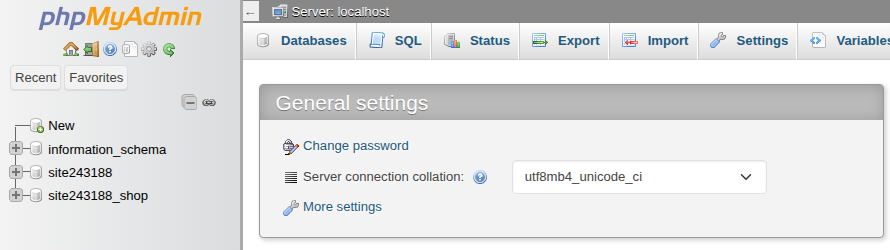
- Open in phpMyAdmin on the Extra databases page signs you in as that database’s own user.
- The site’s usual phpMyAdmin (site page, phpMyAdmin tile) shows the site database and all its extra databases together, so you can import, export and copy tables between them.
Database space
The site database and its extra databases share the site’s database allowance (shown in the Usage & add-ons tab). If together they go over it, the extra databases become read-only: they can still be read, and you can delete data or tables to make room, but nothing new can be written. Delete data, or add database space from the Usage & add-ons tab – writing comes back by itself within a few hours of being under the allowance. We e-mail you when it happens and when it is over.
Backups and restoring
Every extra database is copied every day and the copies are kept for a week. It is also in the site’s own daily backup, and – if the site has hourly backups – in every hourly restore point, so rolling the site back puts its extra databases back too.
- On the site’s Extra databases page, open Restore from a backup under the database.
- Choose the day and time to go back to, type the database name to confirm, and press Restore.
- We first keep a copy of the database as it is right now, then put the chosen backup back. You get an e-mail when it is done, usually within a few minutes.
Removing a database always takes a full copy first, which we keep for 30 days – contact support if you need one back.
Renewing, cancelling and removing
- Nothing renews automatically. We e-mail you a week before the paid months end; press Renew on the page to add more months. A renewal continues from the day the paid months end, so you never pay for the same month twice.
- If a database is not renewed it keeps working for a few days, then we take a full copy and remove it.
- Cancel at the end of the paid months keeps it working until then and stops the reminders. Keep it undoes a cancellation.
- Remove this database now asks you to type its name to confirm. We take a full copy first, then remove the database and its user. Paid months are not refunded.
- Deleting the site removes its extra databases too (again, a full copy is taken first).