
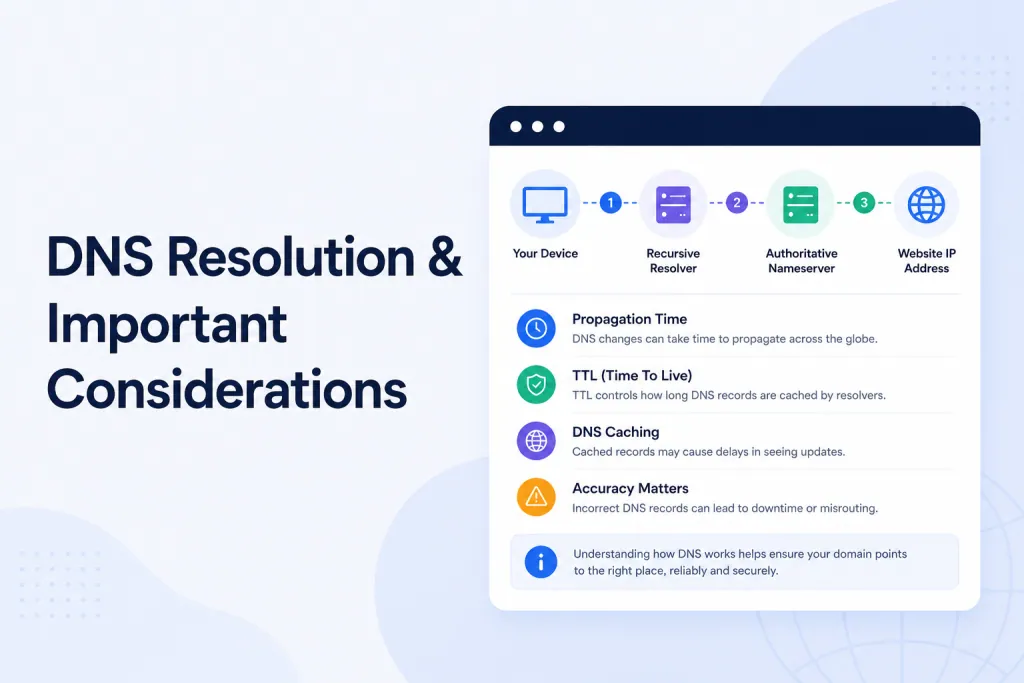
Short answer: if your domain isn’t loading yet after switching nameservers, it’s almost always just DNS still updating (this is called “propagation”). It usually takes only a few hours, and up to 24 hours at most. Give it a little time and check progress with a tool like dnschecker.org — then, if it’s still broken after 24 hours, work through the troubleshooting checklist below. We cover every fix step by step, and we’ll also explain whether you can “speed DNS up” (spoiler: not really — but a few honest tricks help).
⚠️ Read this first — DNS propagation is not controlled by PBN LTD
DNS resolution and propagation are controlled by the global DNS system, internet service providers (ISPs), and domain registrars — not by us. We can configure your hosting and CDN integration perfectly on our end, but we genuinely cannot speed up how fast DNS changes travel across the internet. Anyone telling you otherwise (other hosts included) is fibbing.
So if you’ve just switched nameservers and the site isn’t loading yet — don’t panic, and please don’t keep refreshing in incognito. It’s almost always just DNS doing its thing.
⏳ How long does DNS take to propagate?
When you change the nameservers on a domain, every DNS server, ISP cache and device on earth has to gradually catch up. Here’s a realistic timeline:
- Usually — nameserver changes are picked up within a few hours, often much less.
- Standard maximum — allow up to 24 hours for DNS to finish updating everywhere in the world.
- Good to know — your site is often live for most of the world long before it updates on your device, so always check with a tool before assuming something’s wrong.
👉 Want to see real-time propagation status? Go to dnschecker.org, paste your domain in, and check the global map. If most flags around the world are green, you’re done — your site just hasn’t caught up locally yet (clear your browser cache or try mobile data on your phone).
🚀 Can I speed up DNS, make my nameservers faster, or force propagation?
Short answer: No — and anyone telling you they can “speed up DNS”, “make NS faster”, “force DNS to update instantly” or “speed up nameserver propagation” is fibbing. DNS propagation time is decided by thousands of independent DNS resolvers around the world (your ISP, Google, Cloudflare, your phone network, etc.) — not by us, not by your registrar, and not by any tool, plugin or paid service.
That said, there are a few legit tricks that make it feel faster on your end while the rest of the world catches up. Here’s what actually works and what doesn’t:
✅ Things that actually help you see the site sooner
- Flush your local DNS cache — Windows: open Command Prompt and type
ipconfig /flushdns. Mac: open Terminal and typesudo dscacheutil -flushcache; sudo killall -HUP mDNSResponder. This clears the stale “old” IP your computer remembered. - Switch your device’s DNS resolver to a fast public one — Cloudflare (
1.1.1.1) and Google (8.8.8.8) update much faster than most ISP resolvers, which can lag well behind. - Try a different browser or incognito mode — Chrome, Firefox and Safari each keep their own DNS cache separate from the OS. Incognito skips most of it.
- Test on mobile data — your phone network uses a completely different DNS resolver from your home internet, so it often “sees” the new nameservers first.
- Check on dnschecker.org — shows you in real time which countries have already picked up your new nameservers. Once most green ticks appear globally, you’re basically done.
❌ Things that do NOT speed DNS up (don’t waste your time)
- Lowering the TTL — only helps for future changes, never the current one in flight.
- Restarting your router — clears your router’s tiny cache but the upstream resolvers still hold the old records.
- Paying for a “DNS propagation booster” service — these don’t exist. It’s a scam. Run.
- Re-pointing the nameservers again — actually resets the clock and makes it slower, not faster. Once you’ve set them correctly, leave them alone.
- Asking us to “force push” DNS — we genuinely can’t. No host on Earth can. DNS doesn’t work that way.
So if you’re searching things like “how to speed up DNS”, “make NS propagate faster”, “force DNS update” or “speed up nameserver change” — the honest answer is: do the 5 tricks above, then wait. It’ll be live worldwide within 24 hours, usually a lot sooner.
🧠 Still not working after 24 hours? Run the DNS resolution troubleshooting checklist
Work through these four checks in order. 9 times out of 10, the answer is in here. If your dashboard shows the domain in an ERROR state, that guide is a good companion to this one.
✅ Check #1 — Your nameservers are exactly right (and nothing else is set)
This is by far the most common cause. Even one wrong character means the whole thing won’t resolve. Not sure how? See How To Update Your Nameservers, or have us keep them in sync automatically with Automatically Update Nameservers. If you genuinely need extra records, see Can I Add Custom DNS Records?.
- Log in to your PBN LTD dashboard and find the domain in your main site list. The nameservers we’ve assigned are shown directly underneath the domain name.
- Log in to your domain registrar (Namecheap, GoDaddy, Cloudflare Registrar, etc.) and find the nameserver settings for that domain.
- Make sure the ONLY nameservers listed are the ones from your PBN LTD dashboard — no extras, no leftovers from a previous host, no registrar defaults.
- Check spelling carefully. An extra dot, a missing letter, or a typo (e.g.
jeff.ns.cloudflare.comvsjeff.ns.cloudflarecom) will break everything. - Save your registrar settings and wait again — the propagation clock restarts from this moment.
❌ Check #2 — DNSSEC is DISABLED at your registrar
DNSSEC is an extra layer of security that’s brilliant in theory but causes major problems when you switch DNS providers. If DNSSEC is enabled at your registrar but doesn’t match the new nameservers, the domain will refuse to resolve at all.
🔎 How to check if DNSSEC is on (do this first)
Before you change anything, confirm whether DNSSEC is actually enabled on your domain. Two easy ways:
- whatsmydns.net DNSSEC Checker — go to https://www.whatsmydns.net/dnssec-check, enter your domain and hit Search. If it says unsigned, DNSSEC is OFF (good — skip this check). If it says signed or shows DS records, DNSSEC is ON and that’s almost certainly your problem.
- ICANN Lookup — go to https://lookup.icann.org/, search your domain and look under the “DNSSEC” line.
signedDelegationmeans it’s on.unsignedmeans it’s off.

If the checker shows DNSSEC is enabled, it’s not a mistake — you need to turn it off. And here’s the tricky bit most guides skip…
🧩 Where DNSSEC can be hiding (it’s not always a simple toggle)
Most registrars have a one-click DNSSEC toggle in the domain settings — easy. But DNSSEC can also be present as a custom DS record (Delegation Signer record), which has to be removed separately. The custom-DS-record scenario usually happens in one of two ways:
- Added manually — at some point you or someone with account access added DS records directly under the registrar’s “Advanced DNS / DS Records” section.
- Inherited from a previous owner — if you bought an expired or dropped domain, the previous owner’s DS records may still be sitting in the parent zone. The toggle might look off, but the orphan DS records keep DNSSEC effectively on — and they’ll break resolution until you find and delete them.
So if the toggle is already off but the checker still says signed, dig deeper into the registrar’s DS records / advanced DNS area and remove anything that’s there.
🛠️ How to disable DNSSEC properly
- Log in to your registrar and find the DNSSEC section for your domain (usually under Domain Management, Advanced DNS, or Security).
- Flip the DNSSEC toggle to OFF if it’s on.
- Check for any custom DS records — Key Tag, Algorithm, Digest Type, Digest fields. Delete every single one.
- Save your changes and re-check on whatsmydns.net/dnssec-check after 10–30 minutes. It should now read unsigned.
- Wait up to 24 hours for DNSSEC to fully clear from caching resolvers worldwide.
Not sure where the DNSSEC option lives in your registrar? Try these:
- Google it — search “Disable DNSSEC Namecheap” or “Disable DNSSEC GoDaddy” (whatever your registrar is).
- Check your registrar’s help docs — they all have a guide.
- Ask ChatGPT or Claude — works brilliantly for this. Just say “How do I disable DNSSEC on [your registrar]?”.
🕒 Check #3 — Was the domain off our nameservers for a while? (Expired, switched away, or late renewal)
This is one of the most common “everything was fine, then it suddenly broke” causes — and it has three slightly different flavours. If any of these sound familiar, follow the matching fix below.
😱 Scenario A — You never updated the nameservers within 4 weeks of adding the domain
When you add a domain to PBN LTD, we provision a CDN zone for it (on Cloudflare, BunnyCDN, etc.). If the nameservers at your registrar don’t point to us within about four weeks, the CDN provider will automatically delete the zone for inactivity. Once that happens, even if you finally update the nameservers, nothing will resolve. The good news: for Cloudflare, you can now reinstate the deleted zone yourself from your dashboard — see the fix just below.
🔄 Scenario B — The domain was previously live on PBN LTD, then went away, then came back
If your domain was already happily pointing to PBN LTD in an “OK” state, and then any of the below happened for more than ~4 weeks, the CDN zone will have been auto-deleted just the same:
- The domain expired for a period before you renewed it.
- You switched the nameservers away to a different host or DNS provider for a while.
- The domain was parked or unused elsewhere for over a month.
You’ve now flipped the nameservers back to PBN LTD’s — but the site won’t load, because the CDN zone is long gone.
🔁 Scenario C — Your registrar reverted the nameservers after a late renewal
If your domain expired and you renewed it late, some registrars sneakily reset the nameservers back to their own defaults during the renewal — overwriting whatever you’d previously set. You won’t always be told this happened.
Log in to your registrar and check the nameservers right now. If they look like dns1.registrar-servers.com, ns1.yourregistrar.com, or anything that isn’t the nameservers from your PBN LTD dashboard — that’s your problem.
🛠️ How to fix it — pick the option that matches you
Option 1 — Registrar nameservers got reverted (Scenario C only):
- Log in to your registrar and find the nameserver settings for the domain.
- Replace any default registrar nameservers with the PBN LTD nameservers shown in your dashboard.
- Save and wait for propagation (up to 24 hours, usually much sooner).
Option 2 — The CDN zone has been auto-deleted (Scenario A or B):
The easy way (Cloudflare): you can now reinstate the expired zone yourself, right from your dashboard — nothing gets deleted and your site comes straight back. Follow How To Reinstate An Expired Cloudflare Zone for the click-by-click steps (and Common Cloudflare Notices & What They Mean explains any messages you see). If reinstating isn’t available for your setup, or you’re on a different CDN, use one of the two routes below instead:
🚨 STOP — Read this before you delete anything
Deleting a domain from your PBN LTD dashboard permanently removes EVERYTHING associated with it from our servers — including all of your backups. This cannot be undone.
If there’s any chance you might want to recover the site later, you must download a copy of your most recent backup to your own computer first, before clicking delete. Once the domain is gone, the backups are gone with it — we cannot restore them from our end.
If you want to keep the site exactly as it was, use Route B (restore the last successful backup) instead — that path keeps everything intact and re-provisions the CDN zone automatically.
🅰️ Route A — Delete and re-add the domain (clean slate)
- FIRST: Download a copy of your latest backup to your own computer. Critical — see the red warning above. Once you’ve got that locally, delete the domain from your PBN LTD dashboard.
- Re-add the domain and select your CDN provider again (not sure which? see Which CDN Should I Use?).
- Copy the new nameservers from your dashboard.
- Update them at your registrar — and this time, do it within a few days, not a few weeks!
🅱️ Route B — Restore the last successful backup (best if Scenario B and you want your site back exactly as it was)
This is the magic one. Restoring your last successful backup will automatically re-provision the CDN zone at the same time — then you just flip the nameservers and you’re done.
- Log in to your PBN LTD dashboard and open the domain in question.
- Find your most recent successful backup and trigger a restore (see How To Access Your Automatic Backups). (Full walkthrough video below.)
- Wait for the restore to complete — this rebuilds the site files and re-provisions the CDN zone in one go.
- Copy the freshly issued nameservers from your dashboard.
- Update them at your registrar — and you’re back online once DNS propagates.
🔍 Check #4 — Registrar-level issues (suspension, hold, verification)
Sometimes the problem isn’t with DNS at all — it’s that the registrar has flagged the domain. Common issues to look out for:
- Domain suspension — usually due to an abuse complaint or unpaid invoice.
- Pending verification — ICANN requires you to verify your contact email within 15 days of registering. If you missed the verification email, the domain gets put on hold and won’t resolve.
- Recently expired or reclaimed domains — sometimes there’s a grace period limbo.
- Transfer lock issues or EPP / auth code errors from a recent registrar transfer.
How to check:
- Log in to your registrar and look for warning banners or notifications about the domain.
- Run an ICANN WHOIS lookup at
lookup.icann.org— paste in your domain and look at the “Domain Status” line. If you see anything likeclientHold,serverHold, orpendingVerification, that’s your culprit. - Ask ChatGPT or Claude what a specific status code means — they’re great at translating registrar jargon.
- Contact your registrar’s support — only they can clear suspensions or holds.
💡 Quick DNS troubleshooting hacks
- Test on mobile data — switch your phone to 4G/5G and visit the site. If it works on mobile but not on your home Wi-Fi, it’s your ISP cache, not DNS itself.
- Flush your DNS cache locally. Windows: open Command Prompt and run
ipconfig /flushdns. Mac: open Terminal and runsudo dscacheutil -flushcache; sudo killall -HUP mDNSResponder. - Try a different browser or incognito mode — rules out browser-level caching.
- Change your DNS resolver — set your network to use
1.1.1.1(Cloudflare) or8.8.8.8(Google) instead of your ISP’s DNS. Often instant. - Check dnschecker.org — if it’s resolving globally but not for you, it’s 100% a local cache issue and will sort itself out.
🆘 Worked through everything and it’s still broken?
If you’ve done all of the following and the site still won’t load:
- ✅ Nameservers are exactly right (and only ours are set)
- ✅ DNSSEC is fully disabled
- ✅ No registrar-level holds, suspensions or verifications
- ✅ CDN zone is fresh (you deleted and re-added the domain)
- ✅ You’ve waited up to 24 hours
- ✅ You’ve tried mobile data, dnschecker.org and a different DNS resolver
📨 Open a support ticket
Open a support ticket from your dashboard and include:
- The exact domain name
- What you’ve already tried from this checklist
- A screenshot of your current registrar nameserver settings
- A screenshot of dnschecker.org for that domain
We’ll dig in straight away and get you sorted. ❤️
✅ Quick summary
After a nameserver change, DNS usually updates within a few hours and up to 24 hours at most — so check dnschecker.org and try mobile data before worrying. If it’s still down after 24 hours, work through the four checks: nameservers exactly right, DNSSEC off, the CDN zone still in place (re-add or restore if the domain lapsed), and no registrar holds. Still stuck? Open a support ticket with your domain, what you’ve tried, and screenshots.