How To Access phpMyAdmin & File Manager

How To Access phpMyAdmin & File Manager

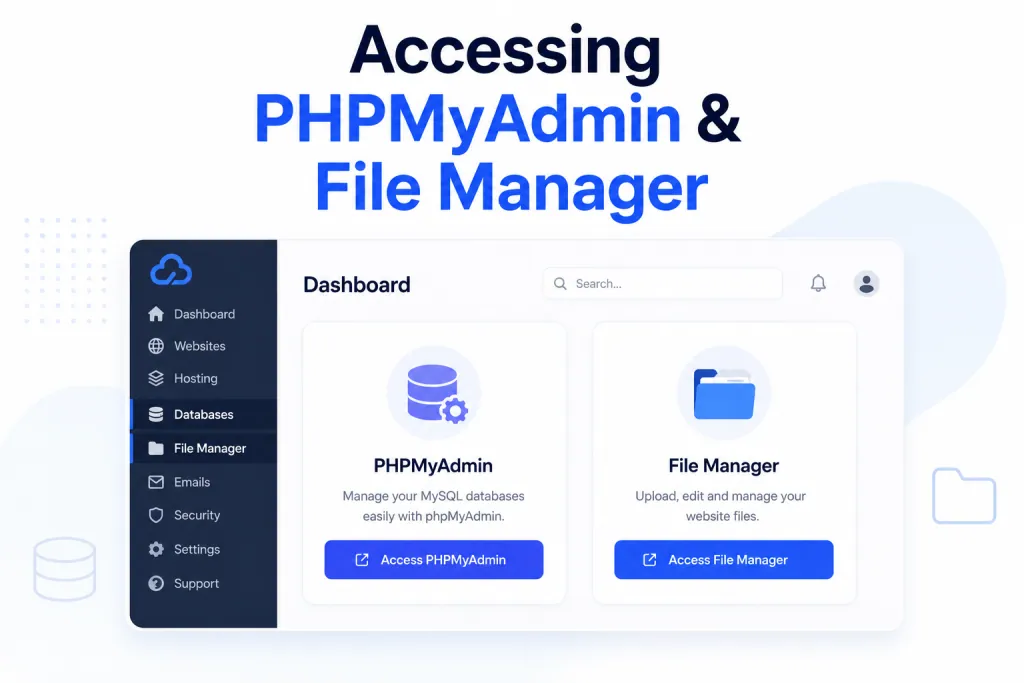
Accessing PHPMyAdmin & File Manager

📺 Prefer to watch instead of read? The video above is a full walkthrough of how to access phpMyAdmin and File Manager in PBN LTD — every step, every option, every gotcha. The written guide below covers the same ground, with extra detail you can refer back to.

Need to dig into your WordPress database or upload/edit files on your site? Both phpMyAdmin and the File Manager are built straight into your PBN LTD dashboard — no FTP clients, no separate logins, no fiddling about. This guide walks you through accessing both, what each one does, when to use it, and a few common gotchas to watch out for.

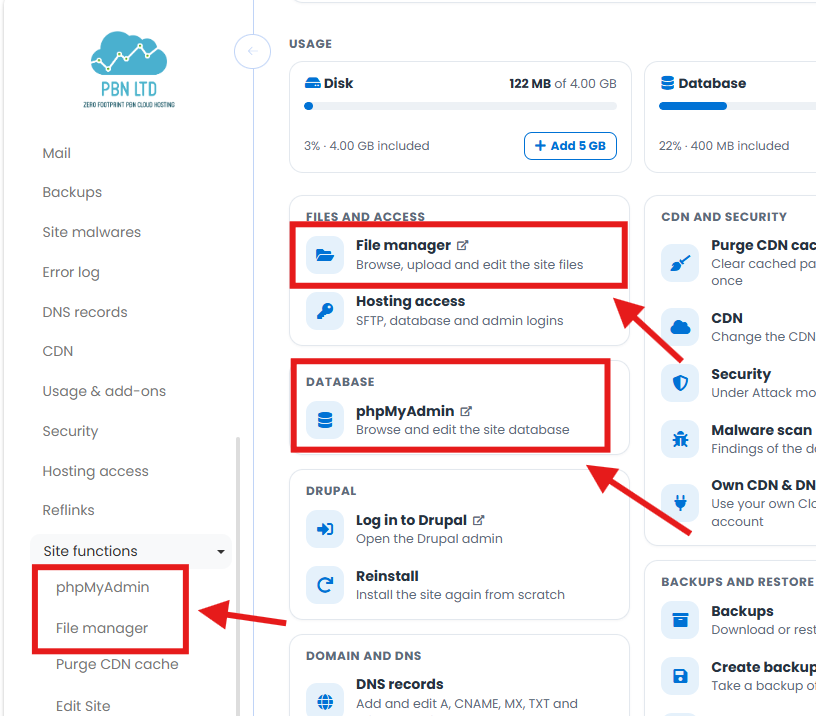
💡 Heads-up: phpMyAdmin and File Manager on PBN LTD are web-based and auto-login from your dashboard — no usernames or passwords to remember. Just click the link from the Site Functions menu and you’re in. There’s no FTP/SSH on PBN LTD because you don’t need it — everything’s done through the dashboard.

📁 Quick vocab:

  • File Manager — web-based file browser for your site. Upload, edit, delete files in your browser. No FTP needed.
  • phpMyAdmin — web-based tool for managing your site’s MySQL database. View tables, edit records, run SQL queries.
  • Site Functions menu — the dropdown on the left of your site’s overview page in PBN LTD. Where File Manager, phpMyAdmin and other tools live.
  • Database — where WordPress stores your posts, pages, settings, user accounts, plugin data — basically everything except media files and theme code.
  • wp_options table — the WordPress database table holding site-wide settings like the home URL, site title, theme, active plugins.

📁 How To Access File Manager

The File Manager lets you browse, upload, edit and delete files on your site directly in your browser. Perfect for tweaking themes, swapping out config files, uploading media, or troubleshooting when WordPress itself is broken.

Step-by-step:

  1. Log in to your PBN LTD dashboard.
  2. Click on the site name of the domain you want to manage. (You’ll land on the site overview page.)
  3. On the left, open the Site Functions dropdown.
  4. Click File manager.
  5. A new tab opens with the web-based file manager. You’re logged in automatically — no credentials needed.

That’s it. You’ll see your domain’s folder structure on the left and the contents of whichever folder is selected on the right. WordPress files live in the root by default — look for wp-config.php, wp-content/ and friends.

🛠️ What File Manager Is For

File Manager is the go-to tool any time you need to touch the actual files on your site. Common uses:

  • Editing wp-config.php — toggle debug mode, change memory limits, switch table prefix.
  • Disabling a broken plugin — rename the plugin’s folder inside wp-content/plugins/ to deactivate it (handy when WP admin won’t load).
  • Disabling a broken theme — rename the active theme’s folder inside wp-content/themes/ so WordPress falls back to a default theme.
  • Uploading media or assets directly into wp-content/uploads/ when bulk-uploading is faster than going through WP Media Library.
  • Editing .htaccess — add redirects, fix permalinks, block bad IPs.
  • Renaming or removing MU-Plugins — if you’ve migrated from a host that left junk behind in wp-content/mu-plugins/.
  • Downloading a copy of files for a manual backup before making big changes.

🧠 How To Access phpMyAdmin

phpMyAdmin is where you manage the MySQL database behind your site. WordPress stores everything except media files and theme code in the database — so this is where you go when you need to fix something the WP admin interface can’t reach.

Step-by-step:

  1. Log in to your PBN LTD dashboard.
  2. Click on the site name of the domain you want to manage.
  3. On the left, open the Site Functions dropdown.
  4. Click phpMyAdmin.
  5. A new tab opens with phpMyAdmin already logged in for your site’s database. No username or password to enter.

You’re in. The site’s database is selected on the left. Click any table name to see its rows; use the tabs along the top (Browse, Structure, SQL, Search, Insert, etc.) to interact with it.

💾 What phpMyAdmin Is For

phpMyAdmin is the right tool when WordPress itself won’t let you do what you need. Common uses:

  • Changing the site URL when WordPress is stuck redirecting to the wrong domain (update siteurl and home in wp_options).
  • Bulk-editing posts, pages or custom fields using SQL queries — far faster than clicking through the WP admin.
  • Cleaning out plugin data left behind after a plugin uninstall (look in wp_options and tables prefixed with the plugin’s name).
  • Search & replace URLs after migration when text is hard-coded into post content (better done via the Better Search Replace plugin, but phpMyAdmin can do it too).
  • Exporting / importing the database for backups or migrations.
  • Diagnosing slow queries or table corruption issues.

⚠️ Prerequisites — What Needs To Be In Place First

Before File Manager or phpMyAdmin will work, your domain needs to be properly set up on PBN LTD:

  • The domain must be added to your PBN LTD account.
  • The domain status must show “OK” in your dashboard. If it says “Waiting DNS update” or “Error”, sort that first — the tools won’t open until DNS has resolved on our nameservers.
  • You need to be logged in to your PBN LTD dashboard — the auto-login to both tools relies on your active session.

💡 Domain showing “Waiting DNS update”? That just means your nameservers haven’t fully resolved on our hosting yet. Update them at your registrar, give it a bit of time (usually minutes to a couple of hours, occasionally up to 24 hours), then refresh your PBN LTD dashboard. Once it flips to “OK”, you’re good.


⚡ Common Tasks At A Glance

Not sure which tool you need? Use this table — it covers the most common things people use these tools for:

I need to…Use this toolWhere to look
Change the WordPress site URLphpMyAdminwp_options table → edit siteurl and home
Disable a plugin without WP adminFile Managerwp-content/plugins/ → rename the plugin folder
Disable a broken themeFile Managerwp-content/themes/ → rename the active theme folder
Edit wp-config.php (memory, debug, etc.)File ManagerSite root → right-click wp-config.php → Edit
Edit .htaccess (redirects, blocks)File ManagerSite root → enable “Show hidden files” if needed → edit .htaccess
Export the databasephpMyAdminSelect database on left → Export tab → Go
Bulk-upload media filesFile Managerwp-content/uploads/ → Upload
Clean out leftover plugin dataphpMyAdminwp_options → search/sort for old plugin name → delete rows
Search & replace URLs in postsphpMyAdmin (or Better Search Replace plugin)phpMyAdmin → Search tab → enter find/replace strings

🚨 Important Warnings Before You Make Changes

⚠️ phpMyAdmin can break your site instantly. A single bad query, a typo in wp_options, or accidentally dropping a table can take your whole site offline. Always take a backup before making changes — and if you’re not sure what you’re doing, ask in a support ticket first.

⚠️ File Manager edits are live and immediate. The moment you save a file, it’s saved on the live server. Editing wp-config.php, .htaccess or core plugin/theme files with a typo can crash your site. Download a copy first so you can revert if it goes wrong.

Quick safety checklist before any change:

  • Take a backup from your PBN LTD dashboard (Site Functions → Create backup) — even a 30-second backup beats no backup.
  • If editing a file, download a copy first via the File Manager’s download option.
  • If running an SQL query, read it twice and make sure the WHERE clause is right — without one, UPDATE or DELETE hits every row.
  • Test changes in a single record first before bulk-applying.
  • If unsure, screenshot the original values before you change them.

🛠️ Troubleshooting

“File Manager” or “phpMyAdmin” won’t open / says no access

Almost always one of two things: either your domain status isn’t showing “OK” yet (so the tools aren’t available), or your PBN LTD session has expired in the background. Log out, log back into your dashboard, then try the link again.

phpMyAdmin loads but no database is selected

Click the database name on the left-hand sidebar — there’ll be one matching your domain. From there, all the tables will appear.

File Manager doesn’t show .htaccess or wp-config.php

Files starting with a dot (.htaccess) and some system files can be hidden by default. Look for a “Show hidden files” or “Show dotfiles” toggle in the File Manager settings or view menu and turn it on.

I made a change and my site is broken — help!

Don’t panic. Two options: (1) if you took a backup before changing anything, restore it from the dashboard (Site Functions → Backups → Restore). (2) If you didn’t, revert the specific change — rename the folder back, undo the SQL edit, or restore the original file. If you can’t figure it out, raise a support ticket and we’ll help you fix it.

My change saved but the site looks the same

Usually caching. Clear your CDN cache (Site Functions → Purge CDN cache), clear your browser cache, or test in an incognito window. If the change was to a WordPress option or post, also flush any WP-level cache plugins you’ve got installed.


❓ FAQs

Do I need a username and password for phpMyAdmin or File Manager?

No. Both tools auto-log you in from your PBN LTD dashboard — you just click the link and you’re in. The credentials are managed behind the scenes by the hosting system.

Can I access phpMyAdmin or File Manager via FTP / SSH?

Everything’s done through the web-based dashboard. There’s no FTP or SSH access on PBN LTD because the dashboard tools cover everything you’d normally use them for. (If you’re on NTCloud subdomain hosting, that’s a different platform that does support FTP and SSH — but this article is for PBN LTD.)

Can I edit files directly in the File Manager?

Yes — click the file to open the built-in editor. Save when done. Just remember edits are live immediately, so always have a backup or downloaded copy you can revert to.

Can I run any SQL query in phpMyAdmin?

Yes — use the SQL tab at the top to run any query against your site’s database. Just be very careful with UPDATE, DELETE and DROP statements — there’s no undo. Test on a single row before bulk-running anything.

My database has weird table names like wp1abc_posts — is that normal?

Yes. WordPress lets the table prefix be customised (the default is wp_, but some installs randomise it for security). Your table prefix is set in wp-config.php — open that in File Manager and look for the $table_prefix line.

Can I import a database backup via phpMyAdmin?

Yes — use the Import tab. You can upload a .sql file directly. For very large databases, you may hit upload size limits — in that case, use the File Manager to upload the SQL file to your site root, then point phpMyAdmin’s import at that file.

Where are WordPress media uploads stored?

In wp-content/uploads/ — organised into year/month subfolders (e.g. 2026/05/). You can browse, upload, download or delete files there directly from the File Manager.

Can I edit a plugin’s PHP files via File Manager?

Yes, but it’s generally a bad idea — any plugin update will overwrite your changes. If you need to modify a plugin’s behaviour, use a child theme’s functions.php, a code snippet plugin, or fork the plugin properly. Only edit plugin files directly as a last resort or short-term hotfix.

Can support help if I’m not sure what to change?

Yes — raise a support ticket describing what you’re trying to do and we’ll point you to the right table, file or query. Don’t guess your way through phpMyAdmin if you’re unsure; one wrong query can take a site offline.


✅ Quick Summary

  • Access both tools via your dashboard → site name → Site Functions → File manager OR phpMyAdmin.
  • Auto-login — no usernames or passwords to remember.
  • Domain must show “OK” status before tools are available.
  • File Manager — for files: wp-config.php, .htaccess, plugins/themes folders, media uploads.
  • phpMyAdmin — for the MySQL database: passwords, site URL, options, post data, SQL queries.
  • Always take a backup before making changes — both tools can break your site instantly if you slip up.
  • No FTP/SSH on PBN LTD — by design, everything’s done through the dashboard tools.
  • Stuck or unsure? Raise a support ticket before guessing.

✅ That’s it — you now know how to get into File Manager and phpMyAdmin, and what each one is for. Use them carefully, back up before changes, and you’ll be fine.

Share this article: