How To Migrate Your WordPress Site To PBN LTD

How To Migrate Your WordPress Site To PBN LTD

How To Migrate Your WordPress Site To PBN LTD

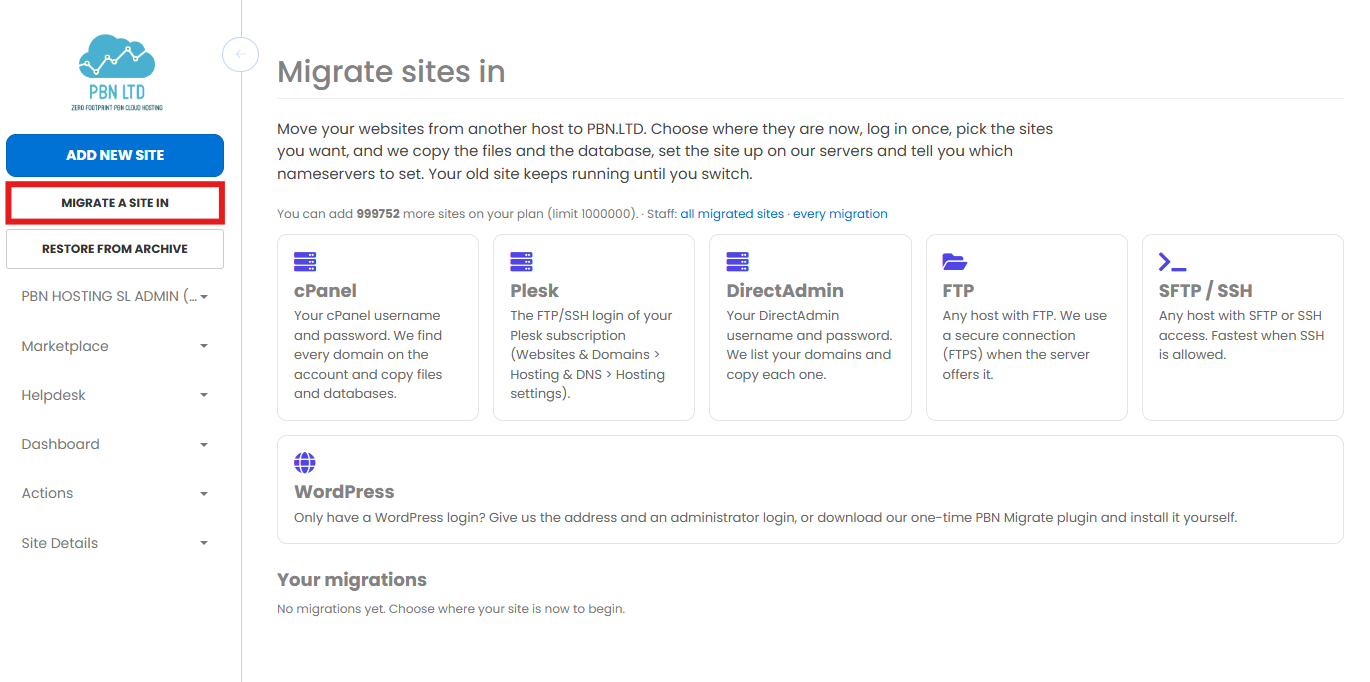
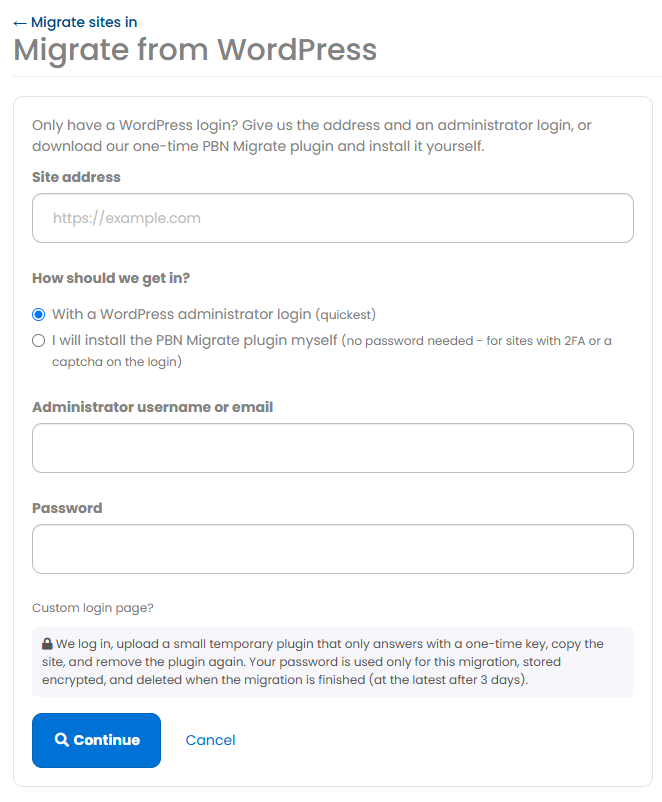
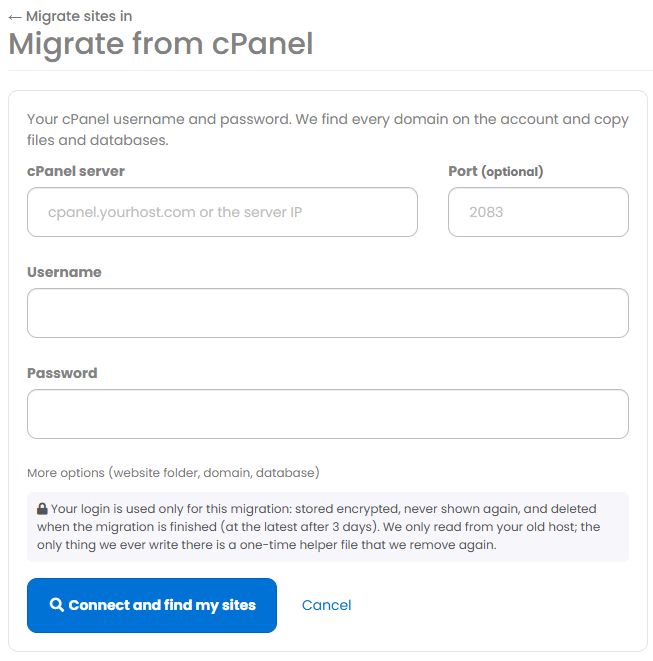
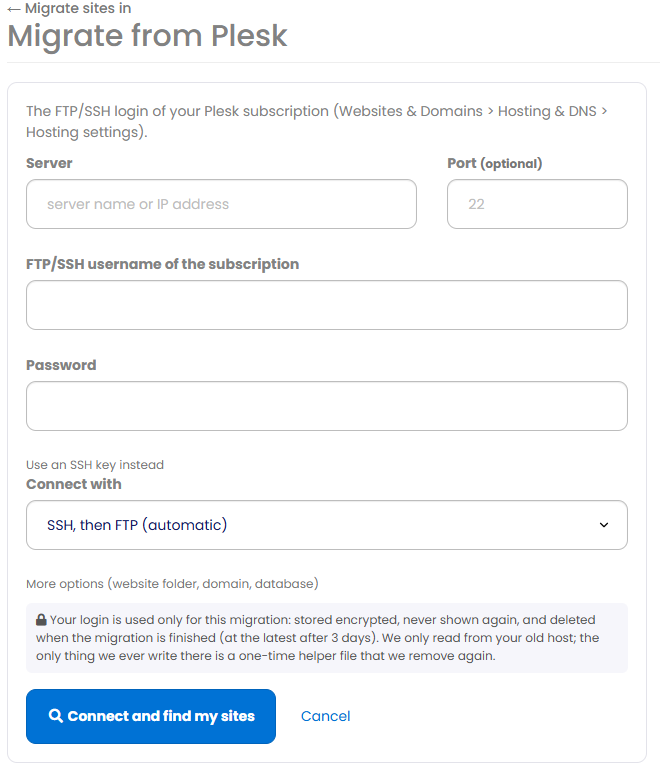
Moving your WordPress site to PBN LTD hosting? Brilliant decision. Whether you want to roll your sleeves up and do it yourself in about 10 minutes, or kick back and let us handle the whole thing for free, this guide walks you through both options in plain English. No jargon, no headaches — just two clear paths to getting your site moved across cleanly.

💡 Heads-up: This guide is for migrating sites to PBN LTD hosting — our standard managed PBN hosting. If you’re working with NTCloud (subdomain) hosting, the process is different (you do your own migration with WP-Vivid Pro — we can give you our Pro license for free there too — see the separate NTCloud guide). This article covers PBN LTD only.

📁 Quick vocab:

  • WP-Vivid Pro — premium WordPress backup & migration plugin. We can give you our Pro license for free if you ask.
  • Nameservers (NS) — the DNS pointers that tell the internet which host serves your domain. Updated at your registrar.
  • One-Click Login (SSO) — PBN LTD’s feature that logs you straight into WordPress admin from your dashboard, no password needed.
  • Final cleanup — the manual backup + restore at the end. Removes leftover bits from your old host and gets SSO working properly.

⚡ Two Ways To Migrate — Pick Your Path

There are exactly two ways to move your WordPress site over to PBN LTD. Both work brilliantly — pick whichever suits you:

  • Option 1: Do it yourself — about 10 minutes using WP-Vivid Pro (we can give you our Pro license for free if you ask). Best if you like being in control.
  • 🙌 Option 2: Let us do it for you — completely free as part of your PBN LTD subscription. Best if you want zero hassle.

Both options are free. The DIY route gives you control and speed; the done-for-you route is hands-off. Pick whichever fits your style.


✅ Option 1: DIY Migration (About 10 Minutes)

The cleanest and most foolproof way to migrate your WordPress site to PBN LTD is by using the WP-Vivid Backup Pro plugin. We supply the plugin and can give you our Pro license for free if you ask — just submit a support ticket. Here’s exactly how the process works, start to finish.

🔄 Step 1: Export Your Site From Your Current Host

First, get a clean backup of your site from wherever it’s currently hosted:

  • On your current WordPress site, install WP-Vivid Pro.
  • Don’t have it yet? Just submit a support ticket asking for the WP-Vivid Pro plugin and license — we’ll send you the .zip file and our Pro license key, completely free.
  • Activate the plugin, then go to WPVivid → Settings → License and enter the license key.
  • Connect your Google Drive account in WPVivid’s Remote Storage settings.
  • Create a full site backup and send it directly to Google Drive.

💡 Why Google Drive? It’s the simplest way to move a backup between two hosts without having to upload/download huge files manually. The backup file lives in your Drive and both ends of the migration can grab it.

🌐 Step 2: Point Your Domain To PBN LTD

Now tell the internet your site lives on PBN LTD by updating your domain’s nameservers:

  • Log in to your domain registrar (e.g. GoDaddy, Namecheap, Cloudflare Registrar, etc.).
  • Update the domain’s nameservers to the ones shown in your PBN LTD dashboard. Look on the main dashboard — they’re listed under each domain.
  • Our system picks up the DNS change quickly — usually within minutes to a couple of hours, but full propagation can take up to 24 hours globally.
  • Once your domain’s status shows “OK” in the PBN LTD dashboard, clear your browser cache before doing anything else.

💡 Tip: You don’t have to wait for full global DNS propagation to start the import — once PBN LTD shows the domain as “OK”, you can move on. Use a free proxy site like proxysite.com or hide.me to check your new site from outside your own cached connection.

📥 Step 3: Import Your Site To PBN LTD

Once the nameservers have flipped, import the backup into your new WordPress install on PBN LTD:

  • Log in to the WordPress admin area of your domain — now hosted on PBN LTD.
  • Install WP-Vivid Pro again (same plugin, same license key).
  • Reconnect your Google Drive account in WPVivid’s Remote Storage.
  • Go to the Backup & Restore tab in WPVivid.
  • Find your backup file and click Restore — this pulls across your entire site (plugins, themes, content, settings, the lot).

🧹 Step 4: Final Cleanup (Important!)

This last step is the one most people skip — and then wonder why something isn’t quite right. Don’t skip it.

  • Go to your PBN LTD dashboard.
  • Click on your domain name to open the Site Overview.
  • Navigate to the Backups tab.
  • Create a fresh manual backup, then restore it immediately.

🔒 Why does this final step matter? Restoring your backup over a fresh PBN LTD install does two important things: it cleans out any leftover files or MU-plugins from your old hosting environment (which can leave unwanted footprints), and it ensures the One-Click Login from your PBN LTD dashboard to WP Admin works correctly afterwards.

📦 Need WP-Vivid Pro + Our Pro License?

No problem — we provide it free to all PBN LTD hosting customers. To get it:

  • Submit a support ticket requesting WP-Vivid Pro and our Pro license key.
  • We’ll send you the plugin .zip file along with our Pro license key — yours to use free as a PBN LTD customer.
  • Upload the plugin via WP Admin → Plugins → Add New → Upload Plugin.
  • After activating, go to the Plugins screen → find WPVivid → click “Check for updates”. Make sure it’s fully updated to avoid compatibility issues.

🙌 Option 2: Request A FREE Migration (Let Us Do It!)

Don’t fancy doing it yourself? No worries — we offer free WordPress migrations as part of your PBN LTD subscription. Just raise a support ticket and we’ll handle the whole thing for you, end to end.

Free migrations are available to all paying PBN LTD customers (not those on trial). There’s no limit on how many sites we’ll move for you — submit them all in one ticket if you want.

📝 What To Include In Your Support Ticket

To make the migration as smooth as possible, please send us:

  • The domains you want us to migrate.
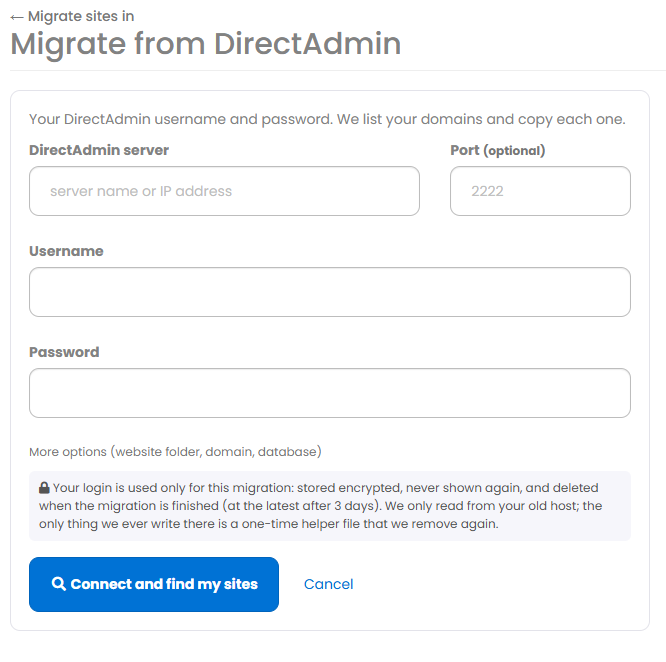
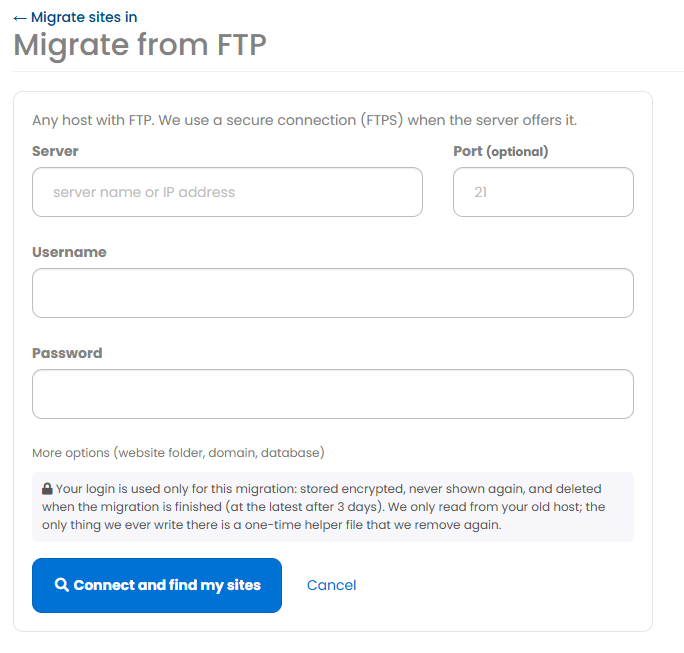
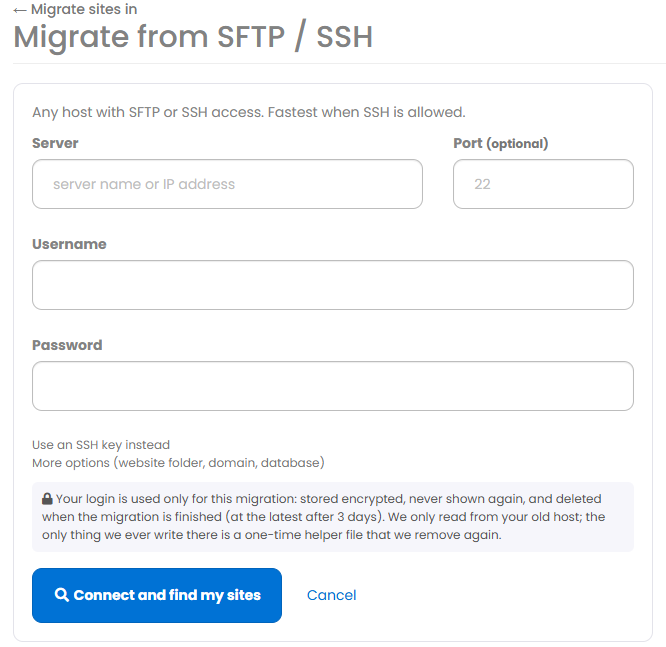
  • Access details for your current host: if your old host supports One-Click Login, just send us that. Otherwise, we’ll need wp-admin login credentials (username + password) for each site.
  • Your PBN LTD account email or username (so we know where to add the domains).
  • Whether you want us to update the nameservers for you:
  •   ↳ If yes — please include login access to your domain registrar.
  •   ↳ If no — we’ll notify you when the domains are ready in our system, you flip the nameservers yourself, then ping us back so we can finish the import.

⚠️ Important: Please double-check that the login details you send work. Broken or outdated credentials are the #1 cause of migration delays. Test the login yourself before sending it to us.

Once the nameservers are pointing to us and DNS resolves, we’ll upload your site backups, restore them on our hosting, and verify everything is working before letting you know.

⏱️ How Long Does It Take?

Depends on how many sites you’ve got in the queue and how many other customers we’re working through. We move sites in the order they come in, and we work through them as quickly as humanly possible. Most single-site migrations are turned around within a working day or two.

💡 Pro tip: Submit ALL your sites in one support ticket rather than separate ones — saves us (and you) a lot of back-and-forth and gets your queue moving faster.

✅ Before You Request A Migration — Checklist

  • You have working, up-to-date logins for every site you want moved.
  • The sites aren’t currently broken — we can’t migrate a site that’s already crashed (fix it first, then send it over).
  • You have enough free PBN hosting slots in your PBN LTD account for the sites you want migrated.
  • Your PBN LTD subscription is active (not on trial).

🔧 Alternative Migration Methods

WP-Vivid Pro is what we recommend (and we can give you our Pro license for free if you ask), but it’s not the only way to move a WordPress site. If your current host blocks migration plugins (some sketchy PBN hosts do this to make leaving difficult), you’ve got two solid alternatives:

🔌 All-in-One WP Migration Plugin

A very reliable free WordPress plugin for migrations. The free version is enough for most PBN sites because we provide a file manager to upload the archive directly. The Pro add-on adds Google Drive / OneDrive restore options and faster archive handling — worth the money if you’ve got bigger sites.

  • Install the plugin on your current site and run the export.
  • Download the backup archive (or upload to a third-party service).
  • Add your domain to your PBN LTD hosting dashboard.
  • Flip the nameservers — OR use PBN LTD’s temporary URL feature to access your new WordPress install before pointing the domain across.
  • Install the plugin on your new site, run the import, and enjoy.

📄 WordPress XML Export / Import

If your old host blocks migration plugins entirely, WordPress has a built-in XML export/import feature you can use. It’s a bit more manual but always works — because the tools are built into WordPress core, no host can block them.

⚠️ Heads-up: The XML method moves your content, images, posts, pages, and outbound links, but does NOT move your theme or plugins. You’ll need to reinstall those manually on the new site. For most PBN sites that’s fine — the content and link structure is what matters.

Quick XML migration steps:

  • On your old WordPress site: Tools → Export → choose “All content” → download the XML file.
  • Add your domain to your PBN LTD dashboard, but don’t update nameservers yet.
  • Access your new WordPress install via the PBN LTD temporary URL.
  • In the new site: Tools → Import → WordPress → upload the XML file and tick “download images”.
  • Check your permalink settings and general site settings match the old site.
  • Reinstall your theme and any required plugins.
  • Finally, update the nameservers at your registrar — and you’re live.

🛠️ Troubleshooting After Migration

Most migrations go smoothly, but here are the few things that occasionally trip people up — and how to fix each one fast.

🚧 One-Click Login Doesn’t Work

After any migration, PBN LTD’s One-Click Login (SSO) needs the PBN Login Helper plugin active on the migrated site. It’s the autologin plugin — it should be there after restore, but it can sometimes get deactivated. If SSO is broken, log in manually via yourdomain.com/wp-admin/ using the credentials shown in your PBN LTD dashboard, then go to Plugins, search for autologin, and reactivate it.

🖼️ Broken Images Or Mixed-Up Internal Links

If you migrated to a different domain than the old site, internal URLs might still point at the old domain. Install Better Search Replace, run a search/replace for the old domain → new domain, and untick “Dry Run” so it actually makes the changes. Sorts it in seconds.

🦠 Weird Errors Or MU-Plugins Acting Up

Some sketchy hosts install MU-plugins (Must-Use plugins) on every WP install they host — these can cause issues once moved. Use the PBN LTD File Manager to navigate to wp-content/mu-plugins. If the folder exists, rename it to mu-plugins-old — that disables them. Site usually springs back to life immediately.

🌐 SSL Or Site Not Loading Right After Migration

99% of the time this is just DNS propagation or your browser/device caching the old DNS. Quick checks:

  • Clear your browser cache and try in an incognito window.
  • Use a free proxy to view the site cleanly from outside your network — proxysite.com or hide.me/en/proxy both work well.
  • If it works through the proxy, it’s just cache or propagation — give it 10–30 minutes.
  • Remember: a VPN on your device doesn’t clear your browser cache — use a proxy site for a clean test instead.

📚 Further Reading On PBN LTD Migrations

Want more background on how our migration service works, or detailed walkthroughs of alternative methods? These two blog posts cover the topic in more depth:

📖 Related blog posts:

  • Free PBN Website Migrations — overview of our free migration service, what to expect, what we move, and when we can’t move everything (e.g. when migration plugins are blocked on your old host).
  • Best Way To Migrate A WordPress Website To Our Hosting — detailed walkthrough of DIY migration using the All-in-One WP Migration plugin and the WordPress XML export/import method, plus tips on fixing broken images, MU-plugins, and DNS propagation issues.

❓ Migration FAQs

Are migrations really free?

Yes — completely free for all paying PBN LTD customers (not those on trial). There’s no per-site charge, no limit, no upsell. It’s part of what you’re already paying for.

How many sites can I have migrated at once?

As many as you’ve got hosting slots for in your PBN LTD account. List them all in one support ticket and we’ll work through them in order.

How long does a migration take?

Depends on the queue and the complexity of your sites. Most single-site migrations are turned around within 24–48 hours, but it can be longer during busy periods. We always work as fast as humanly possible.

What if my old host blocks migration plugins?

Some PBN hosts deliberately block migration plugins to make it hard for customers to leave. If that’s your situation, use the WordPress XML export/import method instead (see Alternative Migration Methods above) — it’s built into WordPress core and can’t be blocked. We can still help on our end, too — just mention it in your ticket.

Will my SEO / outbound links / theme survive the migration?

Yes — when we use WP-Vivid Pro or All-in-One WP Migration, everything moves across exactly as it was: content, images, plugins, themes, settings, links. If we have to fall back to the XML method (when your old host blocks plugins), the content, images, posts, pages and outbound links all survive, but theme and plugins need reinstalling on the new site. We always move as much as we technically can.

Why does the One-Click Login break after migration?

Because the PBN Login Helper (autologin) plugin needs to be active on the migrated site for SSO to work. If it’s missing or deactivated after a migration, log in manually and reactivate it from the Plugins screen. We’ve got a separate KB article on fixing this if you’re stuck.

Can I keep my site online during the migration?

Yes — your site stays live on your old host the whole time you’re preparing the backup. Downtime only kicks in briefly when the nameservers switch over, and even then most visitors won’t notice because DNS caches keep them on the old IP until propagation completes.

Do I need to do anything special before requesting a free migration?

Just three things: (1) make sure you have working logins to all the sites you want moved, (2) the sites aren’t currently broken, and (3) you have enough free PBN hosting slots in your PBN LTD account.

Can you migrate sites from any host?

Yes — we’ve migrated sites from pretty much every PBN host and standard WordPress host going. The only real obstacle is when an old host actively blocks migration plugins; in those cases we use the XML method or other workarounds. Either way, we’ll get it done.

Do I have to use WP-Vivid Pro, or can I use another plugin?

WP-Vivid Pro is what we recommend (and we can give you our Pro license for free on request) because we know it works reliably with our hosting. But All-in-One WP Migration, UpdraftPlus, Duplicator and similar plugins all work fine — pick whichever you’re comfortable with for DIY migrations.


✅ Quick Summary

  • Two free options: DIY (about 10 mins) or let us do it (1 support ticket, zero effort).
  • DIY tool: WP-Vivid Pro — we can give you our Pro license for free on request via support ticket.
  • DIY steps: Export from old host → flip nameservers → import on PBN LTD → final cleanup (backup + restore in dashboard).
  • Final cleanup is essential — it removes old-host leftovers AND makes One-Click Login work.
  • For free migration: Submit a support ticket with domains, old-host logins, and your PBN LTD account info.
  • Alternative methods: All-in-One WP Migration plugin or WordPress XML export/import (great if your old host blocks plugins).
  • Cleanup issues: Reactivate the autologin plugin for SSO; use Better Search Replace for URLs; rename mu-plugins folder if needed.
  • Both options are free — paying PBN LTD customers only, not trial accounts.
  • This is for PBN LTD hosting only — NTCloud subdomain hosting works differently (DIY only).

✅ That’s it — you’re sorted! Whether you DIY in 10 minutes or hand it to us in a support ticket, moving your site to PBN LTD is painless. Any questions, the support team are one ticket away.

Share this article: