
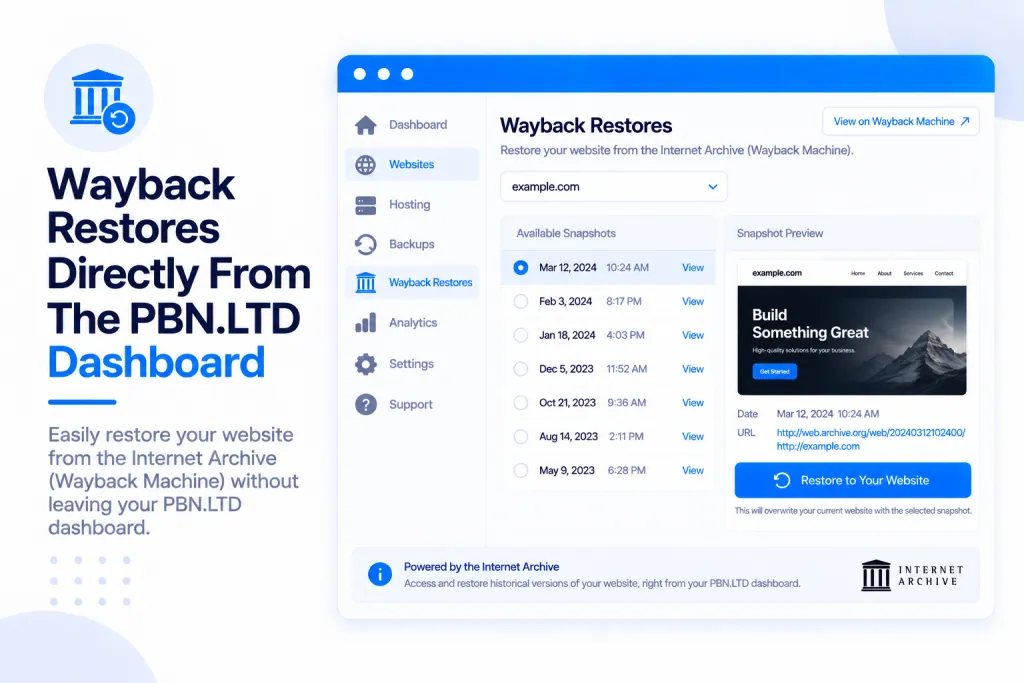
Short answer: the Wayback restore tool brings an old website back from the Internet Archive and rebuilds it on our servers — as a fast static HTML site, or converted to WordPress so you can keep publishing. Checking what the archive has is free; a restore is a $3 one-off per site (or cheaper with a pack).
💡 Heads-up
Looking up a domain in the archive costs nothing — you only pay when you actually restore. And if a restore fails before anything is put on your site, you’re refunded in full, automatically.
What a Wayback restore does
It rebuilds an old version of a website from the Internet Archive (web.archive.org). You enter the domain, pick a day from the archive’s calendar, see how many pages it holds, and we rebuild it on our servers.
As it rebuilds, we tidy it up for you: old analytics and ad codes, the archive’s own toolbar, and anything that looks like malware are all removed, and the images and styles are saved on your own site — so it’s properly yours, not hot-linked from the archive.
This is for sites that are gone. If the old site is still live somewhere, moving it across is usually better — see How To Migrate Your Site To PBN LTD.
Opening it
You can start a Wayback restore from a few places:
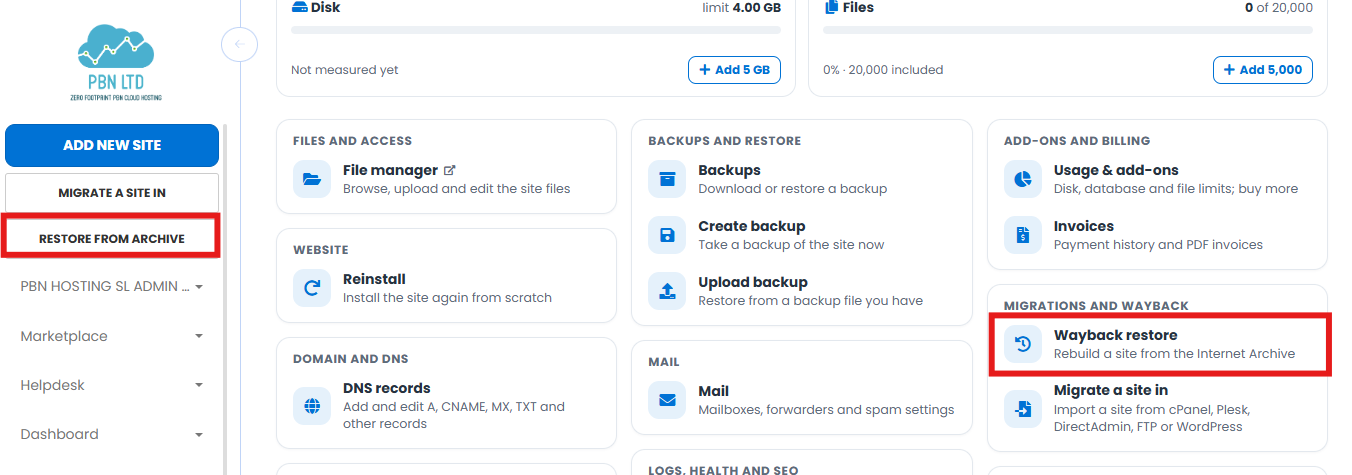
- RESTORE FROM ARCHIVE — the button under ADD NEW SITE / MIGRATE A SITE IN in your dashboard.
- A site’s Control panel — under Migrations and Wayback, click Wayback restore.
- The sites Actions menu — Restore from the Wayback Machine.
Static HTML or WordPress?
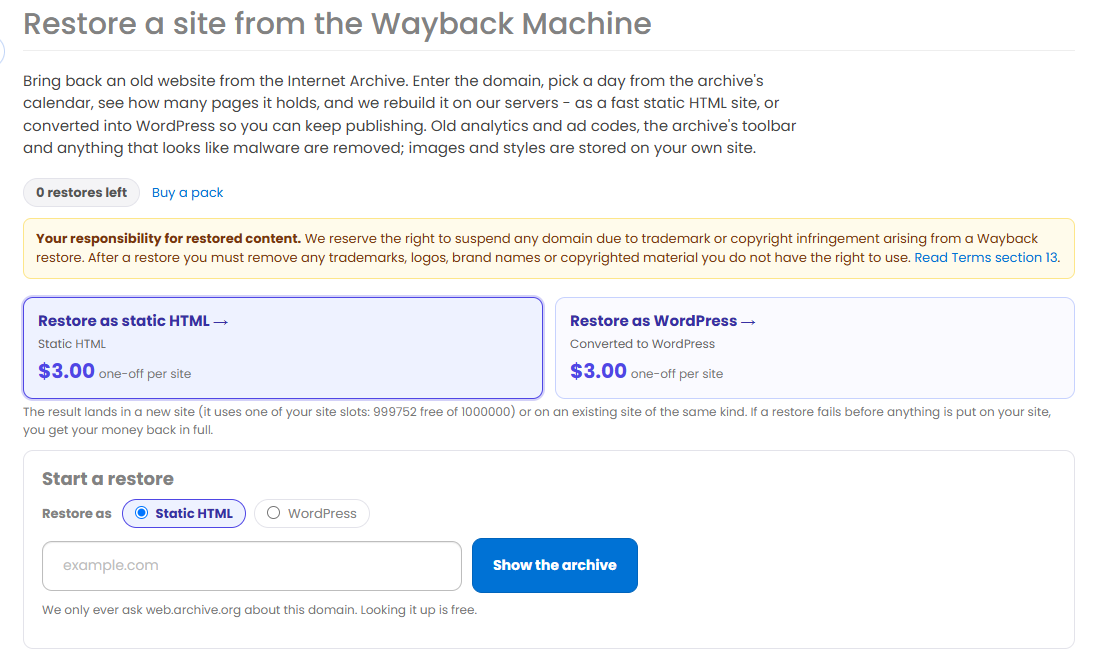
You choose how the site comes back — both are a $3 one-off per site:
- Restore as static HTML — a fast, lightweight copy of the site as it was. Ideal when you just want the pages back online.
- Restore as WordPress — the same content converted into WordPress (pages and posts dated as captured), so you can carry on editing and publishing.
The two boxes at the top of the page are buttons: click one to pick that type and it takes you straight to the domain box, carrying your choice through to the order. The result lands in a new site (using one of your site slots) or on an existing site of the same kind.
Doing a restore, step by step
- Open the Wayback page and click Restore as static HTML or Restore as WordPress.
- Enter the domain and click Show the archive — this lookup is free.
- Pick a date from the archive’s calendar and check the free preview of the pages and files found.
- Tick the Terms box, then pay the $3 — by card through FastSpring, with PayPal or with crypto — or let it use one of your pack restores.
- Watch progress on the restore’s page. When it’s done, use the buttons — Site control panel, View site and Admin login.
Restore packs (buy in advance)
If you know you’ll be doing more than the odd restore, restore packs work out cheaper than paying per restore. You buy a bundle of restores up front and they sit on your account ready to use whenever you like.
| Pack | Price | Per restore |
|---|---|---|
| 50 restores | $60 | $1.20 |
| 100 restores | $100 | $1.00 |
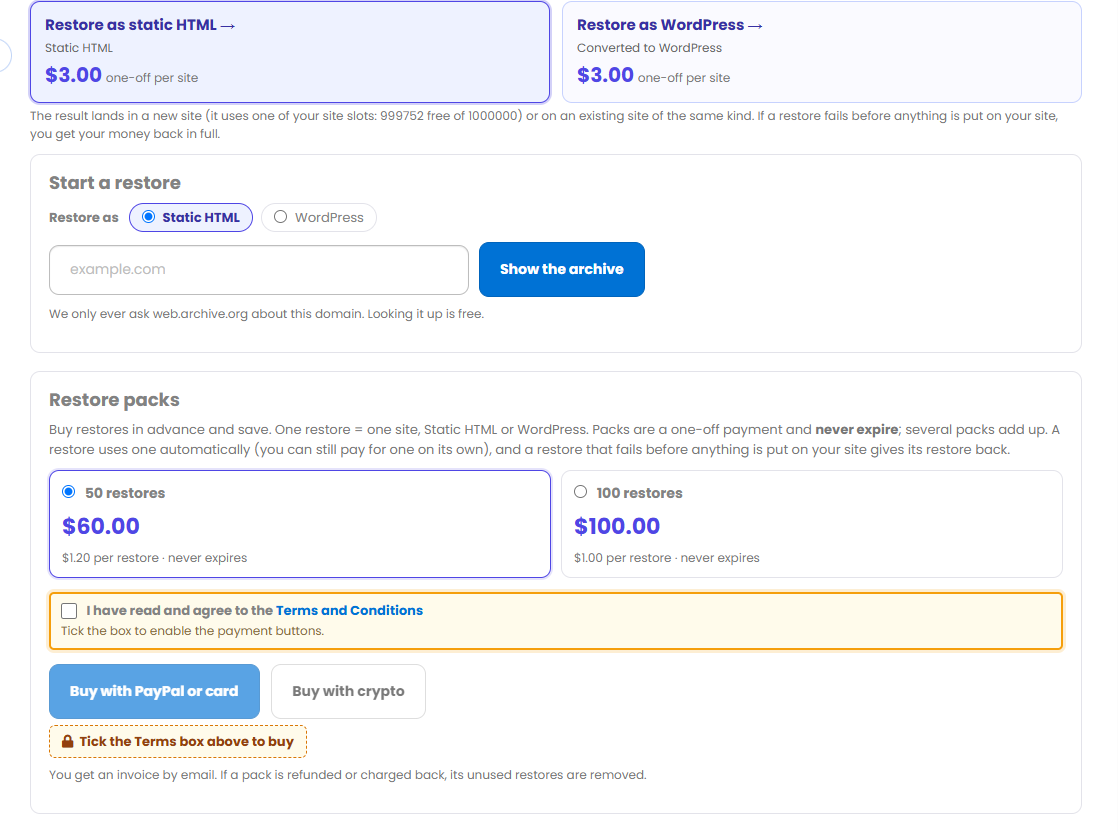
- Packs never expire — use them whenever you need to.
- They’re a one-off payment (card through FastSpring, PayPal or crypto), not a subscription, so nothing renews.
- Packs stack — buy more at any time and the restores add together.
- If a restore fails before it does anything, that restore is returned to your balance.
- You’ll get an invoice by email for every pack you buy.
Limits & what gets cleaned up
A single restore can bring back up to 1,000 pages and 3,000 files. If the snapshot you’re restoring is bigger than that, the restore covers as much as it can up to those limits.
A few things happen automatically to keep the restored site clean and safe:
- Restored pages come back as plain .html files.
- Tracking scripts and third-party junk are stripped out.
- Everything is malware-checked before it lands on your site.
The Wayback Machine itself can be slow, so a large restore can take a while — you’ll see progress as it works through the pages. If a restore fails before it has changed anything on your site, it’s refunded in full automatically. If you ever think a restore hasn’t completed properly, open a support ticket and we’ll take a look.
Your responsibility for restored content
⚠️ Only restore content you have the right to use. A Wayback snapshot may contain trademarks, logos, brand names or copyrighted material that belong to someone else. It’s your responsibility to remove anything you don’t hold the rights to before you put the site live. Domains found hosting infringing content can be suspended — see section 13 of our Terms.
✅ Quick summary: Checking whether a domain has Wayback snapshots is free. A restore is a paid add-on — $3 one-off per type (Static HTML or WordPress), or buy a restore pack up front to bring the price down. Restores are capped at 1,000 pages / 3,000 files, come back cleaned and malware-checked, and a restore that fails before touching your site is refunded automatically. You’re responsible for making sure you have the rights to any content you restore.
From the API or your AI assistant
Looking a domain up, starting a restore and ordering it with a restore credit also works from our API and from any AI assistant connected to your account (ask it, for example, “which days does the archive have for old-site.com?”). Give the key the wayback permissions; the same limits and checks apply as here.