
You don’t have to change your sites one at a time. From your main Sites list you can tick several sites — or every site matching a filter — and act on them all together: add them to a group, change their PHP version, turn HTTPS or www on or off, switch WordPress auto-updates on or off, clear the CDN cache, find and remove a file, or delete them.
💡 Heads-up
Every bulk action shows you exactly what will happen before it runs — how many sites, what will change, and any site that can’t be changed (with the reason). The destructive ones (deleting sites, or removing a file) make you type DELETE to confirm, so you can select freely and check everything first.
Selecting the sites you want
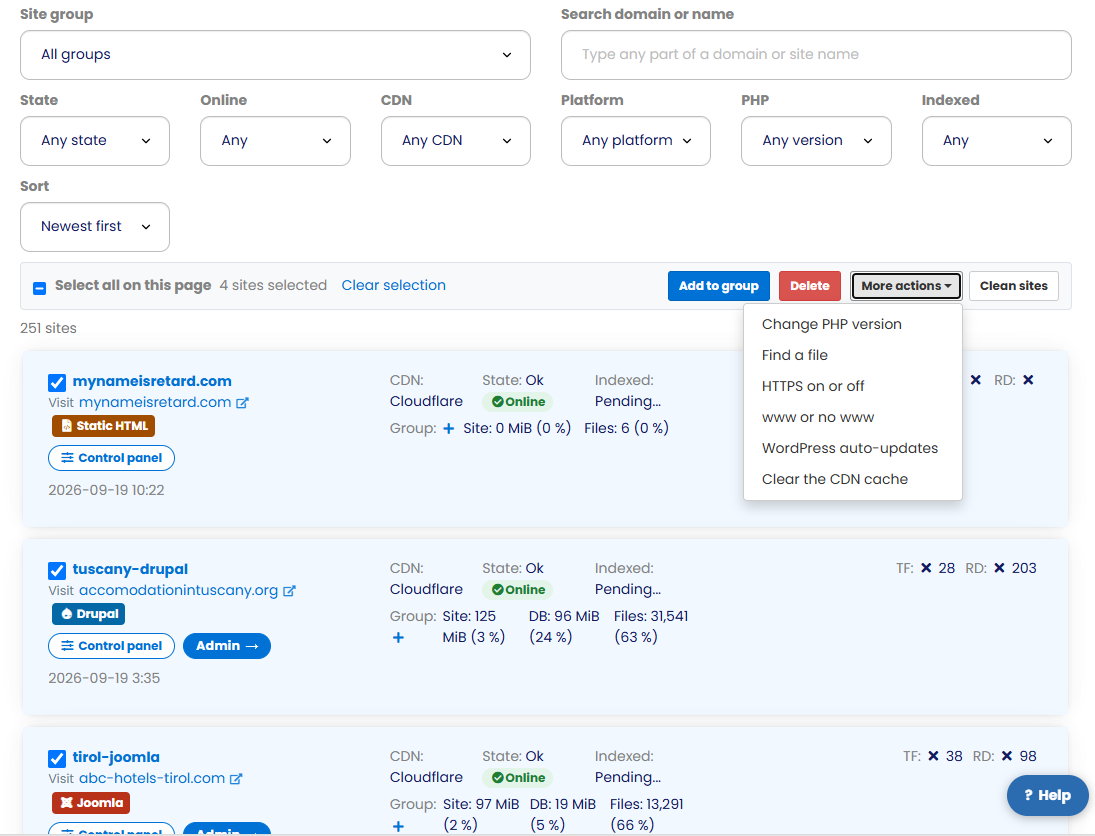
On your Sites list, every row has a tick box. Tick the ones you want and a bar appears above the list showing Select all on this page, Number sites selected, and — when your filter matches more sites than fit on screen — Select all Number of sites matching this filter (it names the real number). Clear selection starts over.
It works alongside the search box, all the filters, the sort and Load more — so you can, for example, filter to every WordPress site on a given plan and select them all in one go.
Add sites to a group
With sites selected, click Add to group. You can drop them into an existing group, create a new group by name, or take them out of their group. Groups are just a way to organise your sites so you can filter by them later.
Bulk changes: PHP, HTTPS, www and more
With sites selected, open More actions on the selection bar. From there you can:
- Change the PHP version (see how to update your site’s PHP version for choosing the right one).
- Turn HTTPS on or off (more in How to Enable & Use SSL (HTTPS)).
- Switch between www and non-www.
- Turn WordPress auto-updates on or off.
- Clear the CDN cache.
Every change is previewed first — how many sites, exactly what will change, which sites are already set that way, and any site that can’t be changed with its reason. It then runs in the background with a result line for each site, and one failure never stops the rest.
⚠️ Take care with PHP. A newer PHP version can break a site that still relies on old plugins or themes. If you’re changing a lot of sites, try it on one or two first and check they still load before doing the rest.
Find and remove a file
Also under More actions you can find a file across all the selected sites and then delete it — handy for clearing out something that ended up on lots of sites at once. The delete option only appears after a search has listed exactly where the file is, so you always see what you’re removing.
It needs DELETE typed to confirm, and a copy of every deleted file is kept for 30 days. WordPress’s own core files, our platform files, and anything outside the site itself are refused — so you can’t break the site’s core this way.
Deleting sites in bulk
You can also delete several sites at once with the Delete button on the selection bar. This is deliberately heavy-handed: it lists every domain that would go, spells out plainly that the website, files, database, mailboxes and mail, DNS and backups are all removed, and lists separately any site that won’t be deleted and why. You then have to type DELETE to confirm.
⚠️ Deleting is permanent. For every site removed, the website, its files, the database, any mailboxes and mail, the DNS and the backups all go — there’s no undo. Read the list of domains carefully before you type DELETE.
Once confirmed, a progress panel fills in site by site and then refreshes your list. Any site that can’t be deleted is named with the reason — for example it’s busy, frozen, already being deleted, has subdomain sites, is having a blueprint made, is deactivated, or is mid-operation. Each delete uses the same safe path as deleting a single site, so all the usual clean-up still happens.
✅ Quick summary: From your Sites list, tick several sites (or all matching a filter) and act on them together — add to a group, change PHP, toggle HTTPS, www or WordPress auto-updates, clear the CDN cache, find and remove a file, or delete. Every action previews what will happen first, the destructive ones need DELETE typed, and everything runs in the background with a result for each site.