
When the changes on a staging copy are ready, you copy them to the live site from the staging copy’s card. You choose what goes across: everything, only the database (content, settings, orders), or only the files (themes, plugins, uploads).
💡 Your live site stays visible to search engines
Nothing that keeps the staging copy hidden is ever copied to the live site. The staging address is replaced with the live address everywhere in the database, the live site’s own settings file is never touched, and its “discourage search engines” setting is put back to exactly what it was.
Copy staging to live, step by step
- Open Staging sites and find the staging copy.
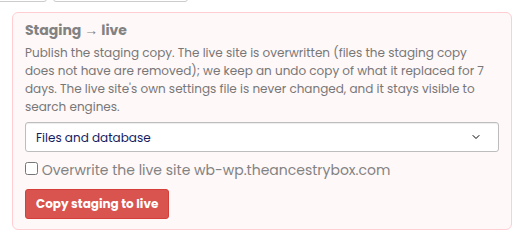
- Under Staging → live, choose Files and database, Database only or Files only.
- Tick Overwrite the live site and press Copy staging to live.
- The card shows Copying and updates by itself when it is done.
What each choice does
- Files and database: the live site becomes the staging copy.
- Database only: the live database is replaced by the staging one (posts, pages, settings, users, orders). Files stay as they are. Anything added on the live site since you made or refreshed the staging copy (a new order, a new comment) is replaced too – refresh staging with Database only just before you work, and publish soon after.
- Files only: the live files are made identical to the staging files, including removing files the staging copy does not have. The live database is not touched.
The live site keeps answering while the copy runs. A database is switched over in one step at the end, already with the live addresses in it, so visitors never see a page that points at the staging copy. Afterwards we clear the live site’s page cache and its CDN cache, so the new version shows straight away.
What is never copied to the live site
- The live site’s settings file (
wp-config.php) – its database login and security keys stay the live ones. - The staging copy’s own marker (the noindex and no-e-mail plugin) and its password protection.
- Page caches of the staging copy.
The undo copy
Before anything on the live site is overwritten, we keep a copy of the live database and of every file that is replaced or removed, for 7 days. If a copy to live was a mistake, contact support and we put the live site back as it was.
After publishing
- Open the live site and check it as a visitor would.
- The staging copy stays as it is: keep working on it, refresh it from live, or remove it to free its slot.