
Instead of typing your password you can ask for a sign-in link: we e-mail it to the address on your account, you open it, and you are in. It is optional – your password keeps working exactly as before.
💡 Safe by design
A link works once and only for ten minutes. If two-factor authentication is on, you are still asked for your code after the link.
What’s in this guide
Signing in with a link
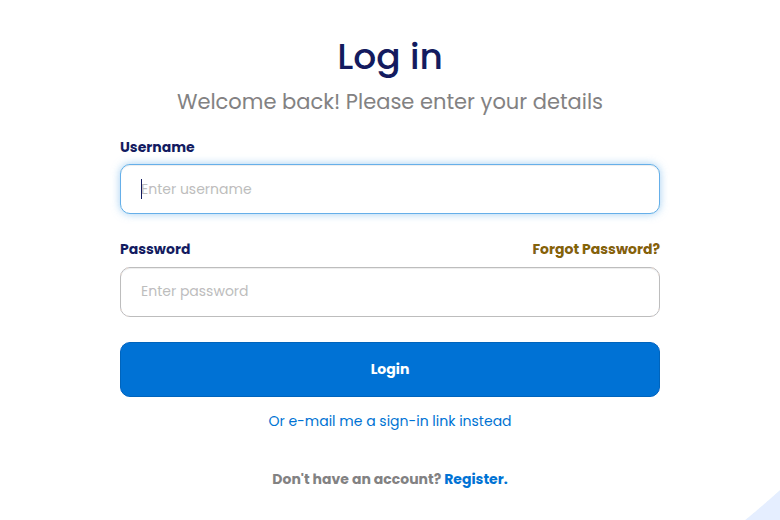
- Open the sign-in page and press Or e-mail me a sign-in link instead.
- Type the e-mail address of your account and send. We always answer the same way, whether or not the address has an account, so nobody can use the form to find out who is a customer.
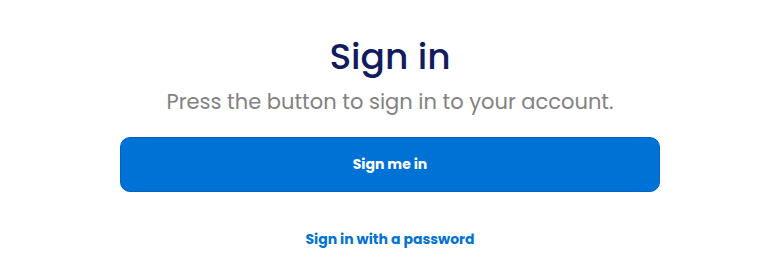
- Open the e-mail and press the link within ten minutes.
- Press Sign me in. (The extra press stops e-mail scanners that open links from using your link up.)
From inside your account
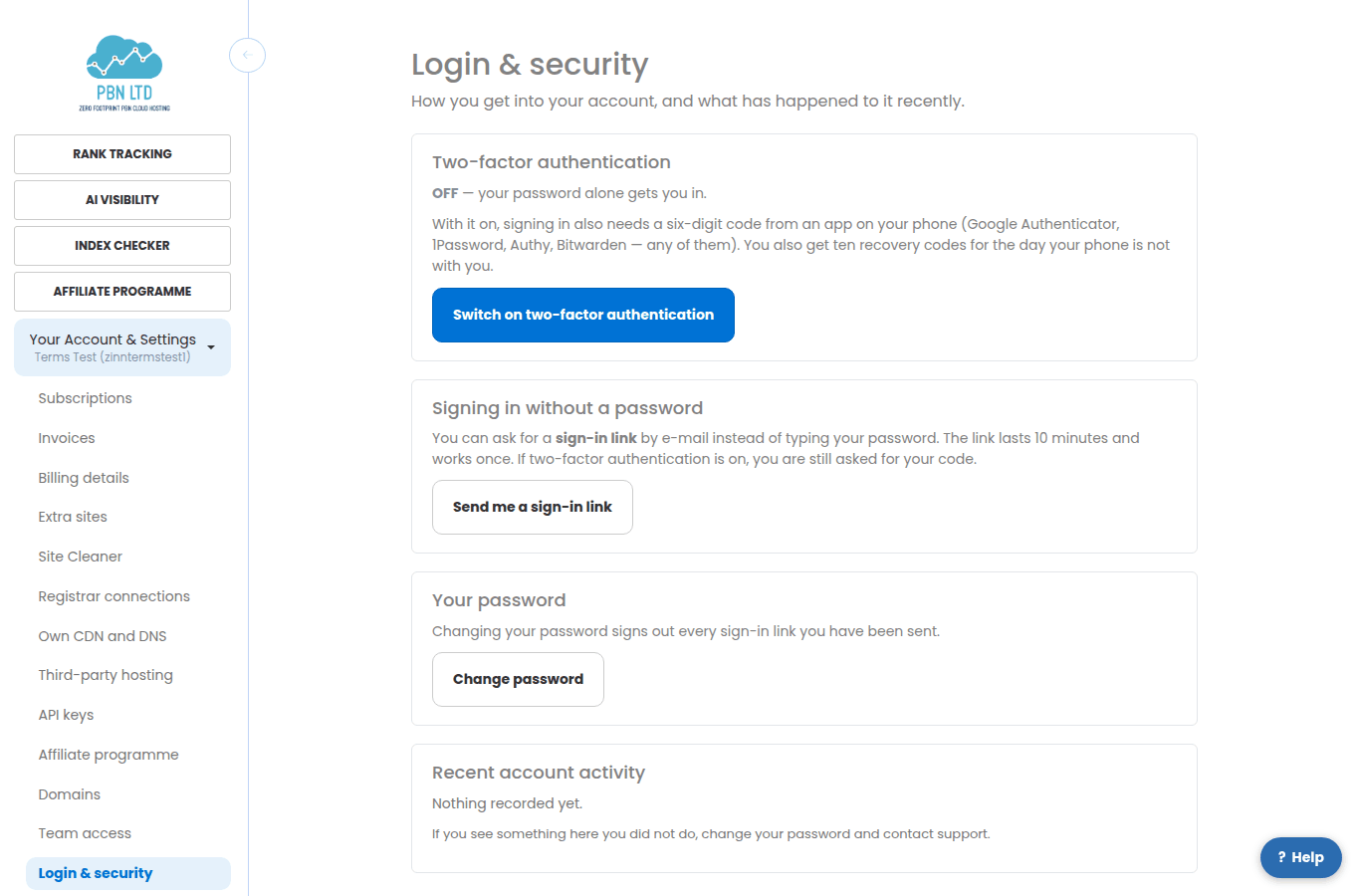
Your Login & security page (Your Account & Settings) has a Send me a sign-in link button – handy for signing in on another device – and lists the recent sign-ins and links sent, so you can see if anything happened that you did not do.
Questions
- The link says it has expired. Links last ten minutes and work once; ask for a new one.
- No e-mail arrived. Check spam, and that you typed the address on your account. Changing your password cancels every link already sent.
- Can I switch passwords off? No – a link is an extra way in, not a replacement.