
A staging site is a private copy of one of your live sites. You try plugin and theme updates, a redesign or new content on the copy, look at the result in your browser, and only when you are happy do you copy it to the live site. Nothing you do on a staging copy can be seen by your visitors or by search engines. Staging is an add-on for your whole account: one monthly price covers several staging sites at the same time.
💡 Search engines never see a staging copy
Every staging copy is behind a password, answers every request with a noindex header, serves its own robots.txt that blocks everything, and has WordPress set to discourage search engines. When you copy it to the live site, all of that stays behind: the live site keeps its own settings and stays exactly as visible to search engines as it was.
Add staging to your account
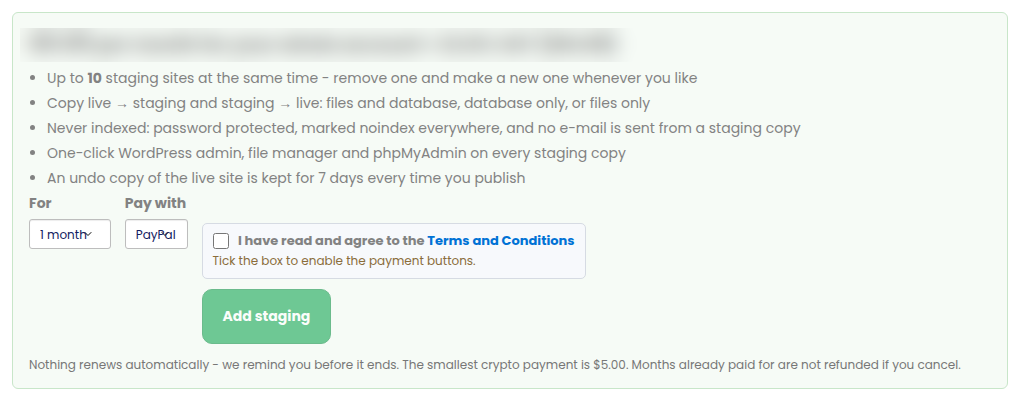
Open Staging sites from the menu (or from a site’s Usage & add-ons tab). The page shows what the add-on includes and its current price. Choose how many months, how you want to pay, tick the Terms and press Add staging. Nothing renews by itself – we e-mail you before it ends.
Create a staging copy
- Under Create a staging copy, choose the site you want to copy. Sites that cannot be staged are listed with the reason.
- Give it a name if you like (for example new theme test).
- Press Create staging copy. A typical WordPress site takes a few minutes; the page updates by itself when it is ready.
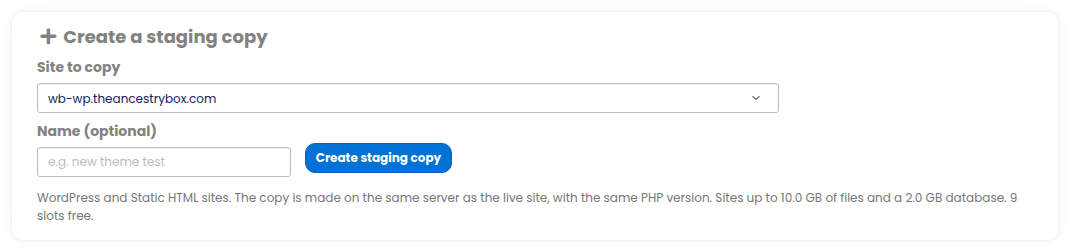
The copy is made on the same server as the live site and runs the same PHP version, so what you see on staging is what the live site will do. Every file and the whole database are copied; every address of the live site inside the database (including the ones page builders store in their own formats) is changed to the staging address, so the staging copy never sends you back to the live site.
Work on the staging copy
Each staging copy has its own card with everything you need:
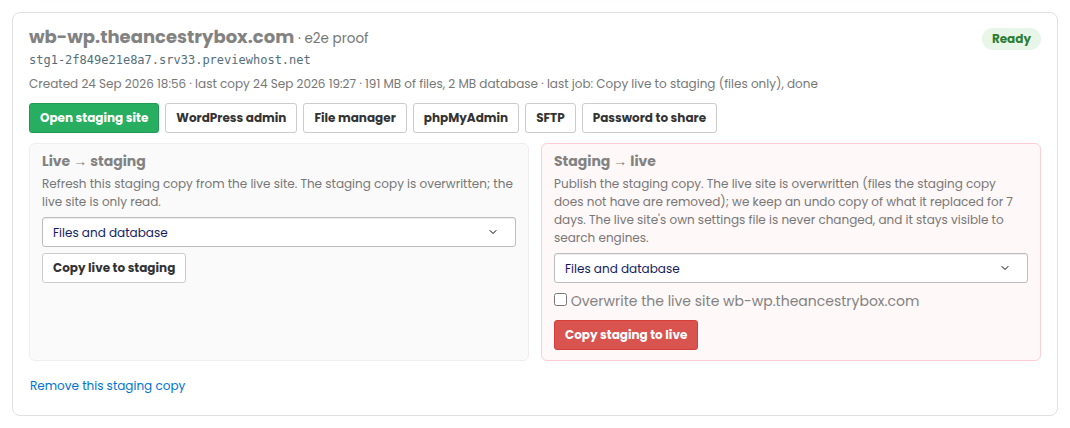
- Open staging site opens the copy in your browser, already unlocked for you.
- WordPress admin logs you straight in to the staging copy’s dashboard (a single-use link, like the one on your live site). The staging copy has the same users and passwords as the live site had when it was copied.
- File manager and phpMyAdmin work exactly as on your live site, on the staging copy’s own files and database. Open the staging site first in the same browser. phpMyAdmin uses the database login shown on the live site’s page.
- SFTP shows the host, port, username and password for the staging copy. The login only ever sees the staging copy’s own folder. For your security the password is shown only once, when it is set: copy it then. Lost it? Reset password sets a new one straight away.
- Password to share shows a username and password you can give a colleague or a client so they can look at the staging copy too.
A staging copy sends no e-mail (so a test order or a form test never reaches a real person) and shows a red STAGING COPY badge in the WordPress admin bar, so you always know which site you are on.
Refresh the staging copy from the live site
Under Live → staging choose Files and database, Database only or Files only and press Copy live to staging. The live site is only read; the staging copy is overwritten. Use Database only to pull the latest posts, orders and comments into staging without touching the theme or plugin files you are working on.
Copy the staging copy to the live site
When you are happy, use Staging → live. This is explained step by step, with what exactly changes on the live site, in Copy a staging site to live.
How many, how big, and removing a copy
- You can have up to your add-on’s number of staging copies at the same time, of the same site or of different sites. Remove this staging copy deletes its files and database; its slot is free again straight away and you can make a new one.
- Staging works for WordPress and Static HTML sites. A Static HTML site has no database, so its copies are always files only. WordPress multisite is not supported.
- Very large sites have a size limit (shown under the create form).
- A staging copy is a copy: it is not backed up separately. Your live site keeps its normal backups, and every copy to live keeps an undo copy of what it replaced for 7 days.
- If the live site is deleted, or moved to another server, its staging copies are removed too. If the add-on ends, your staging copies are paused (nothing is deleted) and removed 14 days later unless you renew.