
Turnstile is a bot check for your WordPress site’s forms. It adds a small Verify you are human box to the login, registration, lost-password and comment forms, and to the forms of the common form plugins (Contact Form 7, WPForms, Elementor Pro, Spectra, Ninja Forms and more – see the list below), and refuses any submission that did not pass it. Bots that guess passwords, create fake accounts or fill your inbox with spam are stopped at the form – and real visitors almost never have to click anything. It is included with your hosting.
💡 Switching it on takes one click
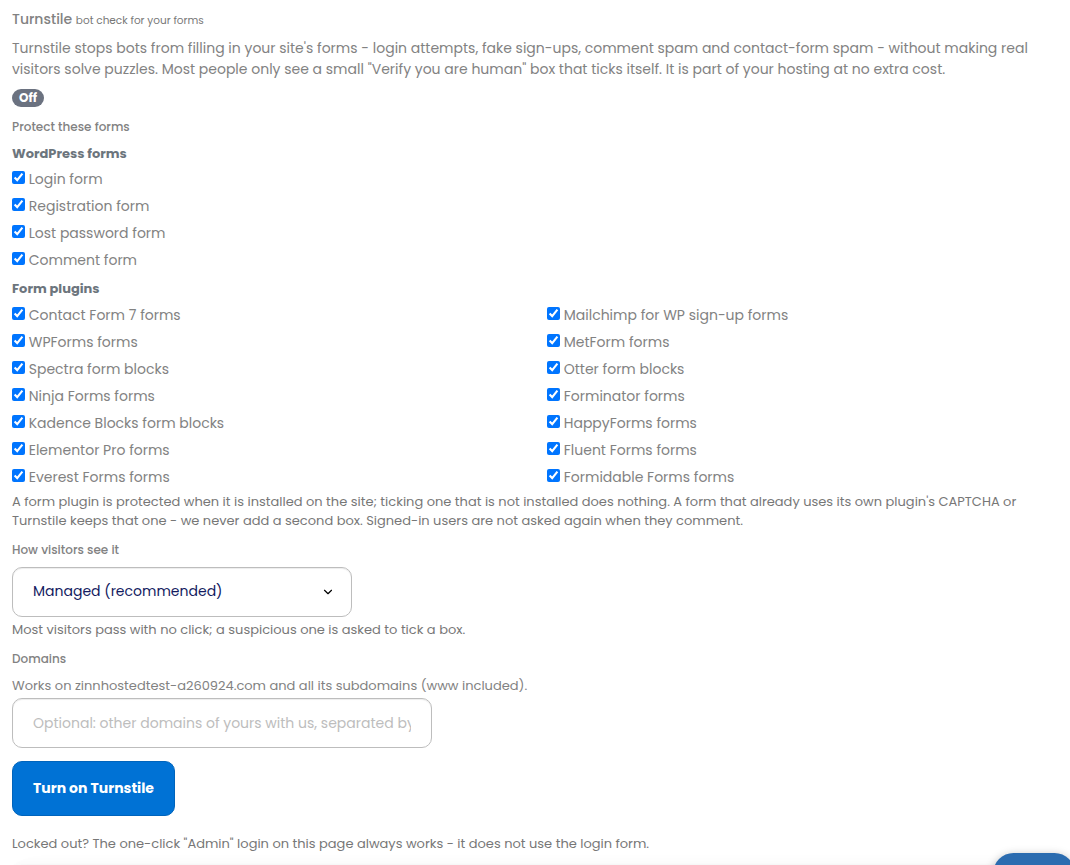
Open your site, choose the Turnstile tab and press Turn on Turnstile. We create the keys, install everything on your site and check it worked – there is no plugin for you to install or configure.
Switching Turnstile on
- Open your site in the dashboard and choose the Turnstile tab.
- Tick the forms you want protected (all of them are ticked for you).
- Choose how visitors see the check (see below) – Managed suits almost everyone.
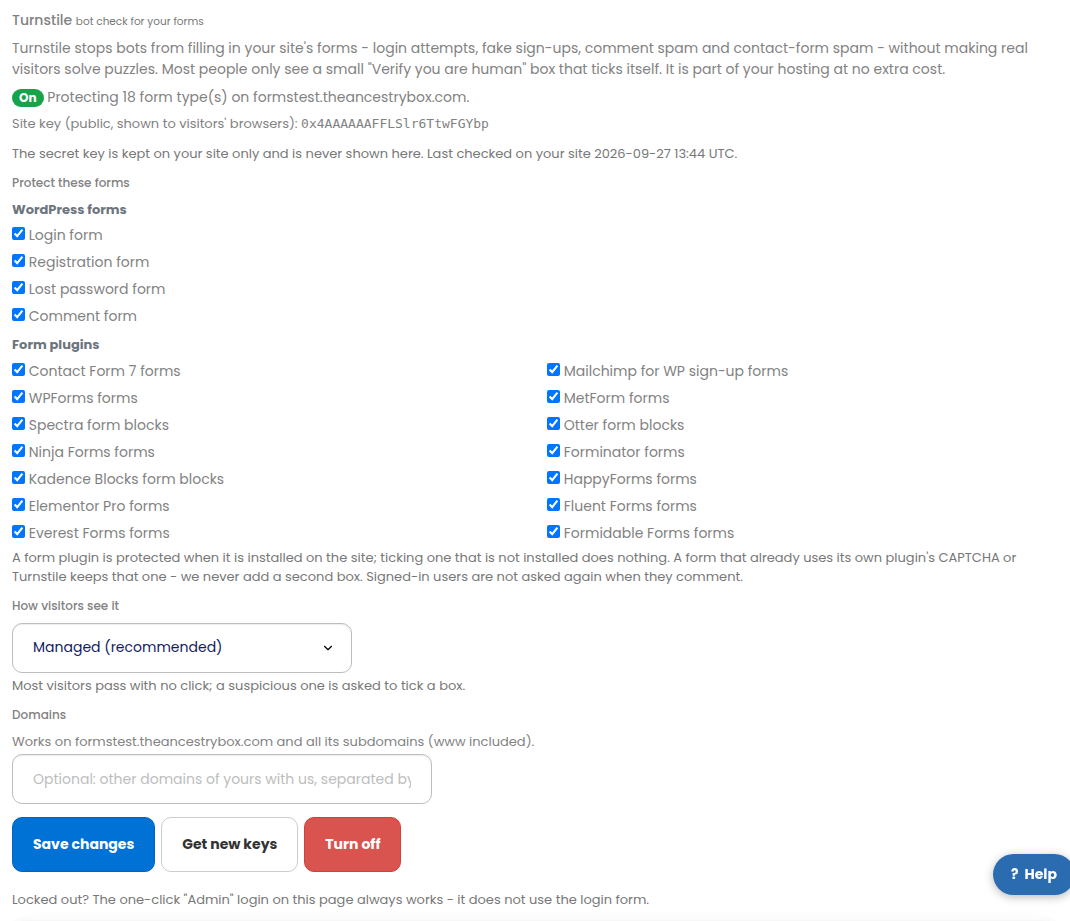
- Press Turn on Turnstile. After a few seconds the tab shows On and lists what is protected.
Which forms it protects
- Login form – stops password-guessing bots. It works on your own login address too, if your site uses a custom one.
- Registration form – stops fake accounts.
- Lost password form – stops bots flooding your users with reset e-mails.
- Comment form – stops comment spam. Signed-in users are not asked again.
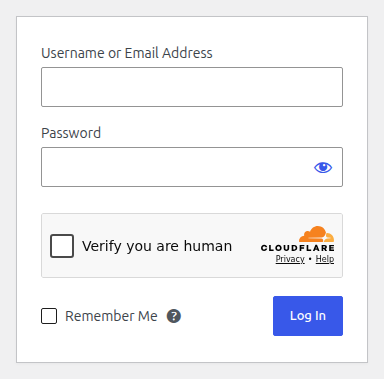
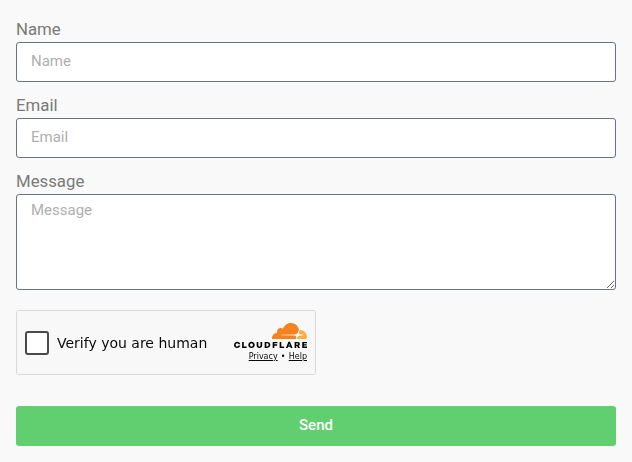
- Form plugins – stops contact-form and sign-up spam in the forms of Contact Form 7, WPForms, Elementor Pro, the Spectra form block, Ninja Forms, the Kadence Blocks form block, Everest Forms, Mailchimp for WP sign-up forms, MetForm, the Otter form block, Forminator, HappyForms, Fluent Forms and Formidable Forms, whenever that plugin is installed on the site. The box appears just above the form’s send button, and a visitor who has not passed it sees Please complete the security check instead of their message being sent.
If one of your forms already uses its own plugin’s CAPTCHA or Turnstile, that form keeps it and we do not add a second box. Gravity Forms, Jetpack forms, the Kadence Advanced Form block and the Divi contact form are not covered yet.
You can change the selection at any time on the same tab and press Save changes. Ticking a form plugin your site does not have does nothing.
How visitors see the check
- Managed (recommended) – most visitors pass without clicking; a visitor that looks suspicious is asked to tick a box.
- Non-interactive – visitors see the box working but never have to click it.
- Invisible – nothing is shown at all; the check runs in the background.
Domains
Turnstile works on your site’s domain and all of its subdomains, www included. If the same WordPress also answers on the domain of another of your sites with us, add that domain in the Domains box.
When we switch it on for you
- When bots abuse a form – if a site’s contact or comment forms keep sending spam with dangerous links (five or more such messages in a day), we switch Turnstile on for the comment form and for the forms of all the form plugins above, check that it works and send you one short e-mail. Your login page is not changed.
- New sites with a contact form – a new WordPress site that has one of the form plugins above gets Turnstile on its forms from the start.
- Either way it is your choice: open the site’s Turnstile tab to change the forms or press Turn off. Once you have switched it off we never switch it back on by ourselves.
Keys, changes and switching off
- Get new keys replaces the keys at once; your site receives the new ones automatically. Use it if you think a key has leaked.
- The site key shown on the tab is public – it is part of every page with the check. The secret key is kept on your site only and never shown.
- Turn off removes Turnstile from every form on the site and deletes the keys. You can switch it back on at any time.
- We check your site daily and put Turnstile back in place if a restore or an update removed it.
Sites on your own Cloudflare account
If a site uses your own Cloudflare account (connected on the Own CDN & DNS page), Turnstile is created in that account. Your Cloudflare API token then needs one more permission: Account · Turnstile · Edit, with Account Resources set to include your account. Edit the token in Cloudflare (My Profile → API Tokens), add the permission and save – the token stays the same, so there is nothing to re-enter with us. The Own CDN & DNS page shows whether the permission is there after the next check.
If you cannot log in
The one-click Admin login on your site page always works – it does not use the login form, so Turnstile never stands in its way. If the check will not load for you (for example a browser extension blocks it), use one-click login and switch Turnstile off or change the mode, or contact support.