
Besides searching one name at a time, the Domains pages let you paste a whole list and buy every name that is free in one order, and transfer in a domain you own at another registrar so all your domains sit with your sites.
💡 No account needed to search
Domain search and bulk search work without signing in; you create your account at checkout.
What’s in this guide
Bulk search: a list at once
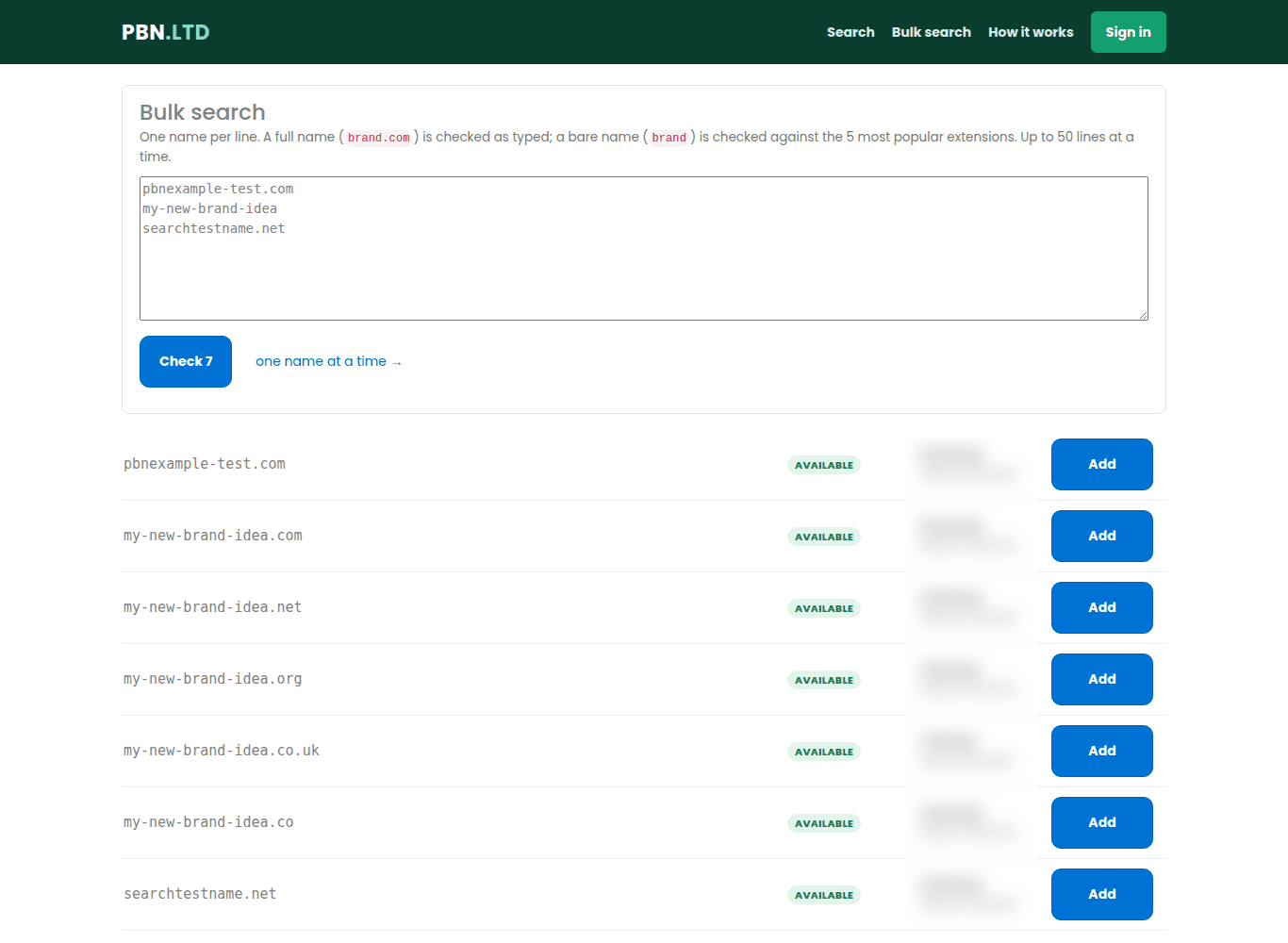
- Open Bulk search (Marketplace → Domains → Bulk search inside your dashboard).
- Paste one name per line, up to 50. A full name (
brand.com) is checked as typed; a bare name (brand) is checked against the five most popular extensions. - Press Check. Every name shows whether it is available, with its first-year and renewal price.
- Press Add on each one you want, then check out once for all of them.
Transferring a domain in
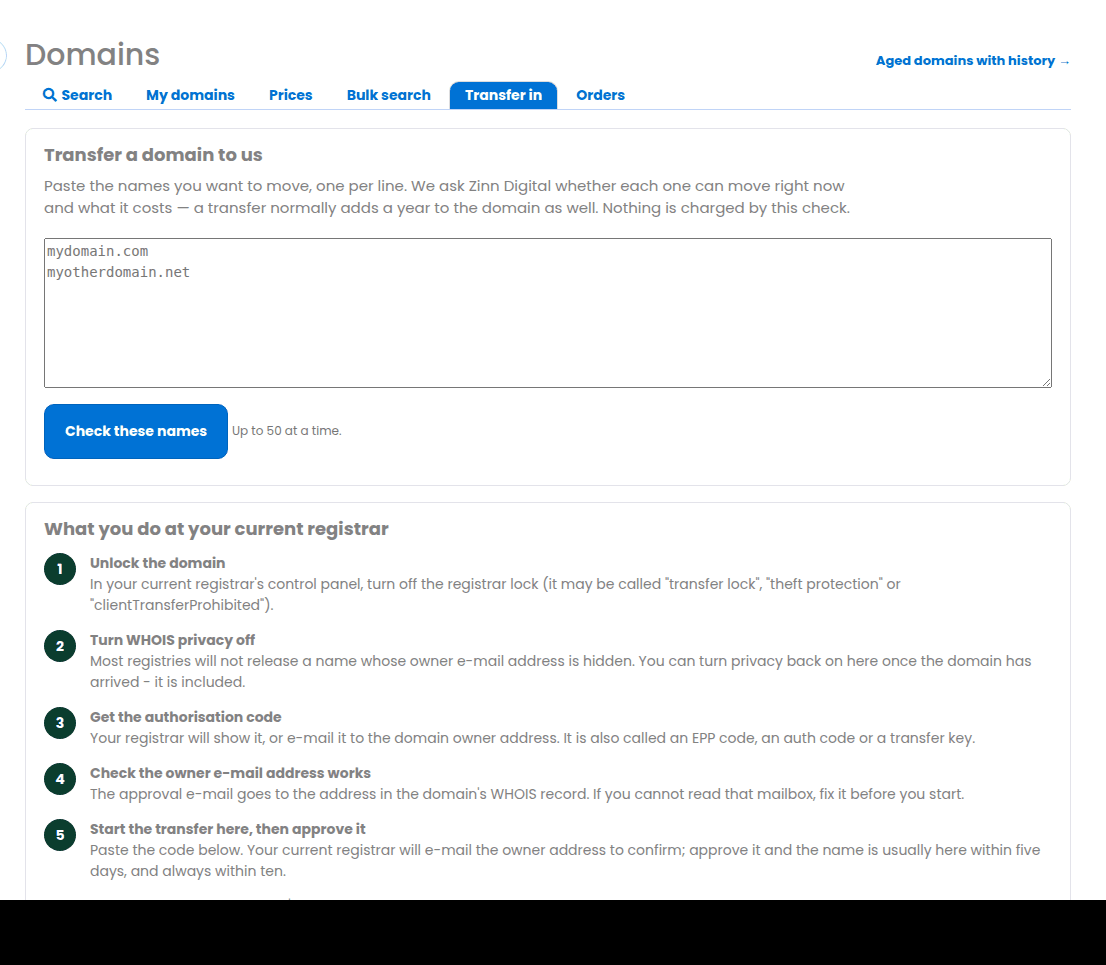
Open Transfer in, paste the names you want to move and press Check these names. We check whether each one can move right now and what it costs – nothing is charged by the check. A transfer normally adds a year to the domain.
At your current registrar, before you start:
- Unlock the domain (the transfer or registrar lock).
- Turn WHOIS privacy off for the transfer – you can switch it back on here once the domain has arrived.
- Get the authorisation code (also called an EPP code, auth code or transfer key).
- Check the owner e-mail address works – the approval e-mail goes there.
- Start the transfer here with the code, then approve it in that e-mail. The name usually arrives within days, and always within ten.
A domain cannot move in its first 60 days or within 60 days of its last transfer – that is a registry rule. Your site keeps working throughout: a transfer changes who bills you, not where the domain points.
After it arrives
Transferred and newly registered domains are listed under My domains, where you manage nameservers, DNS records, contact details, renewal and the transfer code. A domain registered here is pointed at your site automatically.