
A cron job runs a task for your site on a schedule – for example WordPress’s own scheduled tasks (publishing scheduled posts, sending newsletters), a PHP script that imports a feed every night, or a command that tidies up old files. Jobs run on the server, as your site’s own user, in the site folder and with the site’s PHP version, so they run on time even when nobody visits the site. Cron jobs are included with every plan and work on every site type.
💡 Where to find it
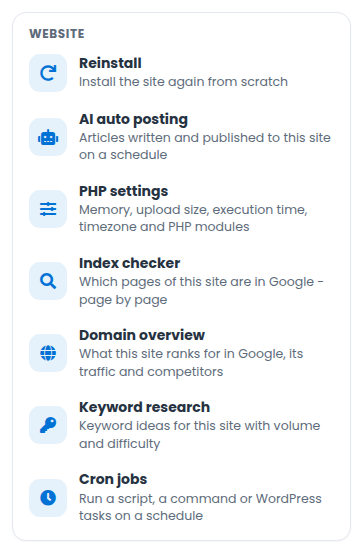
Open your site and click the Cron jobs tile (or Cron jobs in the site menu). To see every job on your account, choose Sites → Cron jobs.
Adding a cron job
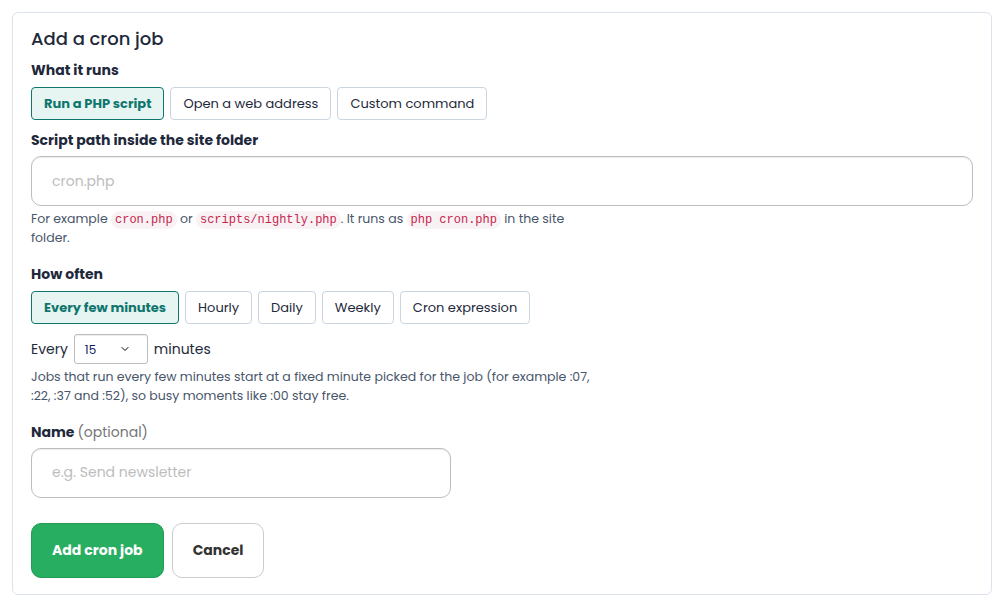
- Open your site and click the Cron jobs tile.
- Under What it runs, choose one of the options below and fill in the box it shows.
- Under How often, choose every 5, 10, 15, 20 or 30 minutes, hourly, daily, weekly, or type a cron expression.
- Give it a name if you like, and press Add cron job. It is live on the server within a minute, and the card shows when it runs next.
What a job can run
- Run WordPress scheduled tasks (WordPress sites) – runs
wp cron event run --due-now, which publishes scheduled posts, sends scheduled e-mails and runs whatever your plugins have scheduled. Tick Also stop WordPress running these tasks on page visits (recommended): pages then load faster, because WordPress no longer does this work while a visitor waits, and the tasks still run on time. The setting is taken off again if you delete or switch off the job. - Run a PHP script – a path inside the site folder, for example
cron.phporscripts/nightly.php. It runs asphp cron.phpwith the site’s PHP version. (Not for Static HTML sites.) - Open a web address – opens an
https://orhttp://address, for example a shop’s or a plugin’s cron URL. An error page (4xx or 5xx) counts as a failed run. - Custom command – any one-line command, run by
shin the site folder, for examplephp bin/console app:syncorfind tmp -mtime +7 -delete. For anything longer, put it in a script file and run that.
Commands start in the site folder, so use paths relative to it (for example wp-content/uploads).
Choosing when it runs
- All times are UTC. The page shows the time in UTC now, so you can work out yours.
- Every few minutes jobs start at a fixed minute picked for the job – for example :07, :22, :37 and :52 for every 15 minutes – so they do not all start on the hour.
- Cron expression takes the usual five fields: minute, hour, day of month, month, day of week. Examples:
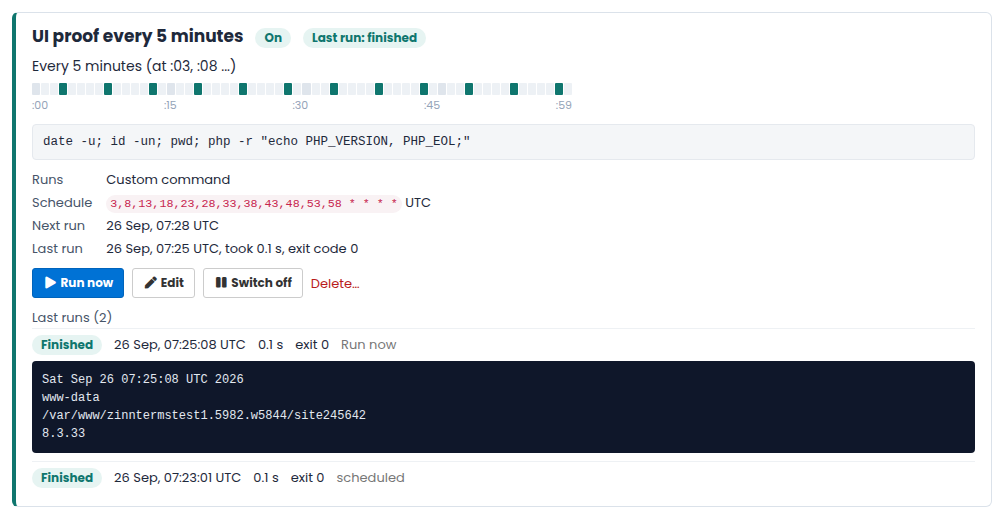
*/10 * * * *every 10 minutes,30 2 * * *at 02:30 every day,0 9 * * 1-5at 09:00 on weekdays,0 3 1 * *at 03:00 on the 1st of the month. - The ribbon on each job shows the minutes of the hour it starts at.
Run now and the last runs
- Run now starts the job straight away – handy to try a new job. The page shows the result by itself as soon as the run finishes.
- Last runs lists the last runs of each job with the time, how long it took, the exit code (0 means it worked) and its output. For long output the start and the end are kept.
- A run shows as Finished, Failed (the command ended with an error), Stopped at the time limit, Skipped (the previous run was still going) or Could not start (for example the site was not running).
Limits
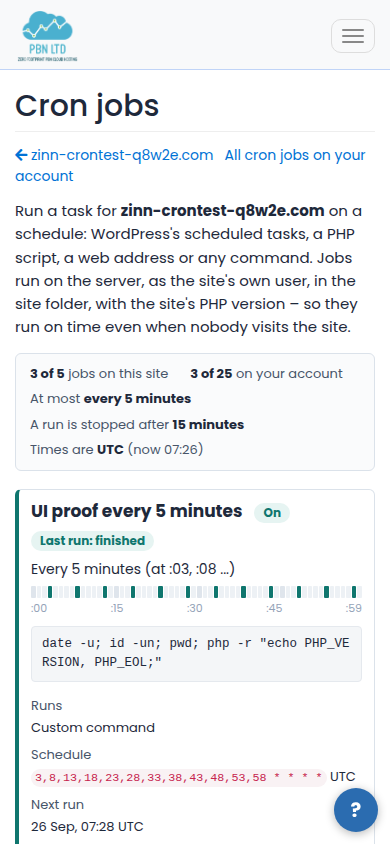
- Up to 5 cron jobs per site and 25 per account.
- A job can run at most every 5 minutes.
- A run is stopped after 15 minutes. If the last 3 runs of a job were all stopped, the job is paused and we e-mail you – make it shorter or run it less often, then switch it on again.
- Runs never overlap: if a run is still going when the next one is due, the next one is skipped.
Changing, pausing and deleting
- Edit changes what a job runs or when.
- Switch off stops a job without deleting it; Switch on starts it again.
- Delete removes the job and its history (a run already going finishes).
- While a site is frozen or suspended its cron jobs are paused by themselves, and they start again when the site is back.
API and AI assistants
Cron jobs are in the PBN.LTD API and the MCP server: list, add, change, run now, read the runs and delete, with the scopes cron:read and cron:write. So an AI assistant connected to your account can set up a job for you when you ask it.