
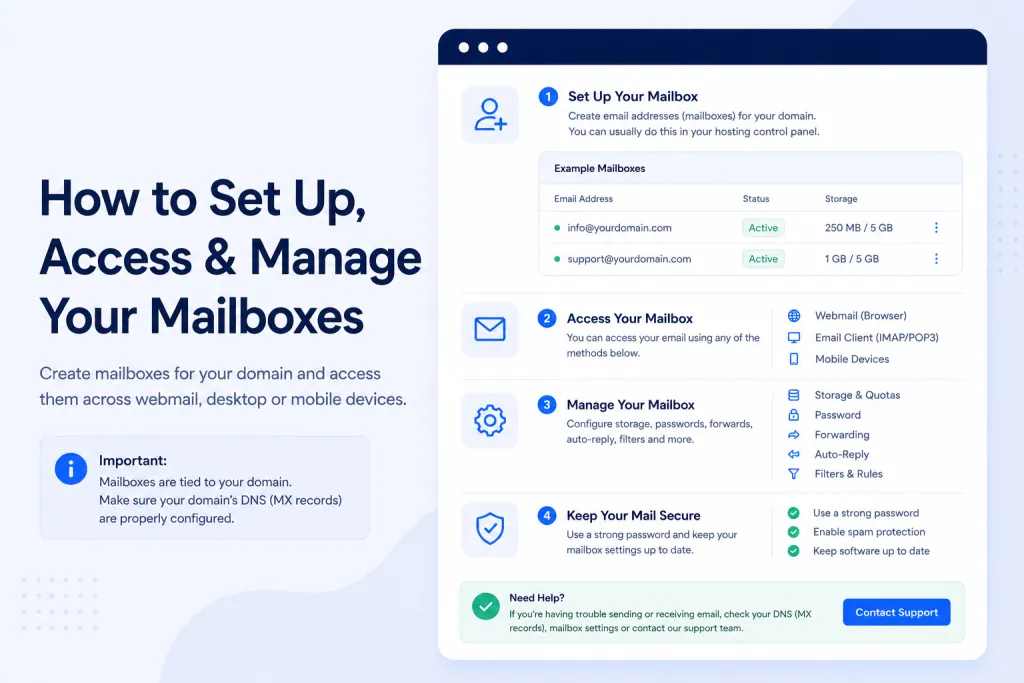
Short answer: every PBN LTD site can have email at its own domain — real mailboxes on our own mail servers that you read and send from (webmail included). Every site gets one 1 GB mailbox free; more mailboxes and more space are add-ons. Everything is on the site’s Mail tab.
💡 Heads-up
Email is optional. Your website sends its own mail (contact forms, password resets, order emails) whether or not you set up a mailbox. You can add a mailbox whenever you like — you don’t have to decide when you create the site.
What’s in this guide
- Do I need an email account?
- Opening the Mail tab
- Setting up mail and creating a mailbox
- Reading your email — webmail and mail apps
- Forwarders, catch-all and out of office
- All your email domains: the Mail page
- Deleting a site deletes its email
- Removing email from a site (and keeping the site)
- More mailboxes, more space, or another provider
Do I need an email account?
- Without a mailbox — your website still sends its own mail (contact forms, password resets, order emails). It goes out from our shared sending address with your domain in the From line.
- With a mailbox — you get a real inbox at your own domain (for example
[email protected]) that you read and send from like any other email account.
If people need to write to you at your domain, you have two choices. Only want the mail passed on to an inbox you already use (Gmail, Outlook, Microsoft 365, …)? Add a forwarder — no mailbox is needed. Want an inbox at your own domain that you read and send from? Set up a mailbox — the first 1 GB mailbox is free.
Opening the Mail tab
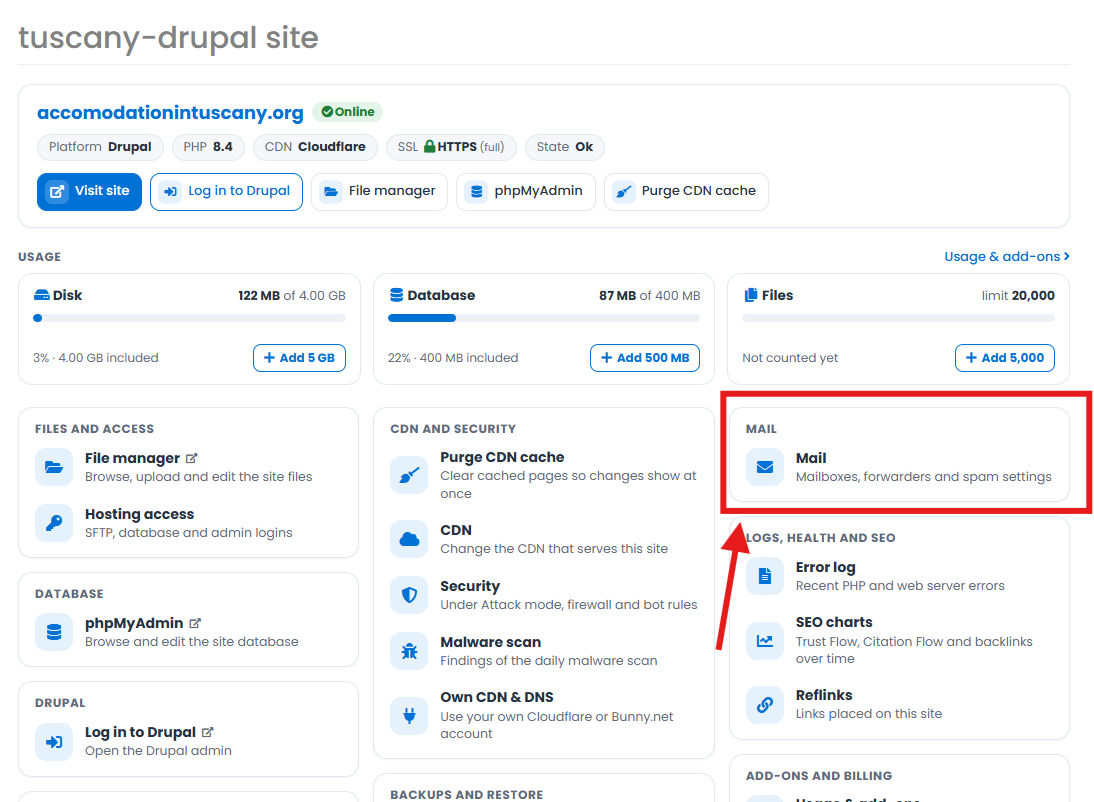
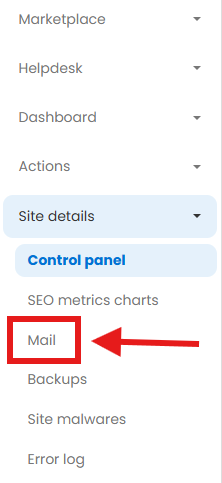
Open the site from your dashboard (click its name) to land on its Control panel. Then either click the Mail card, or use the left-hand menu under Site details → Mail.
Setting up mail and creating a mailbox
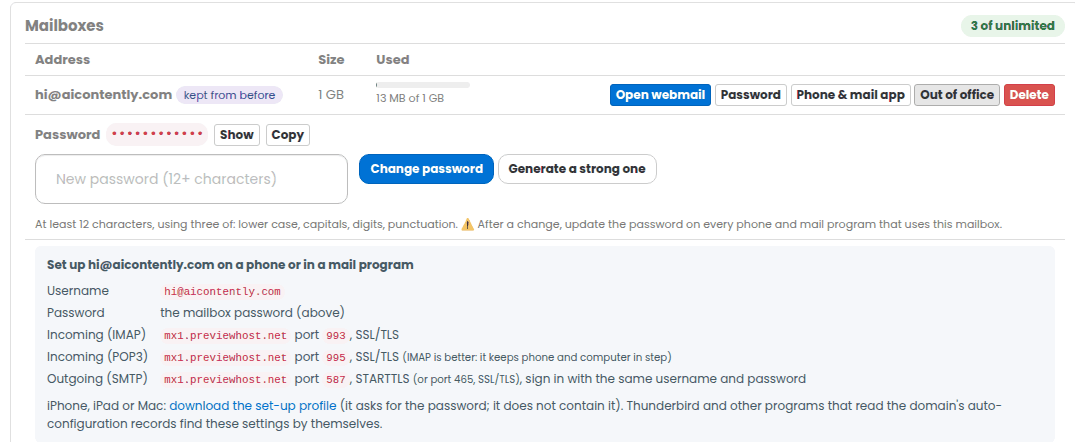
If the site has no mail with us yet, the Mail tab shows PBN.LTD Mail with a button to set up mail for this site. Once mail is set up, the Your PBN.LTD mailboxes panel lists every mailbox. To add one, type the part before the @ (for example info or sales — your domain is added for you), choose a password or click Generate a strong one, and click Create mailbox.
Reading your email — webmail and mail apps
The quickest way is Open webmail next to a mailbox: it opens the inbox in your browser, no setup needed. Each mailbox also shows its password (hidden until you click Show) and lets you change it.
Prefer Outlook, Apple Mail, Thunderbird or the mail app on your phone? Each mailbox shows its own settings on the Mail tab. They look like this — always copy the server name from the Mail tab, because it is the one your mailbox lives on:
| Setting | Value |
|---|---|
| Username | Your full email address (e.g. [email protected]) |
| Password | The password for that mailbox |
| Incoming (IMAP) | The server name shown on the Mail tab — port 993, SSL/TLS |
| Incoming (POP3) | The same server — port 995, SSL/TLS |
| Outgoing (SMTP) | The same server — port 587, STARTTLS (log in with the same email and password) |
IMAP is recommended — it keeps your mail in sync across your computer and phone.
Forwarders, catch-all and out of office
- Forwarders — send mail for one address at your domain to an inbox you already use. Click Add forwarder. A forwarder works on its own: you do not need a mailbox for it.
- Catch-all — collect mail sent to addresses that don’t exist. Leave it off unless you need it: a catch-all attracts a lot of spam.
- Out of office — an automatic reply for any mailbox, switched on and off from that mailbox’s row.
All your email domains: the Mail page
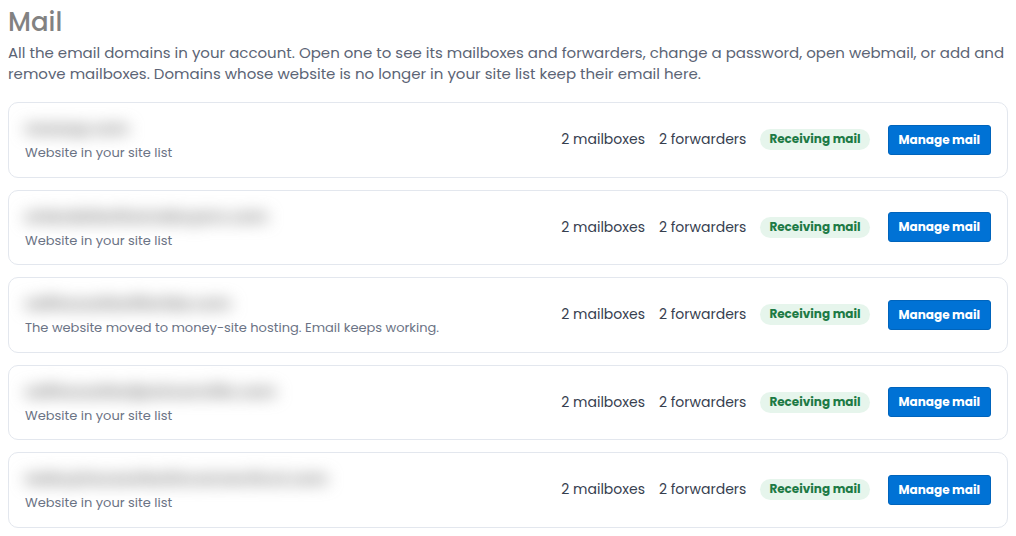
Click MAIL in the menu of your PBN account to see every email domain you have with us in one list: how many mailboxes and forwarders each has, and whether it is receiving mail. Manage mail opens that domain’s mail.
If a domain’s website moves to money-site hosting, its mailboxes keep working and the domain stays on the Mail page. There you can do everything the site’s Mail tab did: open webmail, show or change a password, set up a phone or mail app, add or remove mailboxes within what is included, change forwarders, the catch-all and out-of-office replies, and see the mail records the domain needs.
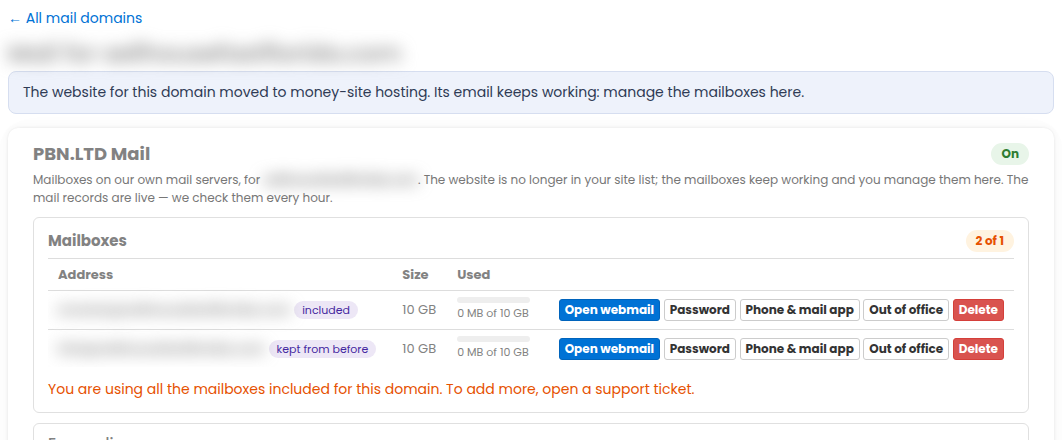
If you ever move that domain’s DNS somewhere else, keep the mail records shown on the page, or mail will stop arriving.
Deleting a site deletes its email
When you delete a site, the email of its domain on our mail service is deleted with it: every mailbox, every forwarder and all the mail in them. This cannot be undone. Before you confirm, the Delete dialog tells you exactly what goes, with the numbers — for example “This also deletes the email for example.com: 2 mailboxes and 1 forwarder, and all their mail – this cannot be undone.” The same warning is shown when you delete several sites at once, and returned by the API and to your AI assistant. A domain with no mailboxes or forwarders shows no warning.
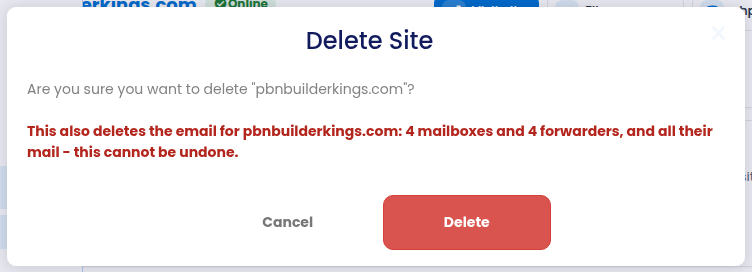
Want to keep the email? Save anything you need first (in webmail or your mail app), or move the site to money-site hosting instead of deleting it: a moved site’s email keeps working and stays on your Mail page.
Removing email from a site (and keeping the site)
Don’t need email on a domain any more, but want to keep the website? First delete its mailboxes, and remove any forwarders and the catch-all, on the site’s Mail tab. Then open Remove mail from this site at the bottom of the same tab, tick I want to remove mail from … and click Remove mail from this site.
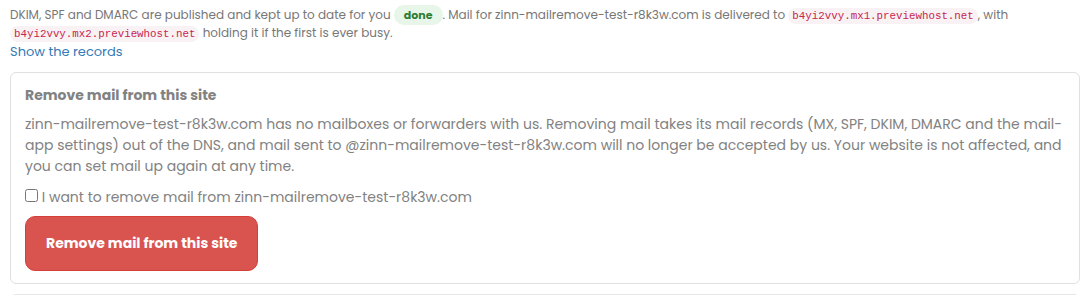
Where we look after the domain’s DNS, its mail records (MX, SPF, DKIM, DMARC and the settings mail apps read) are taken out within a minute or two, and our mail servers stop accepting mail for the domain. Your website is not affected, and you can click Set up mail again at any time. If the domain’s DNS is kept somewhere else, delete the mail records you added there yourself.
While a mailbox or forwarder still exists, the card says what to delete first — removing mail never deletes a mailbox or its messages for you.
More mailboxes, more space, or another provider
Need more mailboxes or more space for one mailbox? The Mail tab offers both as add-ons, with the price shown before you buy. If your domain’s email is with another provider (Google Workspace, Microsoft 365 and so on), the Mail tab says so and offers to move it here — or to keep it where it is. See Email at another provider – and moving it to us.
✅ Quick summary
Open the site → Mail. Set up mail, create a mailbox (the first 1 GB is free), read it with Open webmail or connect an app with the settings shown for that mailbox, and add forwarders, a catch-all or an out-of-office reply from the same tab.
From the API or your AI assistant
Setting mail up and removing it from a site, creating and deleting mailboxes, new passwords, aliases, forwarders and out-of-office replies (a password is never shown there – read it with Show in the Mail tab) also works from our API and from any AI assistant connected to your account (ask it, for example, “set an out-of-office reply on [email protected] until Monday”). Give the key the mail permissions; the same limits and checks apply as here.