
Short answer: every site comes with a generous allowance of disk space, database and files. You can see how much you’re using any time, buy a little more if you need it, and re-check your usage after a clean-up — all from the Usage & add-ons page.
💡 Heads-up
A site is only affected if it goes over one of its limits — and even then, you can free up space and re-check instead of buying more. Nothing is deleted; an over-limit site is simply paused until it’s back under.
Where to see your usage
Open a site from your dashboard and you’ll see a Usage row on its Control panel — disk, database and files, each with a bar showing how much is used.
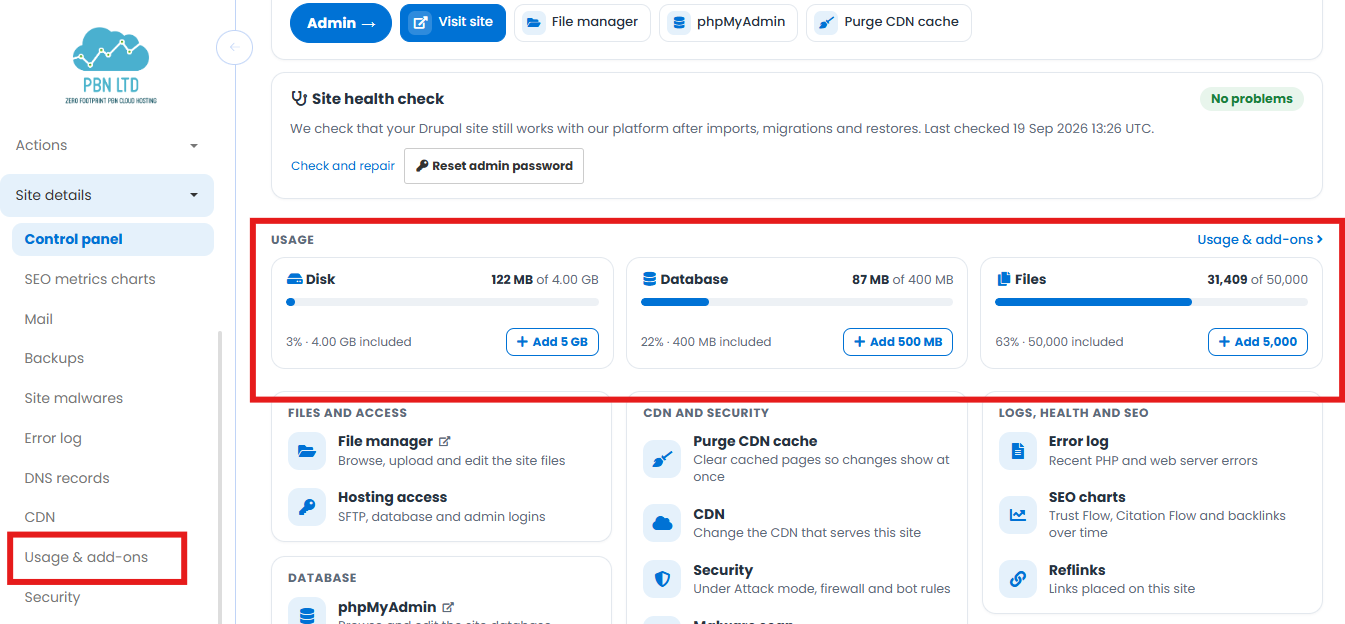
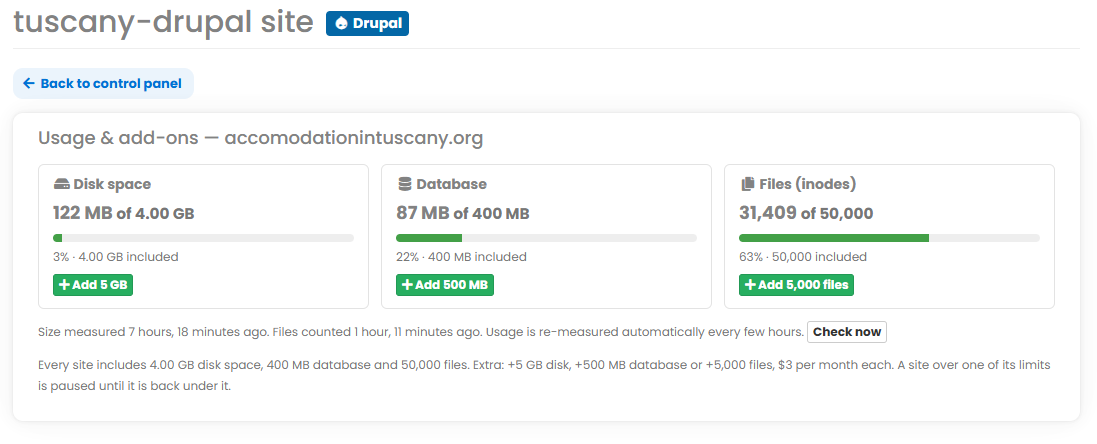
For the full picture, open Usage & add-ons (in the left-hand menu, or the link on the Usage row). It shows each figure, when it was last measured, the Check now button, and the buttons to add more.
What each one means
Disk space
The total storage your site uses on our servers — all of its files, images and its database added together. Measured in GB and MB.
Database
The size of your site’s database on its own — where a CMS like WordPress, Joomla or Drupal keeps your posts, settings, products and users. Measured in MB. A database can quietly bloat over time (spam, logs, old revisions), which is usually quick to trim back down. This add-on gives your existing database more room — if you want a whole second, separate database on the site instead, see Extra Databases.
Files (inodes)
The number of individual files and folders on your site — not their size. Every file, image and folder counts as one, however big or small. Thousands of tiny files (caches, thumbnails, plugin files) can push this up even when your disk space looks low, which is why it’s counted separately.
Our own platform plugins are not counted. The plugins we make and install on your sites — Tranzly, Page Builder Sandwich, Zinn Footprint, Zinn Cache and Zinn Chat — and the small helper files we add are left out of both your file count and your disk space. There is no need to remove them to get under a limit, and the Site Cleaner never removes them.
Only our released plugins count as ours. We check every plugin folder against the versions we released: if other files are put inside one of our plugin folders, that folder is counted like any other. And because our plugins are not counted, using one of ours instead of another plugin that does the same job — Tranzly instead of WPML, Polylang or TranslatePress, Zinn Cache instead of WP Rocket, W3 Total Cache or LiteSpeed Cache — frees files and disk space on your site. Ask the support assistant (the chat on your dashboard): it reads the plugins your site runs and tells you which of ours fits, what it does, and whether it is free.
What’s included (and what extra costs)
Every site includes a solid allowance as standard, and you can top up any one of them for $3 per month each:
| Resource | Included | Add-on block | Price |
|---|---|---|---|
| Disk space | 4.00 GB | +5 GB | $3 / month |
| Database | 400 MB | +500 MB | $3 / month |
| Files (inodes) | 20,000 | +5,000 files | $3 / month |
Usage is re-measured automatically every few hours — disk size and file count are checked separately.
Buying extra usage
Need more of one resource? On the Usage & add-ons page (or the Usage row on the control panel), click the matching button — Add 5 GB, Add 500 MB or Add 5,000 files — and confirm.
Each add-on is $3/month and applies to that one site. They’re separate, so you only ever add the resource you actually need — no need to upgrade everything at once.
How to pay. Add-ons can be paid by card through FastSpring, with PayPal (your PayPal account or PayPal’s own card form) or with crypto. Under Pay with, choose Card via FastSpring, press the buy button and complete the card form on FastSpring’s secure page — FastSpring adds any sales tax or VAT for your country there. The add-on switches on by itself a minute or two after the payment is confirmed, and a site that was paused for going over a limit comes back on its own once it is under its limits again. If PayPal does not accept your card, use Card via FastSpring instead.
Re-checking with Check now
Before buying anything, make sure the figure is current. Usage updates by itself every few hours, but if you’ve just cleaned things up — cleared a bloated database, say, or deleted a pile of old files — you don’t have to wait.
Click Check now on the Usage & add-ons page to re-measure straight away. If your clean-up brought you back under the limit, that’s it — no add-on needed.
💡 Free up space instead of paying
You can trim files and databases yourself with File Manager and phpMyAdmin, then hit Check now to confirm you’re back under — see How To Access phpMyAdmin & File Manager.
If a site goes over its limit
If a site goes over any one of its three limits, it’s paused until it’s back under — nothing is deleted, and it comes straight back once you’re within the limit again. You’ve got two ways to fix it:
- Free up space — delete files or trim the database you no longer need, then click Check now to re-measure.
- Add the resource — buy the matching add-on ($3/month) for more headroom.
Not sure what’s using it all up, or need a hand? Open a support ticket and we’ll take a look.
✅ Quick summary
See your usage on the Control panel or the Usage & add-ons page. Every site includes 4 GB disk, 400 MB database and 20,000 files (Drupal, MediaWiki and PrestaShop sites include more files, because those systems need more to run); top up any one for $3/month (+5 GB / +500 MB / +5,000 files). Disk is total storage, database is your CMS data, and files (inodes) is the number of files. Over a limit? The site pauses until it’s back under — clean up and hit Check now, or add the resource you need.