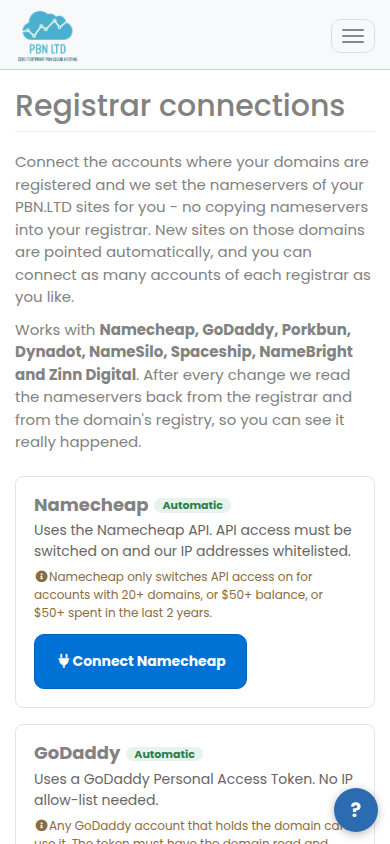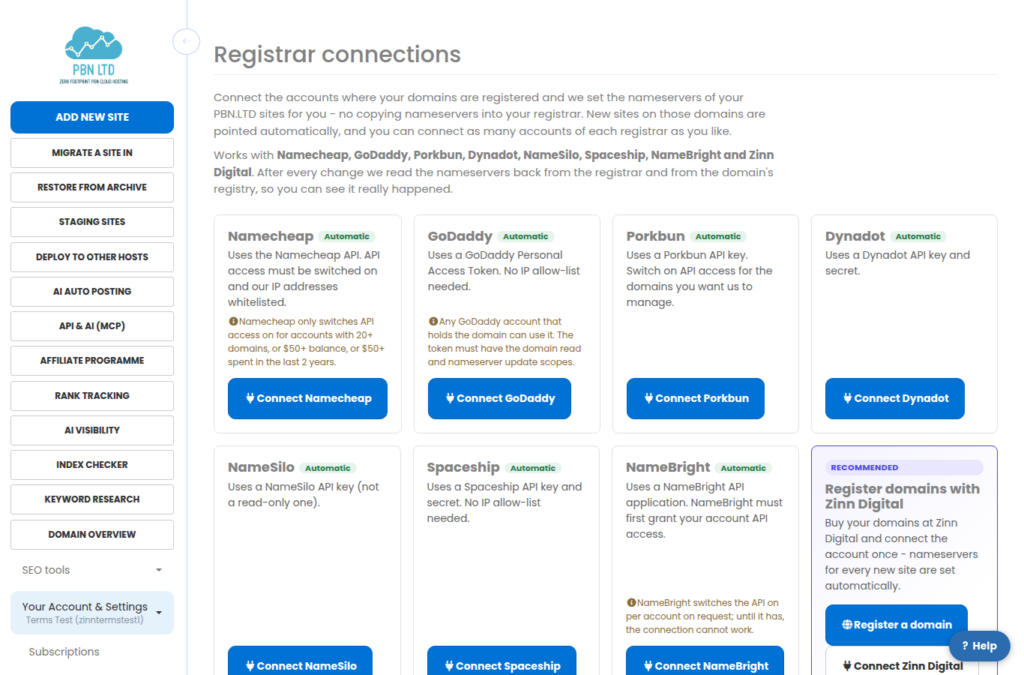
Copying nameservers into your registrar by hand is optional. Connect the account where your domains are registered once, and every site you add on those domains gets its nameservers set for you – usually within 10 minutes. It works with Namecheap, GoDaddy, Porkbun, Dynadot, NameSilo, Spaceship, NameBright and Zinn Digital.
💡 The short version
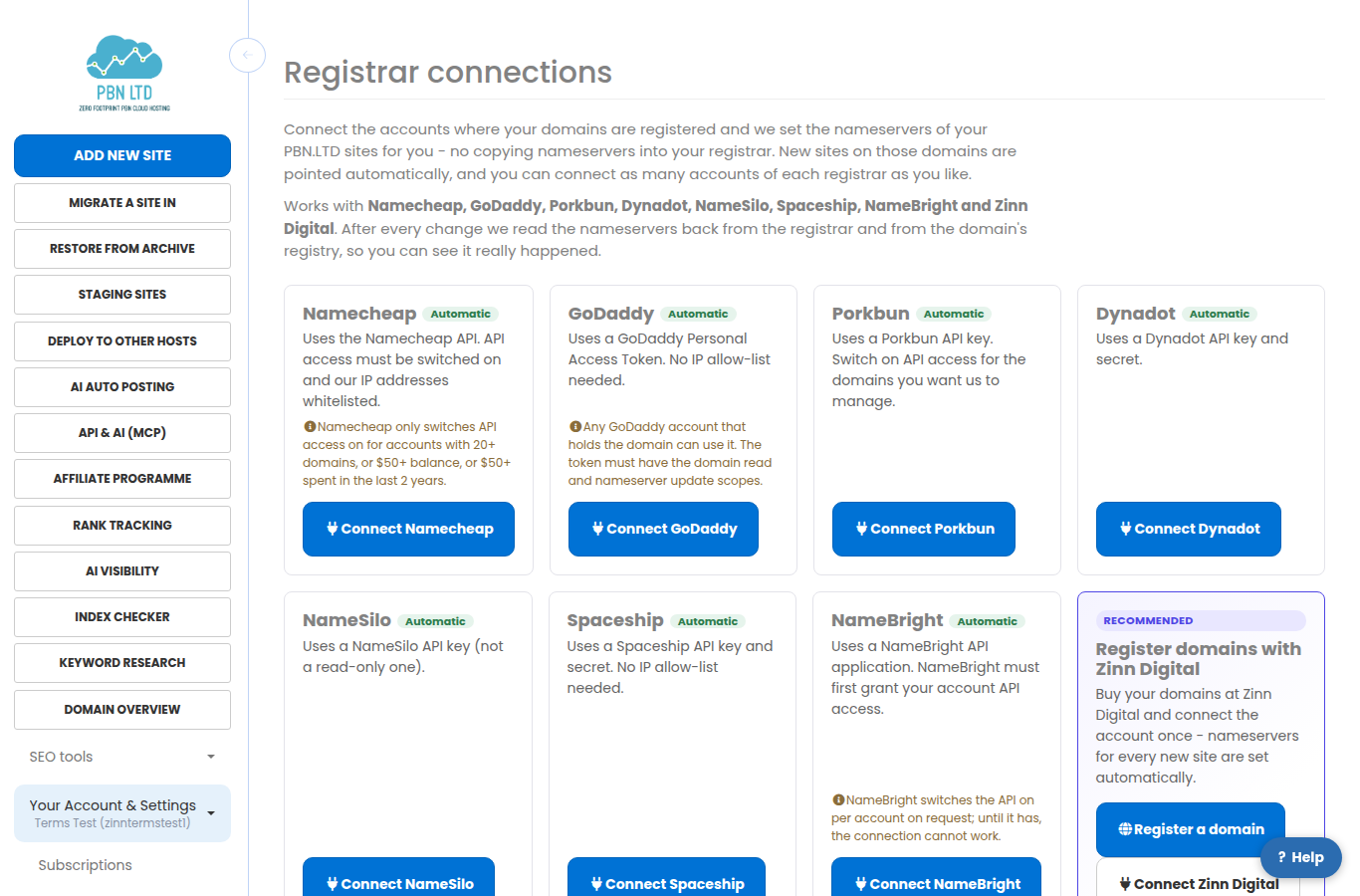
Open Registrar connections in your account menu, press Connect on your registrar and paste the key it gives you. From then on we set the nameservers of every waiting site on that account’s domains, and we read the change back from the registrar and from the domain’s registry, so you can see it really happened.
What it does
When you add a site, its domain has to point at the nameservers shown on the site’s page. Normally you log in to your registrar and change them yourself. With a registrar connection we do that step: we find the domain in your connected account and set the nameservers for you.
- Automatic: every 10 minutes we check your sites that are waiting for nameservers and update the ones whose domain is in a connected account.
- One click: a waiting site has a button to update its nameservers right away, and the page has a button to update all your waiting sites at once.
- As many accounts as you like: connect ten GoDaddy accounts if you have ten.
- Undoable: we record the nameservers the domain had before every change.
- Only nameservers: we never change anything else at your registrar, never touch a site that is already live on its nameservers, and never a domain whose DNS you keep somewhere else on purpose.
How you know it really happened
A registrar saying “done” is not the same as the change being live. So after every update we check twice: we read the nameservers back from your registrar, and we ask the domain’s registry (the organisation that runs the .com, .net, .co.uk and so on) what it now publishes. The result shows in Recent nameserver updates:
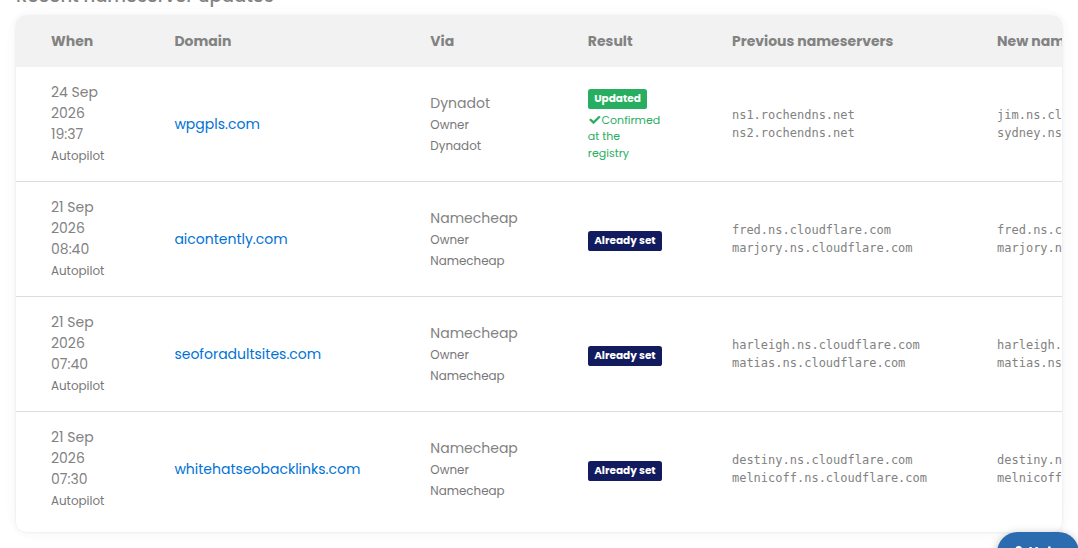
- Confirmed at the registry – the change is published. The site goes live as soon as DNS catches up, usually minutes.
- Registry not showing it yet – some registries publish changes in batches. We check again every 30 minutes by ourselves.
- Still not showing after 48 hours – something is holding the domain at the registrar (a lock, a pending verification, an unpaid renewal). Open the domain at your registrar and look for a warning.
Connecting your registrar
Open Registrar connections and press Connect on your registrar. Each form tells you exactly where to find the key. We test the key before we save it, so a wrong key is refused on the spot with the reason.
Your keys are stored encrypted, are used only to read your domain list and set nameservers, and are never shown again – not to you and not to our team. Disconnect removes them.
Namecheap
- In Namecheap open Profile › Tools › Namecheap API Access and switch it ON.
- Under Whitelisted IPs add
116.202.166.25and65.109.76.2. - Connect with your Namecheap username (not your e-mail address) and the API key.
Heads-up: Namecheap only switches API access on for accounts with 20 or more domains, or an account balance of at least 50 dollars, or at least 50 dollars spent in the last two years.
GoDaddy
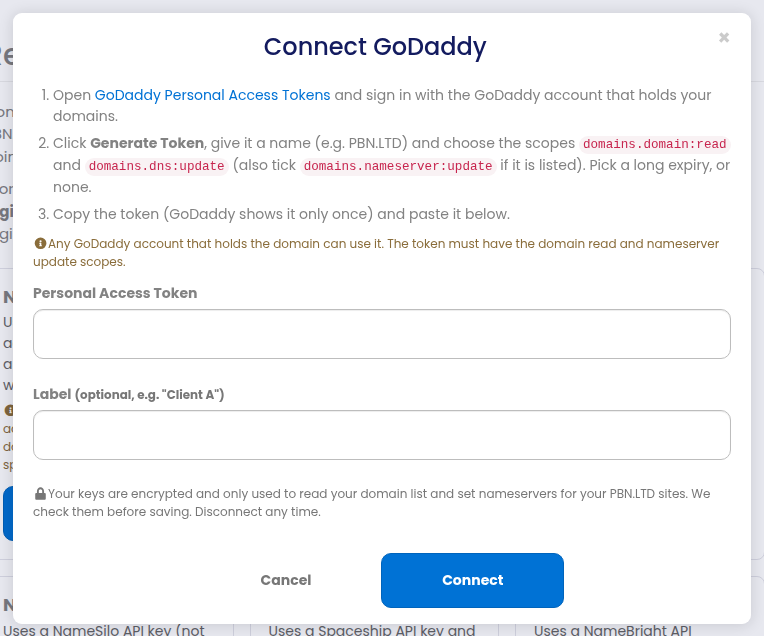
- Open GoDaddy Personal Access Tokens and sign in with the account that holds your domains.
- Press Generate Token, name it (for example PBN.LTD) and choose the scopes
domains.domain:readanddomains.dns:update– also tickdomains.nameserver:updateif it is offered. Choose a long expiry or none. - Copy the token (GoDaddy shows it only once) and paste it into the form.
No IP allow-list is needed. If the token expires, the connection shows an error and tells you to create a new one.
Porkbun
- Create an API key at porkbun.com/account/api and copy the API key and the secret key.
- In Domain Management switch API ACCESS on for each domain (or opt in all domains).
- Paste both keys into the form.
Dynadot
- In Dynadot open Tools › API and generate an API key and an API secret.
- If you limit the key to IP addresses, allow
116.202.166.25and65.109.76.2. - Paste the key and the secret into the form.
Dynadot only accepts nameservers it knows, so the first time we set a new pair we add them to your account’s nameserver list for you.
NameSilo
- In NameSilo open Account › API Manager and generate a key. Do not tick “read-only”.
- If you restrict the key to IP addresses, add
116.202.166.25and65.109.76.2. - Paste the key into the form.
Spaceship
- Open the Spaceship API Manager and press New API key.
- Give it the permissions
domains:readanddomains:write. - Paste the API key and the API secret into the form.
NameBright
- In NameBright open My Account › API Management. If your account does not have API access yet, request it there – NameBright switches it on per account.
- Create an API application and add
116.202.166.25and65.109.76.2to its IP whitelist. - Connect with the application’s full name –
YourAccount:AppName– and its secret.
Zinn Digital
In the Zinn Digital app create an API key with the scopes sites.view and domains.dns.manage and paste it into the form. Only domains registered with Zinn Digital can be changed this way.
When something goes wrong
If a registrar refuses, the connection or the update shows the registrar’s own reason and what to do about it – for example an IP address that still has to be allowed, a key without the right permission, or a domain that is locked or expired. We try a failed domain again after 6 hours; fix the cause and press the update button to try straight away.
On a phone the page works the same way: