How To Access Your Automatic Backups (And Take Manual Ones)

How To Access Your Automatic Backups (And Take Manual Ones)

How To Access Your Automatic Backups (And Take Manual Ones)

Good news — every domain you add to our hosting gets automatic daily backups taken for you behind the scenes. No setup, no plugins, no faffing about. This guide walks you through where to find your backups, how to download or restore them, how to take a quick manual backup before doing something risky, and a couple of important gotchas to be aware of.

🎥 Watch The Video Walkthrough

Prefer to watch rather than read? Here’s a quick walkthrough showing exactly where your automatic backups live, how to restore one, and how to take a manual backup before doing anything risky:


💡 Heads-up: Automatic backups are taken daily and the last 7 days are kept in your dashboard. You can also take a manual backup at any time before making big changes. Both types live in the same place — the Backups tab on your domain’s overview page.

📁 Quick vocab:

  • Automatic backup — taken by our system once every 24 hours, no action needed from you. Last 7 days kept.
  • Manual backup — created on demand via the Create Backup option, perfect for snapshotting your site before risky work.
  • Restore — overwriting your current site with the contents of a backup (rolls the site back to that point in time).
  • Domain overview — the per-domain screen you land on after clicking a site name from the main dashboard.
  • “Waiting DNS update” — a domain status meaning your nameservers haven’t resolved yet. Backups don’t run while a domain is in this state.

🔁 Daily Automatic Backups — How It Works

Every domain you’ve got with us is backed up automatically every single day. You don’t need to set anything up, install a plugin, or remember to run them — our system handles it in the background.

  • Frequency: Daily — one full backup per domain per day.
  • Retention: The last 7 days of backups are kept and accessible from your dashboard.
  • Setup needed: None. As soon as a domain is added and resolving correctly, backups start running automatically.

You don’t have to do anything. Backups happen for you. You only ever need to interact with the Backups tab if you want to download, restore, or take an extra manual backup.


📍 How To Find Your Backups

Backups live on a per-domain basis (there’s no central all-domains backups tab — yet). To get to them:

  1. Log in to your dashboard.
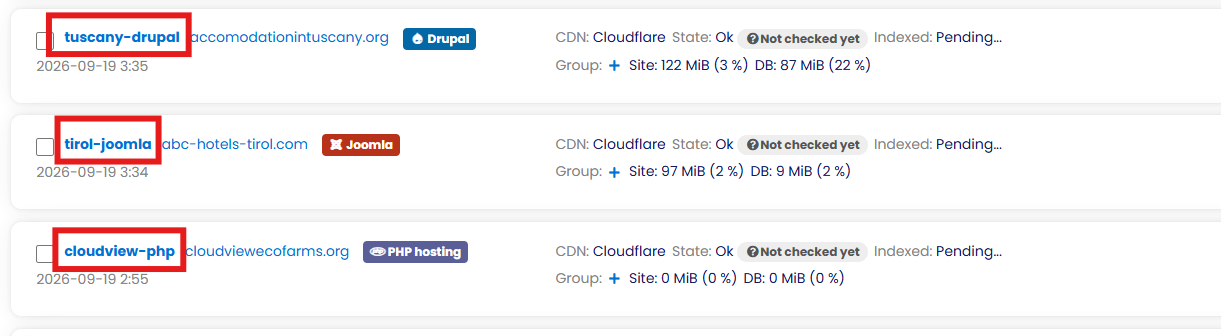
  2. From the main dashboard, click on the site name of the domain you want. ⚠️ Make sure you click the site name, not the URL itself — clicking the URL takes you to the website. The site name opens the overview.
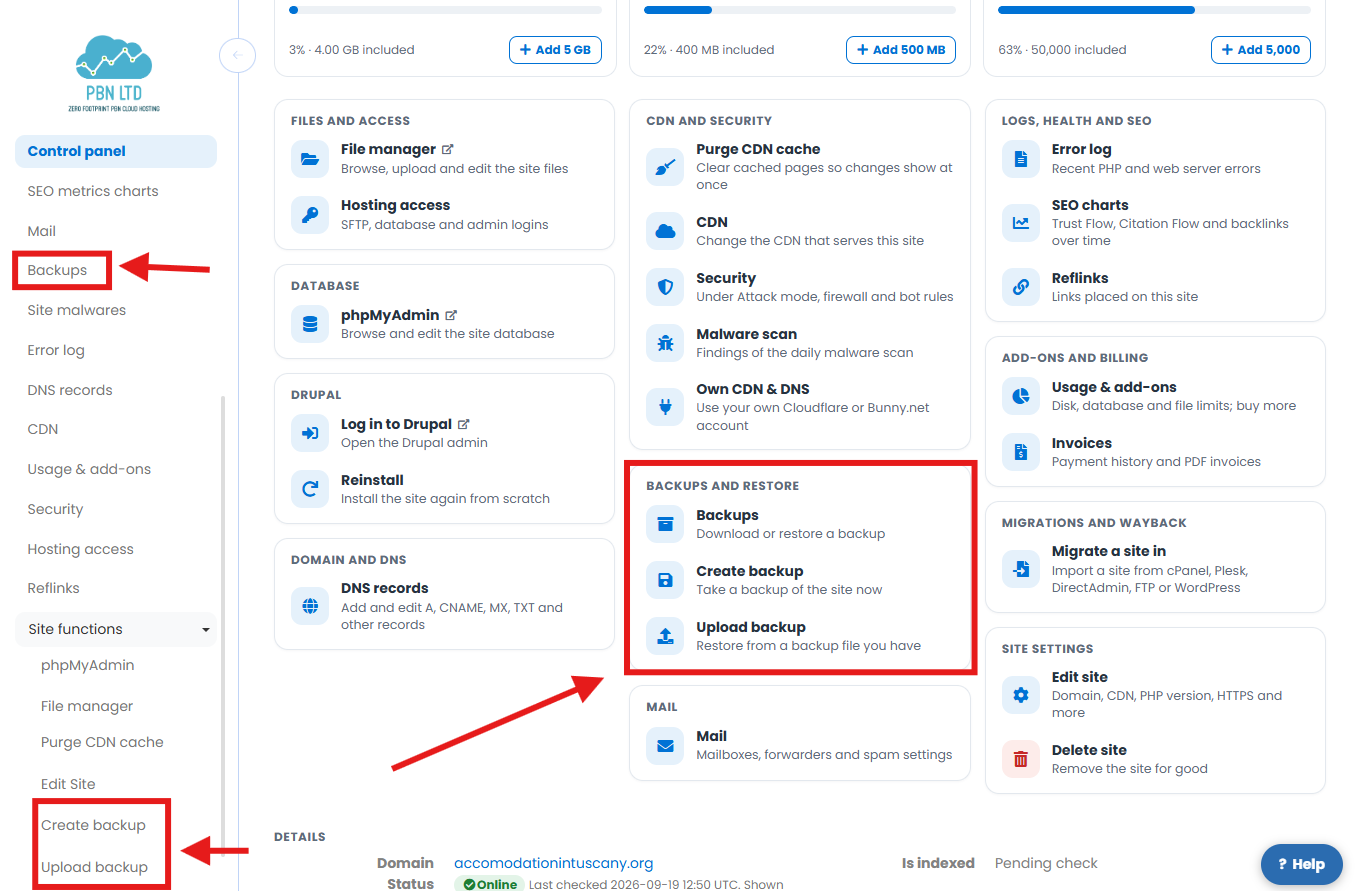
  3. On the left-hand menu, you’ll see Site Details is already open by default.
  4. Click the Backups tab.
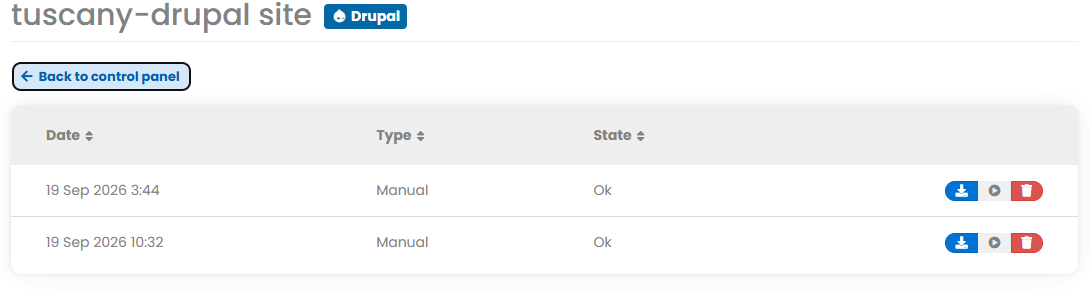
  5. You’ll now see a list of every backup we’ve taken for this domain, dated and ready to use.

💡 Spot the difference: Each row shows the date and time the backup was taken, and whether it’s an Automatic or Manual backup. Both types use the same three icons on the right for download / restore / delete.


🎛️ Download, Restore Or Delete — The Three Icons

Each backup in the list has three icons on the far right. Here’s what each one does:

IconWhat it doesWhen to use it
🔵 Download (blue icon)Downloads a copy of the backup to your computer.You want a local off-site copy, or to inspect the backup contents.
▶️ Restore (play button)Restores the backup over your current site — rolls it back to this point in time.Your site is broken, infected, or you want to undo recent changes.
🗑️ Delete (trash/bin icon)Permanently deletes that specific backup.You don’t need that particular backup any more (use sparingly — they auto-rotate anyway).

⚠️ Restoring overwrites your live site immediately. If your current site has anything you want to keep that came after the backup was taken (new posts, comments, settings changes), take a quick manual backup first so you can roll forward again if you change your mind.


▶️ How To Restore A Backup

Restoring is a single click — but it’s a big single click. Here’s exactly what happens:

  1. Open the Backups tab for the domain.
  2. Find the backup you want to restore from in the list (check the date carefully).
  3. Click the play button icon on the right.
  4. Confirm if prompted. The restore now starts running in the background.
  5. If you go back to the main domain overview, you’ll see the status change while the restore is in progress.
  6. Wait for the domain to return to “OK” status — that means the restore is finished.

That’s it. Your site is now back to exactly how it was when that backup was taken. Test it in an incognito window to confirm everything looks right — and remember to clear caches if you’re seeing odd behaviour.


🛠️ How To Take A Manual Backup

Doing risky work? Cleaning the database, removing malware, swapping themes, or just feeling cautious? Take a manual backup first. It only takes a few seconds.

  1. Open the domain’s overview screen (click the site name from the main dashboard).
  2. On the left, instead of going to Backups, open the Site Functions dropdown.
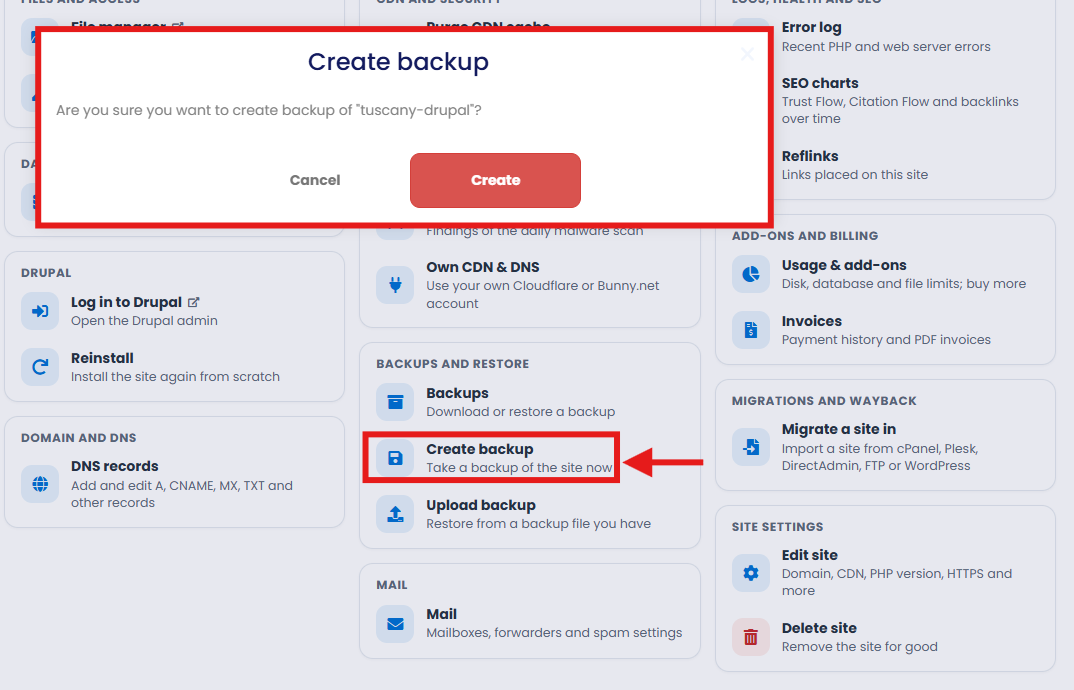
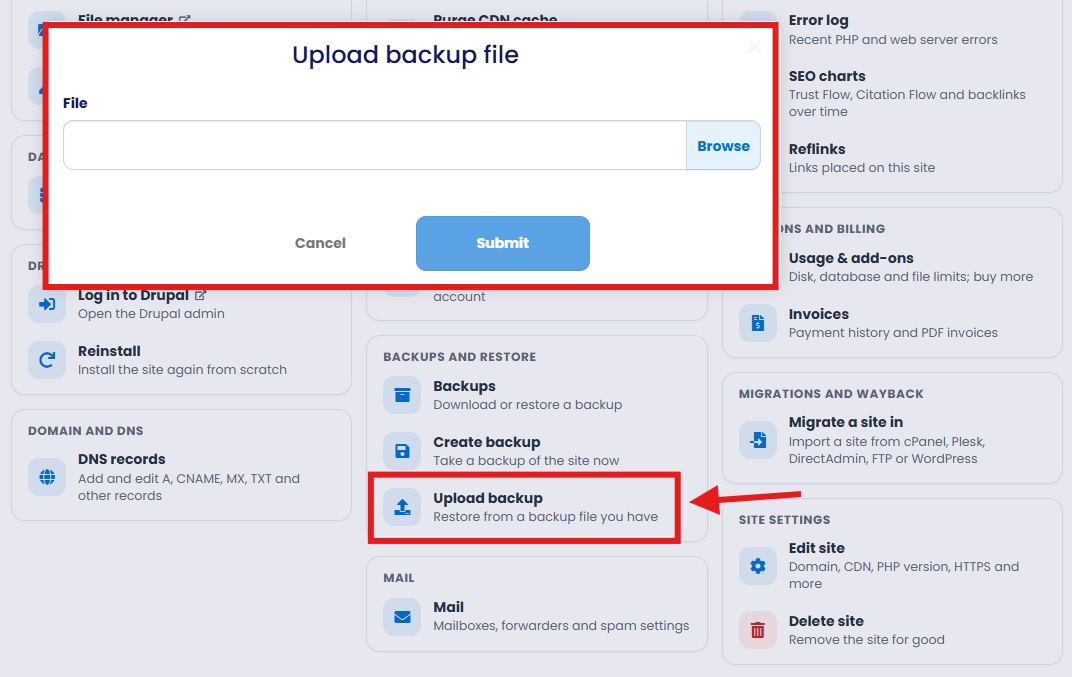
  3. Click Create Backup.
  4. Click Create on the popup that appears.
  5. Back in the Backups tab, you’ll see a new entry being created — marked as Manual.
  6. Once it finishes, it sits alongside your automatic backups with the same three options: download, restore, delete.

💡 When to take a manual backup: Before any database cleanup, malware removal, theme/plugin updates that look risky, big content changes, or any time you’re about to do something where you’d like a safety net beyond the automatic daily snapshot.


⚠️ When Backups Won’t Be Taken

There are a couple of situations where our system can’t take backups for a domain — worth knowing so you’re not caught out:

🚨 If your domain status is “Waiting DNS update” — backups won’t be taken until DNS resolves on our nameservers. The system can’t back up a site that isn’t pointing at our hosting.

🚨 If the domain has expired or its nameservers were changed away from us — backups will stop being taken at that point. Renew the domain or repoint the nameservers and they’ll start up again.

In both cases, the system simply skips the backup attempt for that day — it doesn’t error or alert you, it just waits until things are working again.


💾 The Last-Successful-Backup Safety Net

Here’s a nice safety net we built in: even when our system can’t take fresh backups (because of the situations above), we always keep the last successfully taken backup available in the Backups tab.

That means if your site breaks, your DNS goes sideways, the domain expires, malware locks something up — or you’ve just had a wild few hours of experimenting and broken it yourself (it happens 😄) — there will still be a backup sitting there ready to download or restore.

So even in worst-case scenarios — expired domain, broken site, DNS issues — you’re not left empty-handed. The last good backup is preserved for you.


🗂️ Backup Retention Summary

TypeHow oftenHow long it’s kept
Automatic backupsOnce per day, automaticallyLast 7 days are kept on the dashboard
Manual backupsOn demand, whenever you click Create BackupStays in the Backups tab until you delete it (auto-cleared after the standard retention window)
Last successful backupPreserved when fresh backups can’t be takenKept indefinitely until a new successful backup replaces it

💡 Want longer-term archives? Use the download icon to grab a copy of any backup to your own computer or cloud storage. That way you’ve got copies beyond our retention window — and offsite, which is good practice anyway.


✅ Best Practices

  • Take a manual backup before any risky work — database cleanups, malware removal, big plugin/theme updates, large content edits.
  • Download backups regularly if you want copies beyond the 7-day window. Offsite backups (on your own machine or cloud storage) protect against a bigger range of disasters.
  • Don’t delete backups manually unless you really need to — they rotate automatically, so leaving them alone gives you the longest safety net.
  • Test a restore once on a non-critical site so you know how the process works before you ever need it in an emergency.
  • Note the date and time of any backup before restoring — restoring the wrong one can throw away work you wanted to keep.

❓ FAQs

How often are automatic backups taken?

Once every 24 hours, automatically, for every domain on our hosting. You don’t need to do anything to enable them.

How many backups are kept?

The last 7 daily backups are kept on your dashboard for each domain. Manual backups you create sit alongside them. If the system can’t take fresh backups for any reason, the last successful backup is preserved indefinitely until a new one replaces it.

Where are backups stored?

Inside your dashboard — open the domain’s overview, then click the Backups tab under Site Details. Each backup can be downloaded, restored or deleted from there.

Is there a central backups tab for all domains?

Not at the moment — backups live per-domain. We’re aware that a global view would be handy, and it may come in future. For now, click into each domain individually to see its backups.

How long does a restore take?

Usually just a few minutes. The domain’s status will change while the restore runs, and once it goes back to “OK”, the restore is complete.

Will restoring a backup keep my recent posts/changes?

No — restoring overwrites your current site with the backup. Anything created or changed after the backup was taken will be lost. If you want to preserve recent changes, take a manual backup right now before restoring an older one — that way you can flip back if needed.

My domain says “Waiting DNS update” — are backups still happening?

No — while a domain is in that state, backups can’t be taken because the system can’t reach the site. Once DNS resolves and the domain shows “OK”, daily backups resume automatically. Any previously taken backup remains accessible in the meantime.

Can I download a backup to keep a long-term copy?

Yes — click the blue download icon next to any backup in the list. The file is yours to keep wherever you want (local drive, cloud storage, external HDD). Recommended if you want archives beyond the standard retention window.

What does the backup file actually contain?

A full snapshot of your site — files and database. It’s everything needed to restore the site to that point in time.

My site is broken — should I restore a backup or troubleshoot first?

Depends on the breakage. If you know what you broke (e.g. “I just updated this plugin and now it’s white-screened”), the fastest fix is usually a restore from the most recent good backup. If it’s something subtler or older, troubleshoot first so you understand the issue. Either way, take a manual backup of the current broken state first so you have something to investigate later.

Can backups be used to migrate a site to a new domain?

Restoring is designed to put a backup back onto the same domain it came from, not to move a site to a different one. If you want to migrate between domains, take a look at our WordPress migration guide or raise a support ticket — we’ll point you in the right direction.

What if I can’t see any backups for my domain?

Most likely the domain is in “Waiting DNS update” state, has just been added (give the first daily backup a chance to run), or the nameservers aren’t pointing at us. Sort those, wait for the next scheduled backup, and they’ll appear.


✅ Quick Summary

  • Automatic daily backups are taken for every domain — last 7 days kept.
  • Find them at: dashboard → click site name → Site Details → Backups tab.
  • Three icons per backup: 🔵 download, ▶️ restore, 🗑️ delete.
  • Manual backups can be taken anytime via Site Functions → Create Backup.
  • Backups pause when a domain is “Waiting DNS update” or expired/repointed.
  • Last successful backup is always preserved as a safety net, even when fresh ones can’t run.
  • Restoring overwrites the live site — take a manual backup first if you want a way back.
  • Download backups if you want copies beyond the standard retention window.
  • Restores complete when the domain status returns to “OK”.

✅ That’s everything you need to know about backups. They’re working in the background for you 24/7 — but knowing how to take manual ones and how to restore makes you ready for anything.

Share this article: