
The PBN.LTD Hosting app is your account on your phone. A bar along the bottom takes you to your Dashboard, Sites, Support, Alerts and More, and the app tells you when something needs you: a site going down or coming back, a support reply, an invoice, a payment or renewal, a domain change or a new sign-in. It is free for every customer.
💡 Where to get it
Download it on your phone from app.pbn.ltd/app. On a computer, open that page and scan its QR code with your phone.
Installing the app
- On your Android phone, open app.pbn.ltd/app and tap Download for Android. Your browser saves a file ending in .apk.
- Open the file. The first time, Android asks whether your browser may install apps: tap Settings, switch on Allow from this source, then go back.
- Tap Install, then Open.
- Sign in with your usual email and password. If you use two-factor authentication, enter your code as usual. You can also use E-mail me a sign-in link instead.
The app needs Android 7 or newer. When a new version is ready, the app tells you and takes you to the download. The iPhone app is on its way to the App Store; until then, open app.pbn.ltd in Safari – every page of your account works on a phone.
The five tabs
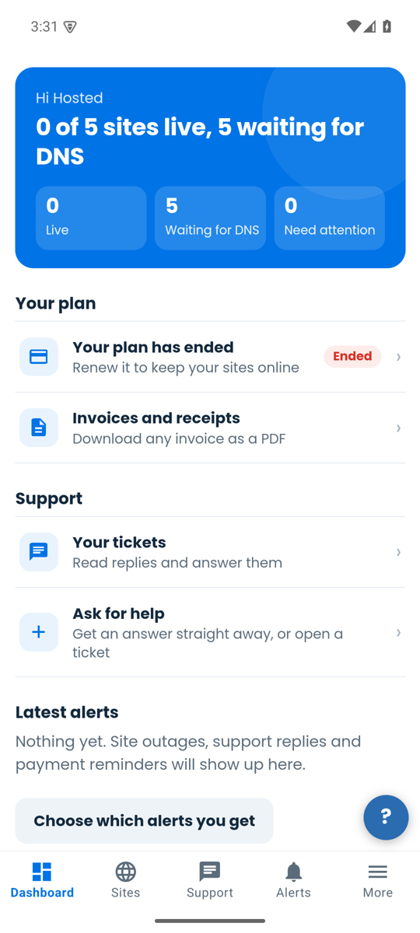
- Dashboard – your sites at a glance, your plan and when it is paid until, invoices, tickets and the latest alerts.
- Sites – your sites list; tap a site to open its page, exactly as on the web.
- Support – your tickets. Open one to read and answer it, or tap New ticket.
- Alerts – everything the app has told you about. A red number on the tab shows how many you have not opened yet; tap an alert to go straight to the page it is about.
- More – alert settings, Login & security, sharing the app, and your full account menu (plans, invoices, domains, SEO tools and settings).
Pull down at the top of any page to refresh it. Links to other websites (your own site, for example) open in your phone’s browser. Invoices and other files download to your phone’s Downloads folder, and you can attach photos or files to a ticket.
Choosing your alerts and quiet hours
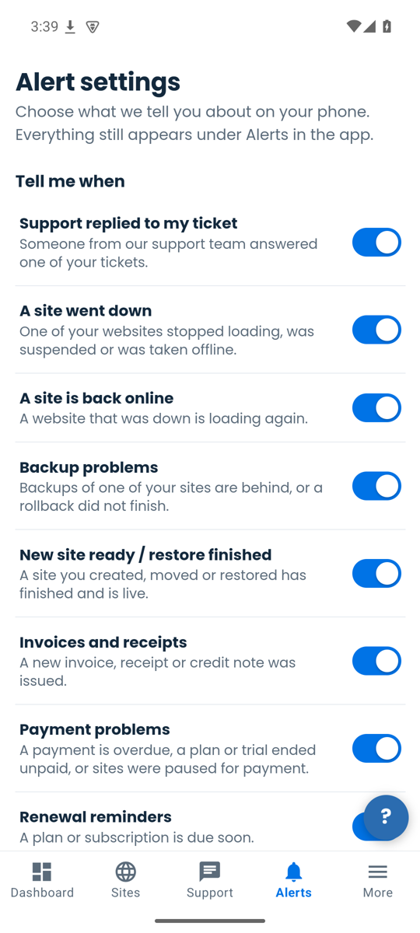
Open Alerts and tap Settings (or More, Alert settings). Each kind of alert has its own switch:
- Support replied to my ticket
- A site went down
- A site is back online
- Backup problems
- New site ready / restore finished
- Invoices and receipts
- Payment problems
- Renewal reminders
- Domain names
- New sign-in to my account
Turn on Silence alerts at night and pick the hours and your time zone to keep your phone quiet overnight. Alerts in those hours wait for you in the Alerts tab. You can also switch the sound or vibration off, and send yourself a test alert. Tap Save settings.
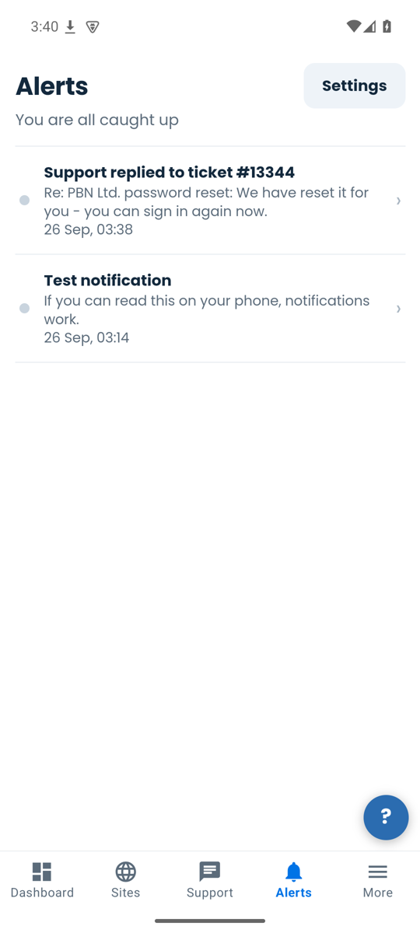
The first time you open the app, Android asks whether it may show notifications. If you said no, turn them on in your phone’s Settings, Apps, PBN.LTD Hosting, Notifications.
Unlocking with your fingerprint or face
After you sign in, the app offers Unlock with your fingerprint (or Face ID). If you turn it on, every time you open the app it asks for your fingerprint instead of your password. Your password is never stored on the phone: the phone keeps a key that only works on that phone and that you can cancel at any time.
Prefer your password? On the unlock screen tap Sign in with my password – that also turns fingerprint unlock off on that phone, and the app offers it again after you sign in.
Signing out a phone (for example a lost one)
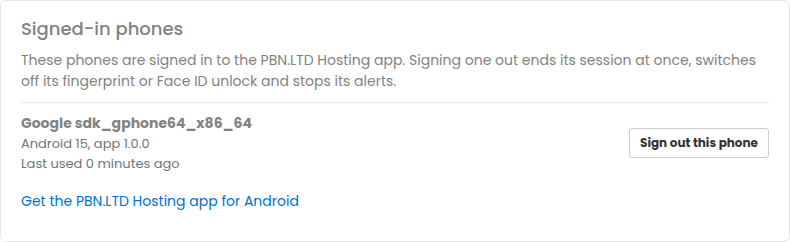
Open Login & security (on the web or in the app under More). Signed-in phones lists each phone with the app, when it was last used and whether fingerprint unlock is on. Tap Sign out this phone: that phone is signed out at once, its fingerprint unlock stops working and it gets no more alerts. Signing out inside the app does the same for that phone.