
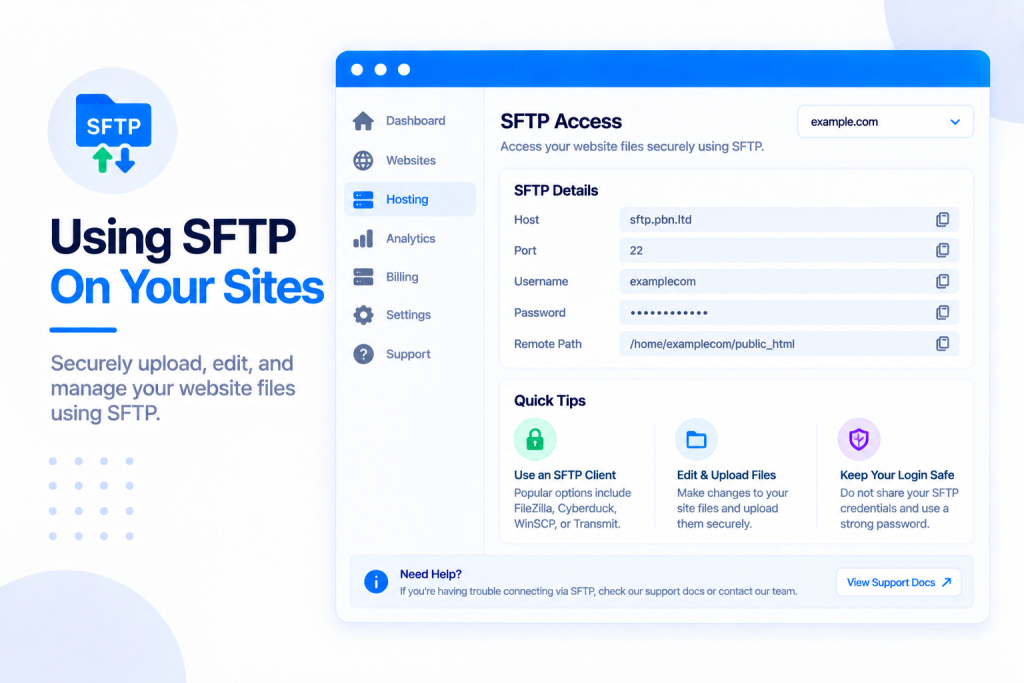
SFTP lets you connect to your website’s files straight from your own computer — using a free program like FileZilla or WinSCP — so you can upload, download and edit files directly. It’s switched off until you turn it on, and you do that in one click from your site’s control panel.
💡 Heads-up
Your SFTP password is shown only once, when you first turn it on — copy it there and then. Lost it? Just press Reset password for a new one. SFTP works on every kind of site we host and only ever shows you your own site’s files.
What SFTP is
SFTP stands for SSH File Transfer Protocol — a secure way to reach your website’s files from your own computer. You connect with a free program such as FileZilla or WinSCP (or the command line) and can then upload, download, edit and delete files directly. It’s an alternative to the browser-based File Manager in your dashboard — handy when you want to move a lot of files at once or work in a tool you already know.
It works on every kind of site we host: WordPress, Static HTML, PHP hosting, Joomla, Drupal, and the newer apps (PrestaShop, OpenCart, Grav and MediaWiki).
Turning SFTP on
SFTP is off until you switch it on. Here’s how:
- Open your site and go to its Control panel.
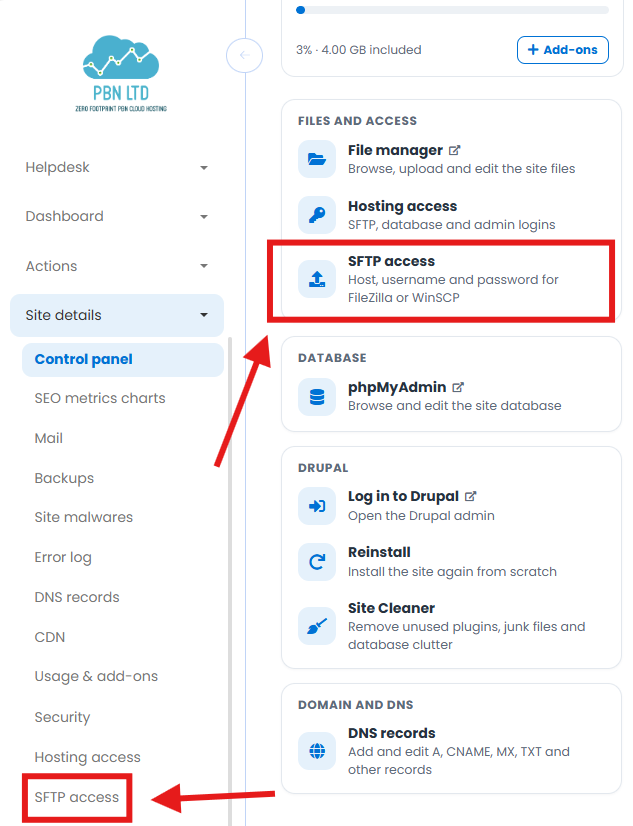
- Under Files and access, click SFTP access. (It’s also in the left-hand menu, and on the Hosting access tab.)
- Click Enable SFTP. Your login is created and the password is shown once — copy it there and then.
Connecting with FileZilla, WinSCP or the command line
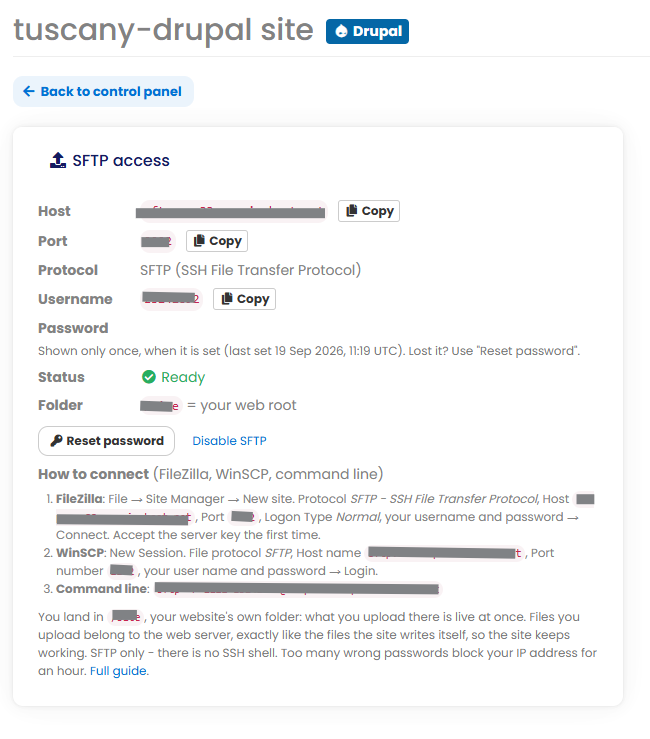
The panel gives you everything you need, with a Copy button on each value. These are the settings your program asks for:
| Setting | Value |
|---|---|
| Host | Shown on the panel (press Copy) |
| Port | 2222 |
| Protocol | SFTP (SSH File Transfer Protocol) |
| Username | Shown on the panel (press Copy) |
| Password | Shown once when set — reset it if lost |
Step-by-step for the most common programs (the panel spells these out too):
- FileZilla: File → Site Manager → New site. Set Protocol to “SFTP – SSH File Transfer Protocol”, enter the host and port, set Logon Type to “Normal”, add your username and password, then Connect. Accept the server key the first time you connect.
- WinSCP: New Session. Set File protocol to “SFTP”, enter the host name and port, add your username and password, then Login.
- Command line: the panel shows the exact command — copy and paste it.
What you can and can’t do over SFTP
- You land in your website’s own folder (its web root). Anything you upload there is live at once.
- You only ever see your own site’s files — no other customer, and no system files.
- It’s file transfer only. There’s no command shell (no SSH terminal).
- Files you upload belong to the web server just like the files your site writes itself, so WordPress, its plugins, themes and automatic updates all keep working normally.
- For security, repeated wrong passwords block your IP address for an hour.
⚠️ Changes go live straight away. There’s no staging step over SFTP — anything you upload, edit or delete takes effect on your site immediately. Before making big changes, take a backup from your dashboard first, so you can roll back if something goes wrong.
Resetting your password or turning SFTP off
- Reset password — sets a new password and shows it once. Use this if you’ve lost the one you copied.
- Disable SFTP — removes the login straight away. You can turn it back on whenever you like.
SFTP also looks after itself: while a site is paused or suspended the login is closed automatically, and it reopens when the site is back. If your site is ever moved to another server, your login moves with it and the same password keeps working.
✅ Quick summary: SFTP lets you manage your site’s files from FileZilla, WinSCP or the command line. Turn it on from your control panel, copy the details (host, port 2222, username and the one-time password), and connect. You only ever see your own site, there’s no shell, and anything you upload is live at once — so back up before big changes.