
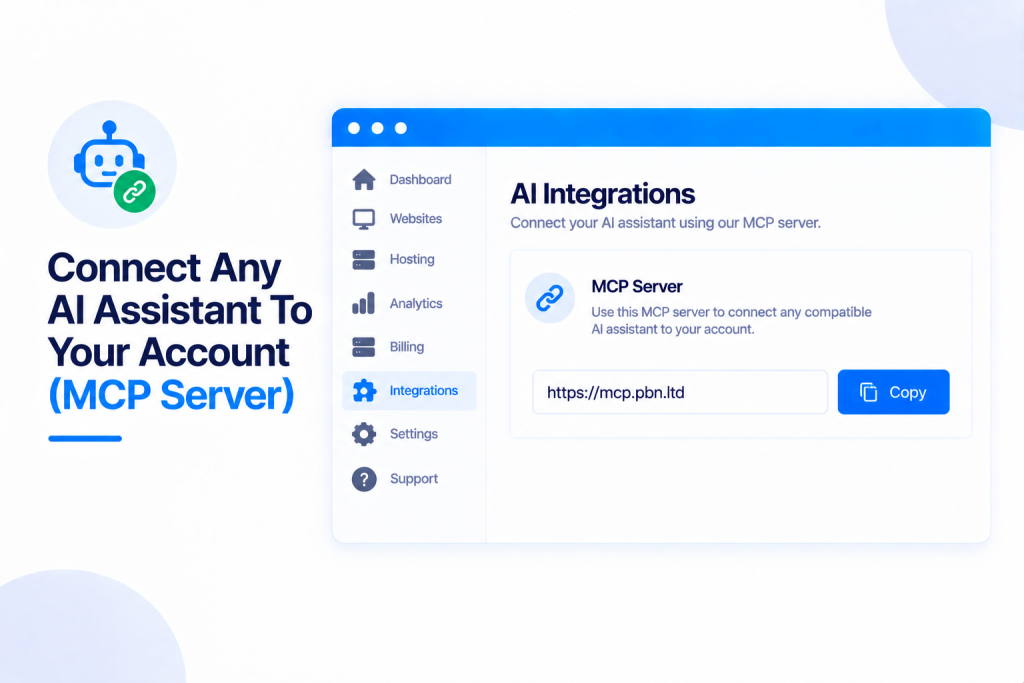
You can now connect Claude, ChatGPT, or any AI assistant that supports MCP straight to your PBN.LTD account — then simply ask it, in plain words, to do things for you: “which of my sites are offline?”, “add a TXT record to example.com”, “why is this site paused?”, “read the error log and tell me what broke”, “what do I owe?”. It uses the same permissions and limits as our API, so your assistant can only ever do what you allow.
💡 Heads-up
Your assistant connects with your own key (or an OAuth login) and can never do more than that key allows — same permissions, limits and audit trail as the API. You can see everything it has done, and cut it off instantly, from your API keys page. Actions that delete or overwrite are flagged as destructive, so a well-behaved assistant asks first.
What the MCP server is
MCP (Model Context Protocol) is the standard way an AI assistant plugs into an outside service. Ours lets your assistant work directly with your PBN.LTD account. The server address to paste into your assistant is:
https://app.pbn.ltd/mcp
It offers 59 tools — one for every operation our API can do — and runs on the very same code as the API, so the permissions, limits and audit trail are identical. It works with anything that speaks MCP, including Claude (web and Desktop), Claude Code, ChatGPT, Cursor, VS Code Copilot, Windsurf, Gemini CLI, Zed and the MCP Inspector.
What you can do with it
Once it’s connected, you just ask in plain language. For example:
- “Which of my sites are offline?”
- “Add a TXT record to example.com.”
- “Why is this site paused?”
- “Read the error log and tell me what broke.”
- “What do I owe?”
Because it can reach every operation your key allows, you can go a lot further than quick questions — deploy sites, change domains, read logs, even build a whole site or a plugin and push it live, all driven from your own AI tools. Used that way, it’s effectively an AI builder for your hosting.
Connecting your assistant
There are two ways to connect, and both end up as an ordinary key you can manage:
- OAuth login — your assistant sends you to log in at PBN.LTD, shows you exactly which permissions it’s asking for, and you approve or refuse.
- API key — create a scoped key on your API keys page and paste it into your assistant’s settings.
Either way it becomes a normal key with permissions, an owner, a call log and a rate limit — and either can be switched off again at any time.
The server address to paste into your assistant is https://app.pbn.ltd/mcp. For step-by-step setup for your specific assistant — Claude (claude.ai and Desktop), Claude Code, ChatGPT, Cursor, VS Code Copilot, Windsurf, Gemini CLI, Zed and more — follow the MCP setup instructions. Every tool, argument by argument with examples, is listed in the MCP tools reference, and our full API & MCP documentation covers the rest.
Ready-made jobs
Nine ready-made jobs also show up in your assistant, so you don’t even have to phrase them yourself:
- Diagnose a site
- Going-live check
- Create a site
- Clean up a site
- Review my account
- Answer a billing question
- Read the error log and fix it
- Back up or restore
- Find help / open a ticket
Staying in control
Everything runs under your own key’s permissions: the assistant only ever sees the tools its permissions cover, so it can’t offer to do something it isn’t allowed to. Tools that delete or overwrite — delete a site, restore a backup, reinstall, delete files — are marked destructive, so a well-behaved assistant checks with you before running them.
You can see exactly what an assistant has been doing under Activity on your API keys page (account menu → API keys), and press Revoke to disconnect it instantly. A connection made by someone with Team access also stops working the moment their access is revoked.
The usual API rate limits apply — 120 calls a minute, 5,000 an hour and 30 writes a minute — which is plenty for normal use; if you need more, just ask our support team.
If it isn’t working
If your assistant can’t connect or a tool seems to be missing, check:
- Your key hasn’t expired or been revoked (on the API keys page).
- The key’s permissions cover what you’re asking — a missing permission hides those tools entirely.
- The Activity list for any refusals.
The setup instructions cover every assistant we support, with a section for each one.
✅ Quick summary: Connect Claude, ChatGPT or any MCP-capable AI to your account at https://app.pbn.ltd/mcp and manage your hosting just by asking — 59 tools covering everything the API can do. It runs on your own key’s permissions, limits and audit trail, destructive actions are flagged, and you can watch or revoke any assistant from your API keys page. Setup guides for every assistant are in the docs.