
Short answer: you can move your website to PBN LTD yourself, in a few clicks, with the built-in Migrate a site in tool. It works for WordPress, Joomla, Drupal, PHP apps and static HTML sites (Along with all other types of sites you can host here!) — you log in to your old host once, tick the sites to bring over, and we copy the files and any database, set the site up on our servers, and tell you which nameservers to point at us. Your old site keeps running until you switch — so there’s no downtime.
💡 Heads-up
This is the new, self-service way — no more exporting backups by hand. It’s now just a press of a button and a few details!
Before you start
- Your old site stays live. Nothing changes on your current host — you only switch over at the end, when you point your nameservers at us.
- You need a free site slot. A migrated site counts as a normal site on your plan, and the usual per-site file, disk and database limits apply.
- Have your old-host details handy — a WordPress admin login, or your cPanel / Plesk / DirectAdmin / FTP / SFTP details (whichever you have).
💡 On NTCloud (subdomain) hosting?
This guide covers PBN LTD managed hosting. NTCloud subdomain hosting migrates a different way — see the separate NTCloud guide.
Starting a migration
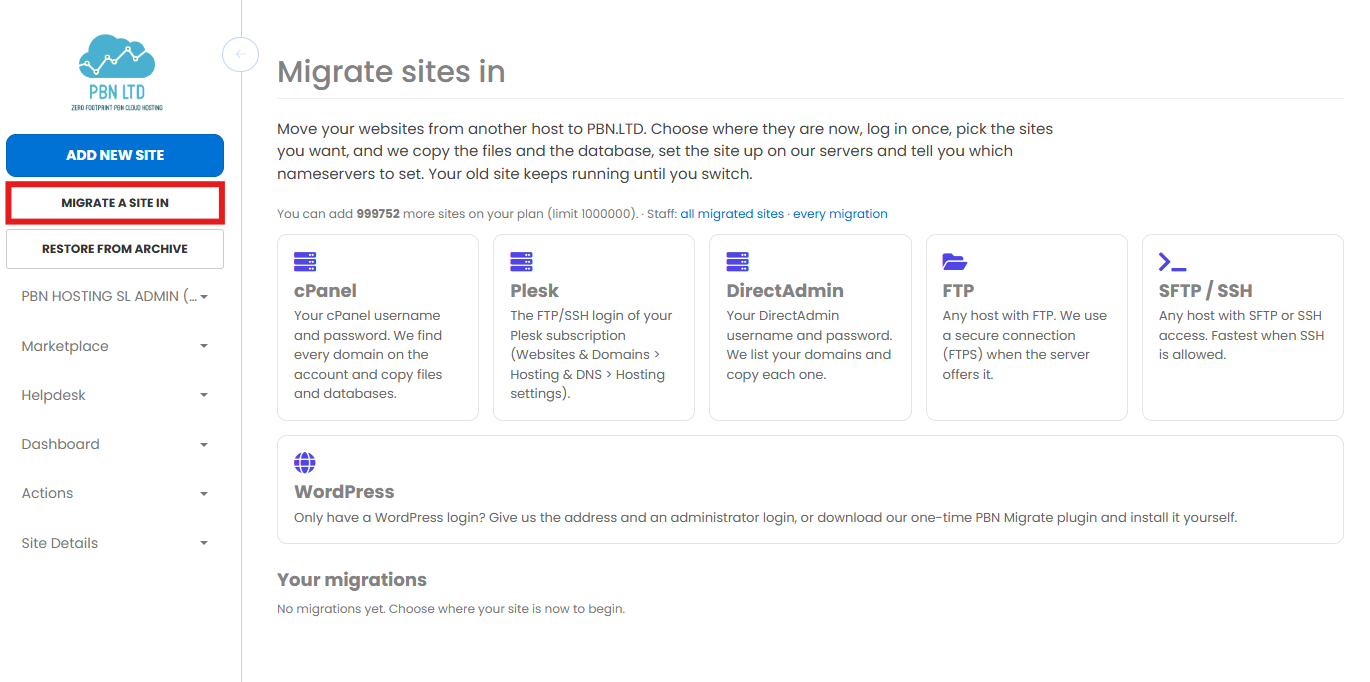
Click MIGRATE A SITE IN (just under ADD NEW SITE in your dashboard, or Migrate sites in from the sites Actions menu). Then pick where your site lives now:
Migrating a WordPress site (login or plugin)
If all you have is a WordPress login, choose WordPress, enter your site address, and pick how we get in:
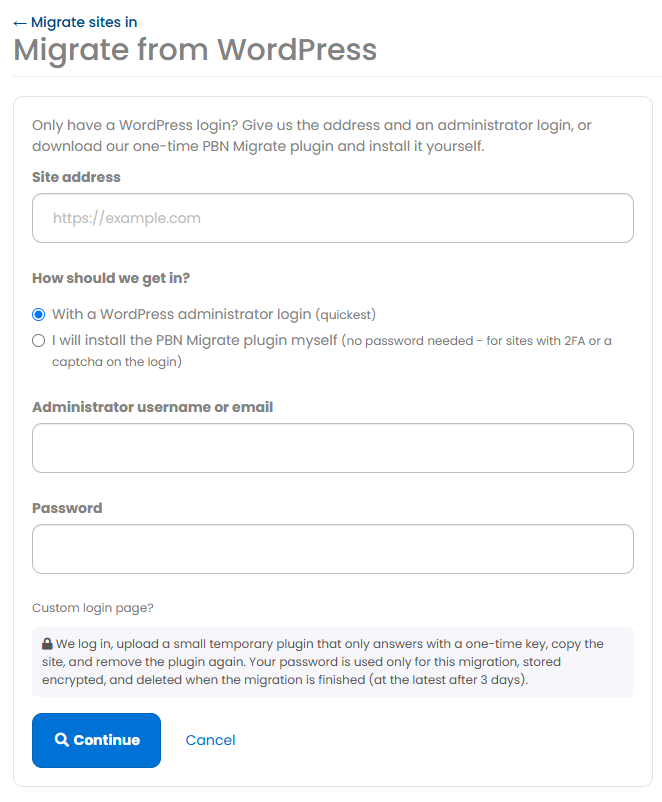
Option A — With your WordPress admin login (quickest)
Enter a WordPress administrator username (or email) and password. We log in, copy the site, and you’re done. Your password is used only for this migration.
Option B — Install the PBN Migrate plugin yourself (no password needed)
Ideal if your login has 2FA or a captcha. Choose “I will install the PBN Migrate plugin myself”, then:
- Click Download the PBN Migrate plugin and follow the numbered steps on screen — upload and activate it on your old WordPress site, just like any other plugin.
- The page detects the plugin automatically once it’s active — or click Check again.
- Each plugin has an expiry shown on the page; if it lapses before you finish, click Make a new plugin for a fresh one.
- Stuck? A fold-open guide right there covers why it’s safe, the steps, troubleshooting and FAQs.
The plugin only ever answers with a one-time key, and it removes itself from your old site once the migration finishes. In our testing, a 160 MB WordPress site came across in about 20 minutes.
Other ways to connect
Not a WordPress site, or you’d rather connect through your old host directly? Pick whichever access you have — it copies the files and any database for any site type, and the steps after connecting are identical.
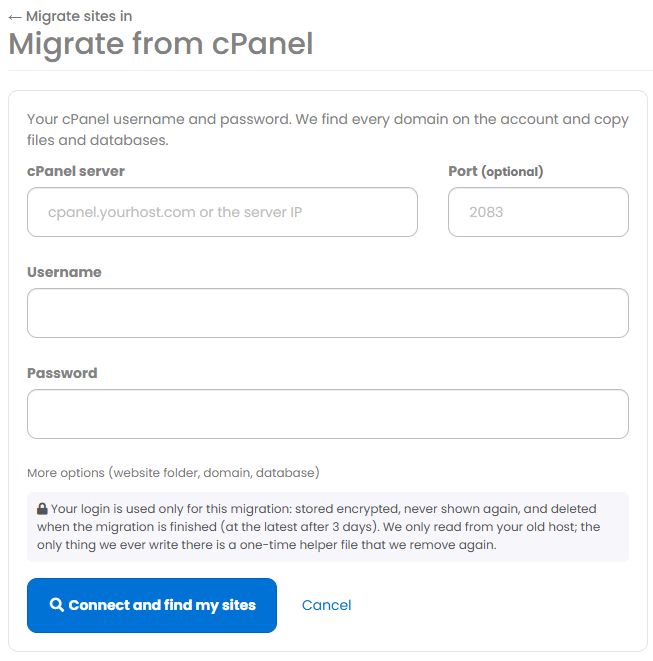
cPanel
Your cPanel username and password. We find every domain on the account and copy the files and databases.
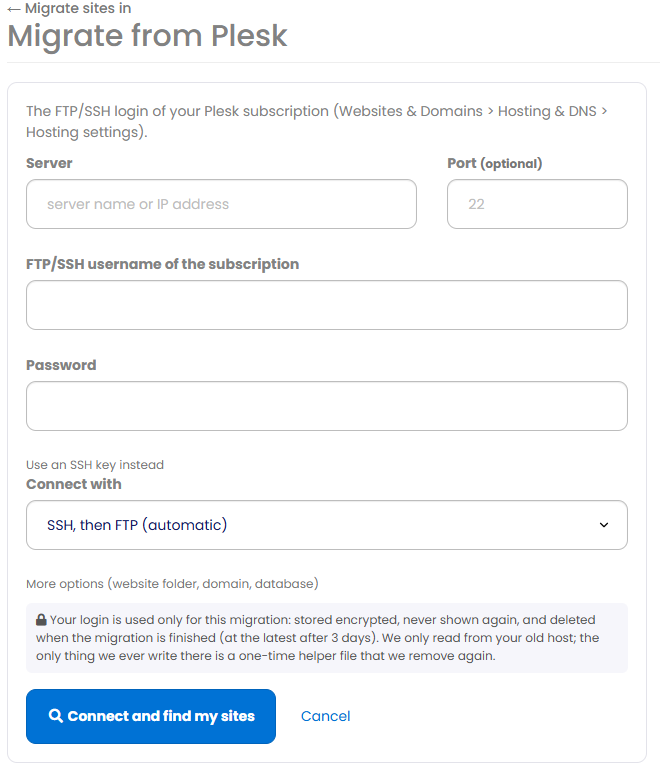
Plesk
The FTP/SSH login of your Plesk subscription (Websites & Domains → Hosting & DNS → Hosting settings), or an SSH key.
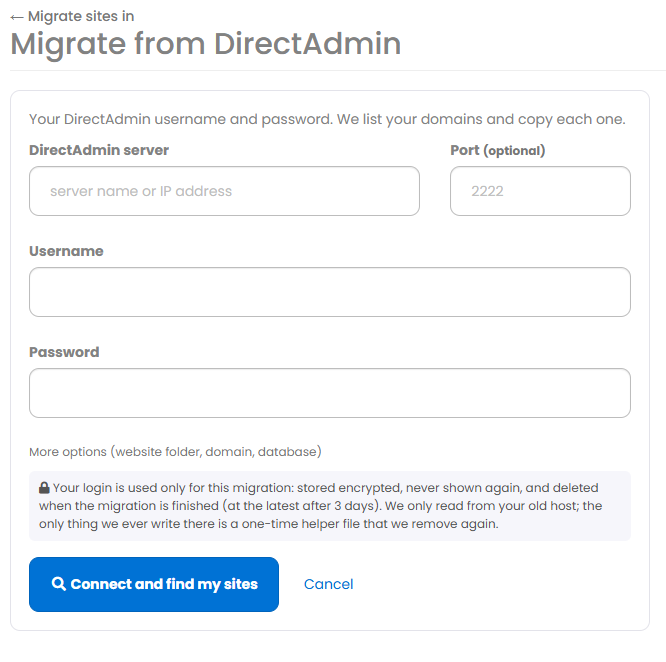
DirectAdmin
Your DirectAdmin username and password. We list your domains and copy each one.
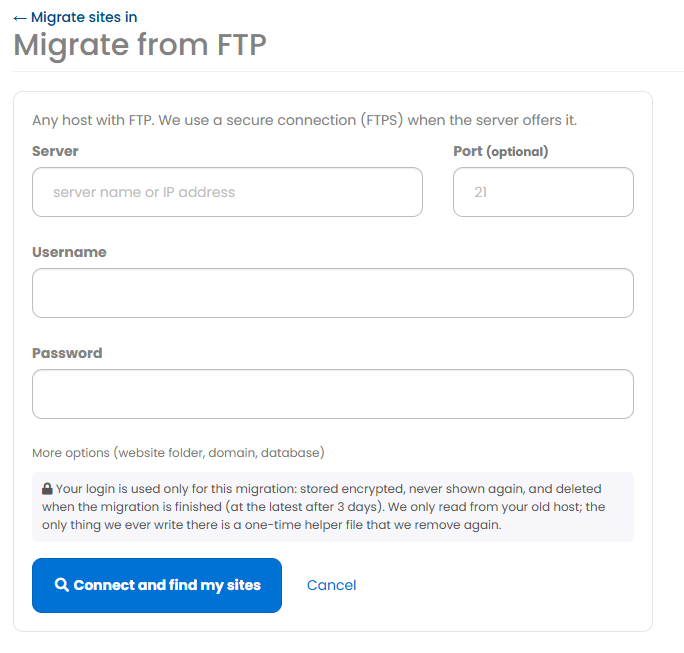
FTP
Works with any host that offers FTP. We use the secure form (FTPS) whenever the server supports it.
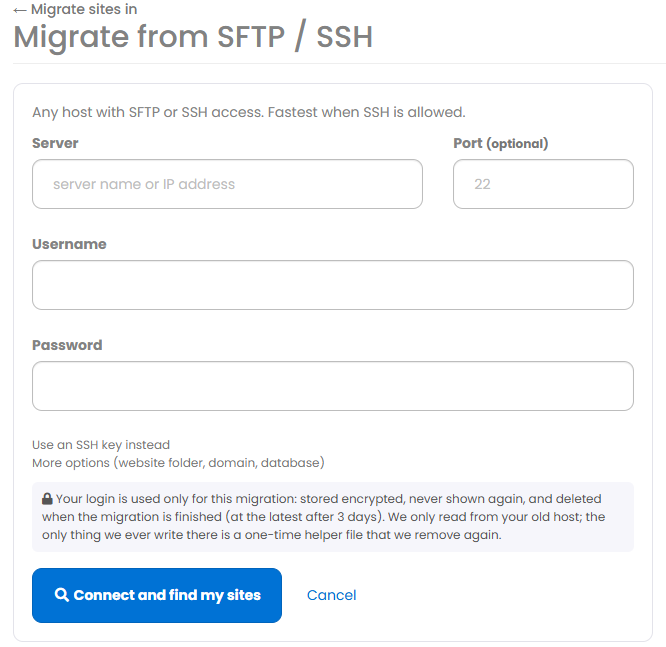
SFTP / SSH
Any host with SFTP or SSH access (password or SSH key). This is the fastest option when SSH is allowed.
What happens next
Whichever way you connect, the rest is the same:
- Log in once. We list the sites we find — tick the ones you want to bring over.
- For each site, choose the domain, PHP version and CDN (not sure which CDN? see Which CDN Should I Use?).
- We copy the files and database and build a normal site in your account, showing live progress as it goes.
- At the end you get a preview address to check the site, and the nameservers to set at your registrar to make it live.
When you’re happy, point your domain at us — see How To Update Your Nameservers, or let us set them for you with Automatically Update Nameservers. Up to three migrations run at once per customer; any others queue and start by themselves, and if a copy ever fails you can simply retry it.
Is my old site safe?
Yes — the migration is built to be completely safe for your existing site:
- Your old site is never changed. We only read from it, and the one-time helper file (or plugin) removes itself afterwards.
- Your login is protected. It’s stored encrypted, never shown again, and deleted when the migration finishes — at the latest after 3 days.
- Secure connections only. FTP uses the encrypted form (FTPS) where possible, a WordPress password is never sent over plain http, and private or local addresses are refused.
- Checked on arrival. Every copied site passes the same malware and phishing checks as an uploaded backup.
- Private to you. A migration is only ever visible to the customer who owns it (and our staff).
✅ Quick summary
Click MIGRATE A SITE IN, pick where your site lives (a WordPress login or our plugin, or cPanel, Plesk, DirectAdmin, FTP or SFTP), tick your sites, and we copy them across and show you the nameservers to set. Your old site stays live until you switch, your login is encrypted and deleted within 3 days, and the one-time helper removes itself. Prefer us to do it? Open a support ticket.