
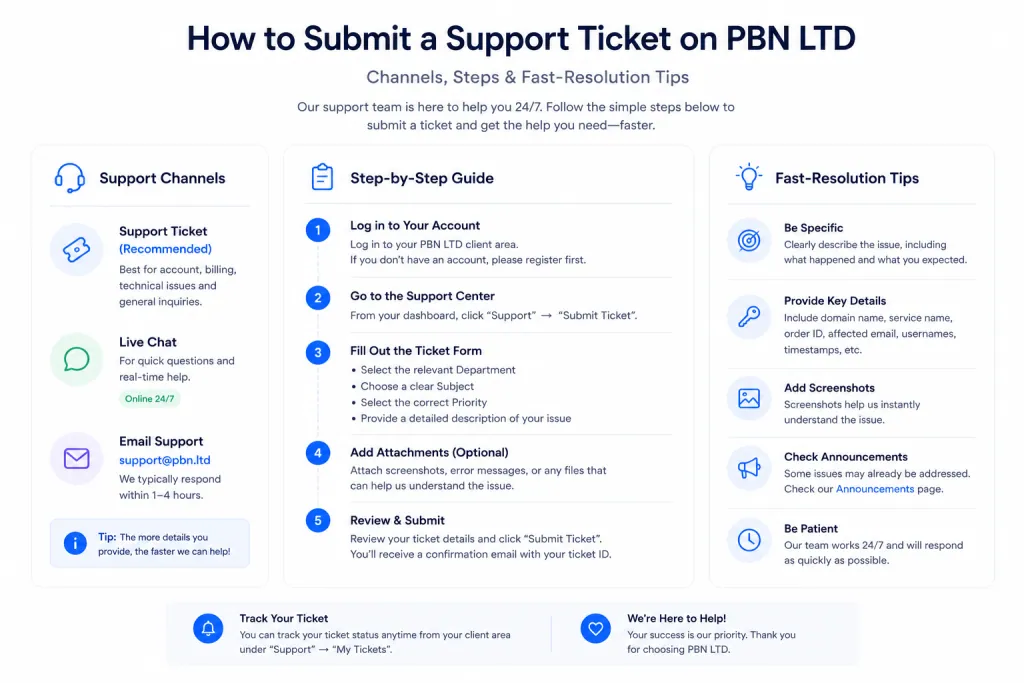
Short answer: almost everything you need — opening a support ticket, reporting a bug, suggesting a feature and searching our guides — lives under the Helpdesk tab in your dashboard. This guide gives you a quick tour of the Helpdesk tab, shows you the fastest ways to get help, and explains exactly how to open a ticket (and what to put in it) so we can fix your issue as fast as humanly possible.
💡 Heads-up
Most questions are answered instantly. Try the Knowledge base or the ‘? Help‘ search first — you may not even need to open a ticket. When you do need us, a support ticket is the fastest route to personal help.
What’s in this guide
- A quick tour of the Helpdesk tab
- Searching with the ? Help button
- Which support channel should I use?
- How to submit a support ticket (step-by-step)
- After you submit — what happens next?
- What to include for the fastest fix
- Pro tip — the perfect ticket
- Respecting our support guidelines
- Still not sure what to include?
🎛️ A quick tour of the Helpdesk tab
Everything support-related is grouped under one menu. From the left-hand menu in your dashboard, click Helpdesk — you’ll find four options:
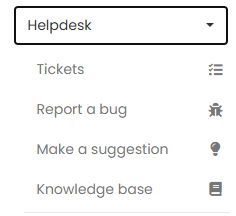
🎫 Tickets
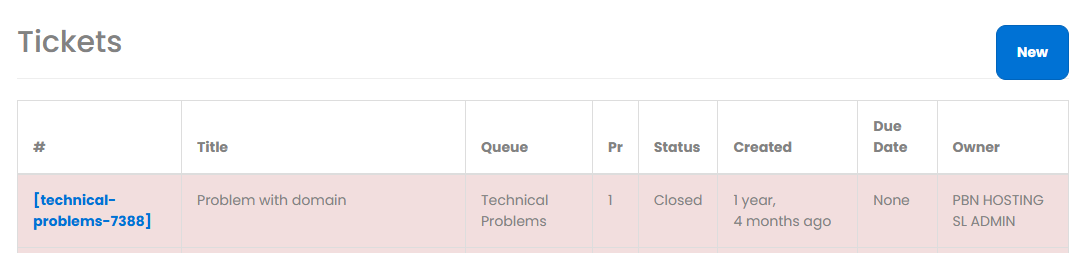
This is where you view every support ticket you’ve submitted — open and closed — along with its status, priority and the date it was created. To raise a new one, click the blue New button at the top of the Tickets page. Tickets are the best choice for anything technical, account-specific, or that needs investigation.
🐞 Report a bug
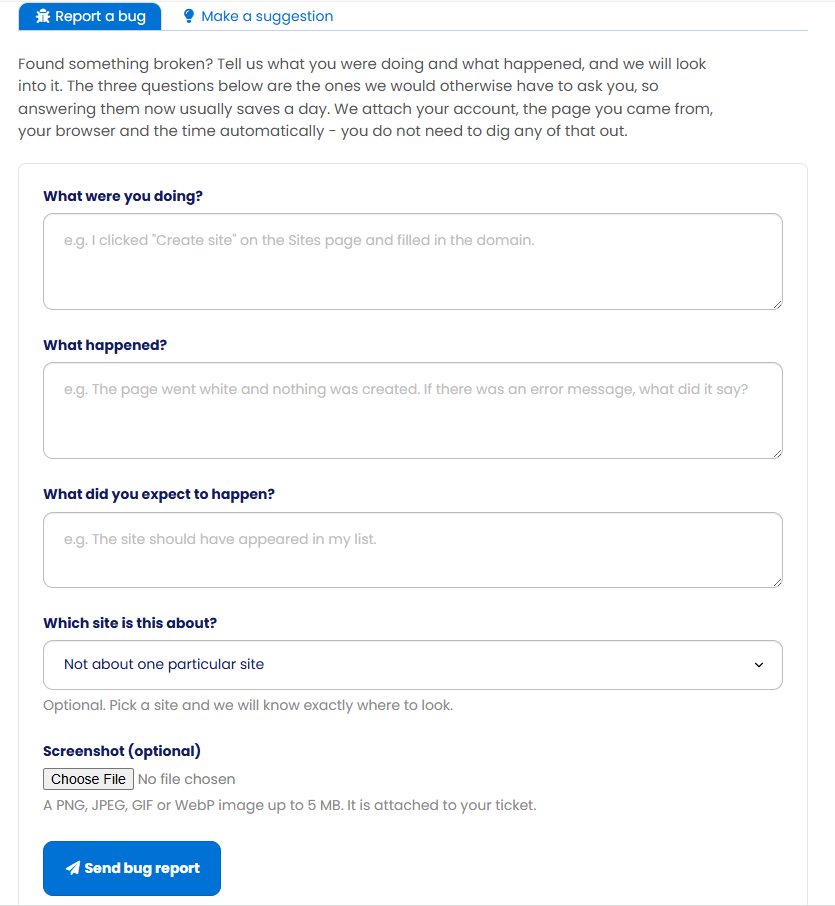
Found something broken in the platform — a page displaying wrong, a button that won’t work, a figure that looks off? Use Report a bug. Just three short questions (what you were doing, what happened, and what you expected) are all it takes — and we attach your account, the page you came from, your browser and the time automatically. There’s also a second tab at the top to Make a suggestion.
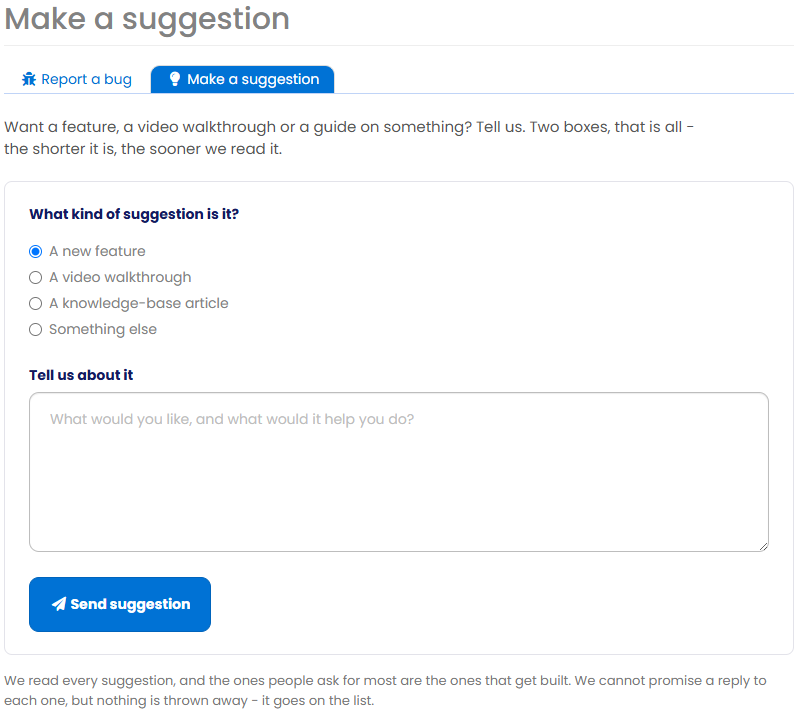
💡 Make a suggestion
We love hearing your ideas for the platform. You can suggest a new feature, a video walkthrough you’d like us to add, a knowledge-base article, or something else entirely. We take every suggestion into account and, wherever possible, add whatever you’ve requested.
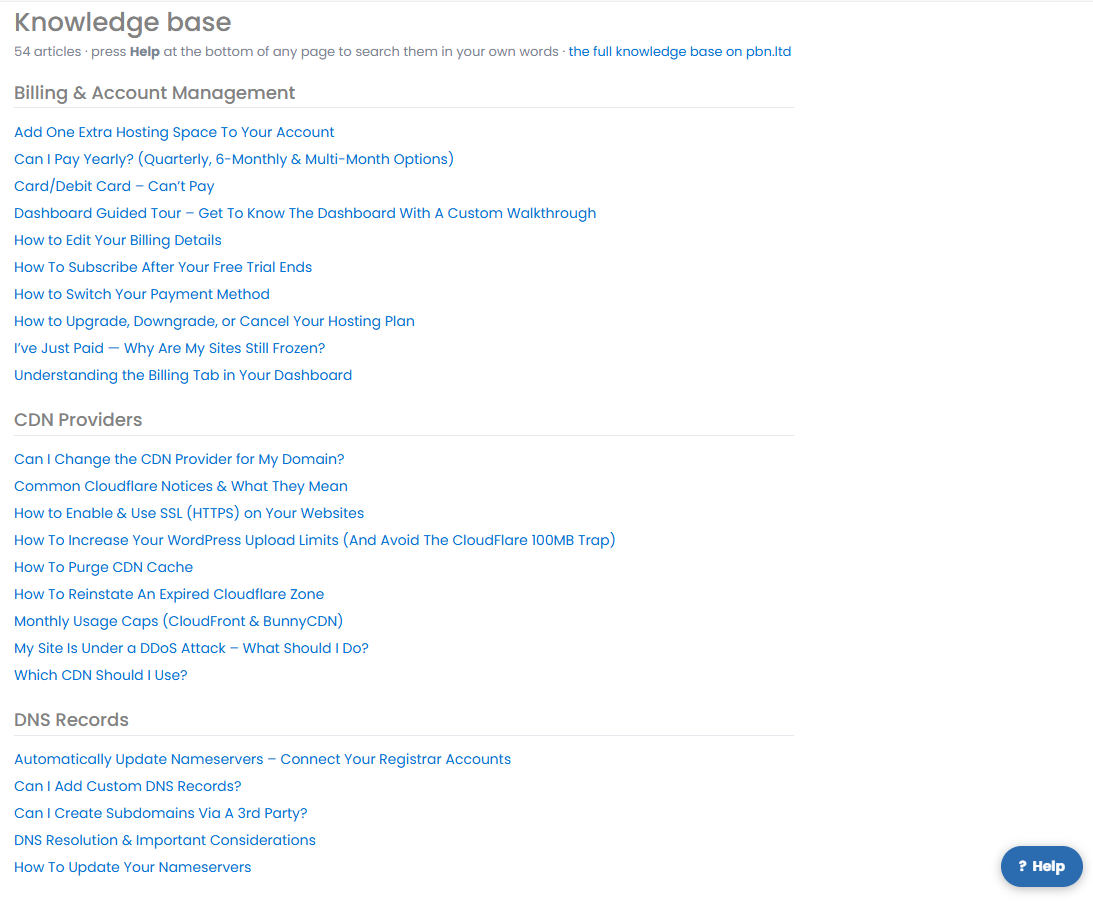
📚 Knowledge base
This is the home of every article in our knowledge base, grouped by topic. Most of the answers to your questions are already here, so it’s well worth a look before opening a ticket.
🔎 Searching with the ? Help button
You don’t have to scroll through the whole knowledge base to find what you need. The ? Help button in the bottom-right corner of your dashboard is available on every page of your account, and it searches all of our articles for you.
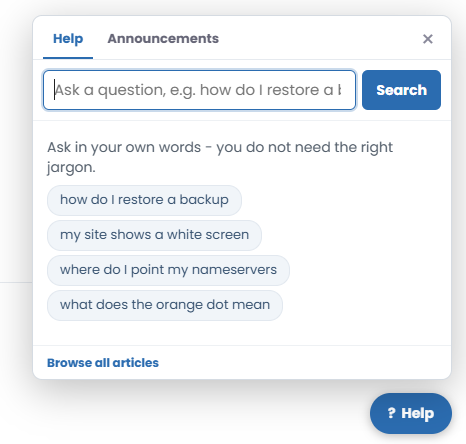
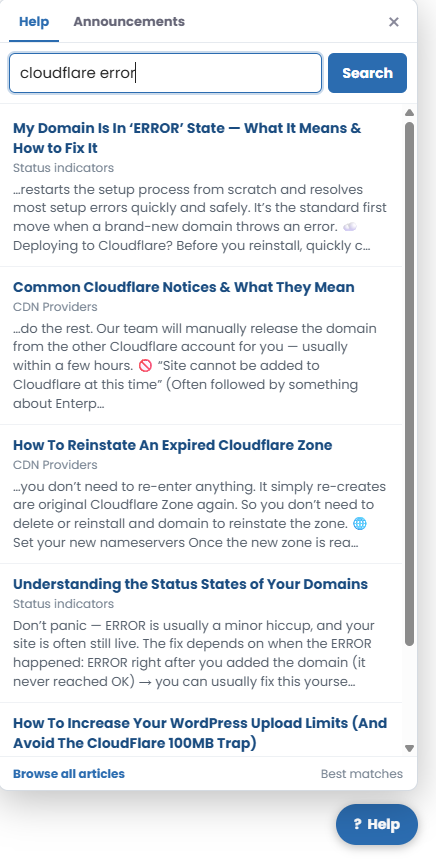
It’s powered by AI, so you can ask in plain English and it pulls up the most relevant article first. For example, search “Cloudflare error” and it surfaces every related guide, most relevant at the top — so you find the right article without endless searching and guesswork.
💡 No article for your question?
If your search turns up nothing useful, open a support ticket so we can help directly — or use the Make a suggestion tab to request the article you’d like us to add.
Which support channel should I use?
We offer a few ways to get help — but they’re not all equal. Picking the right one means a faster, more accurate answer for you, and saves our team from chasing the same issue across multiple places.
Here’s a quick comparison so you know exactly where to go:
| Channel | Where to find it | Best for |
|---|---|---|
| Support ticket | Dashboard → Helpdesk → Tickets | Anything technical, account-specific, or that needs investigation |
| Live chat | Bottom-right chat bubble on pbn.ltd (not available in the app) | Pre-sales questions, basic troubleshooting, general guidance |
| Telegram | @pbn_hosting_sl on Telegram | General advice, casual questions, chatting with our CEO |
Support ticket (recommended for most issues)
Where to access: From the left-hand menu in your dashboard, click Helpdesk → then select Tickets.
Best for:
- Technical issues or bugs
- Anything needing further investigation
- Issues requiring follow-up
- Site-specific or account-specific problems
Response time: We aim to reply within 30 minutes during staffed hours. Complex issues may take longer but will always be handled as quickly as possible.
Note: Live chat can sometimes time out before we’re able to respond or complete troubleshooting — this is why support tickets are the best choice for most issues.
Live chat
Where to access: Look for the chat bubble in the bottom-right corner of pbn.ltd (and our inner marketing pages). It’s not available on the app pages (app.pbn.ltd) — for those, please use a support ticket instead.
Best for:
- Pre-sales questions
- Basic troubleshooting
- General platform guidance
Our team is here to help, but keep in mind that more involved issues will likely be redirected to the support ticket system for full resolution.
Telegram
Where to access: Search for @pbn_hosting_sl on Telegram, or you can also find the link directly via our website.
Best for:
- General advice (e.g., SEO strategies, best practices)
- Casual questions or suggestions
- Speaking with our CEO (yep, it’s his actual Telegram!)
Please remember that our CEO may be in meetings or — believe it or not — even asleep, so replies might not be immediate!
💡 Rule of thumb:
If your issue involves your specific domain, your account, or anything we’d need to investigate — open a ticket. Live chat is best for quick general questions and pre-sales, and Telegram is for advice and casual chat with the CEO.
How to submit a support ticket (step-by-step)
Tickets are the fastest, most reliable way to get personalised help. Here’s exactly how to open one:
- Go to your main dashboard overview screen. After logging into your PBN LTD account, you’ll land on your main dashboard with a list of all your domains.
- Open the Helpdesk. Look to the left-hand menu and click Helpdesk. You’ll see the four options covered above — for a new request, you want Tickets.
- Click on “Tickets.”
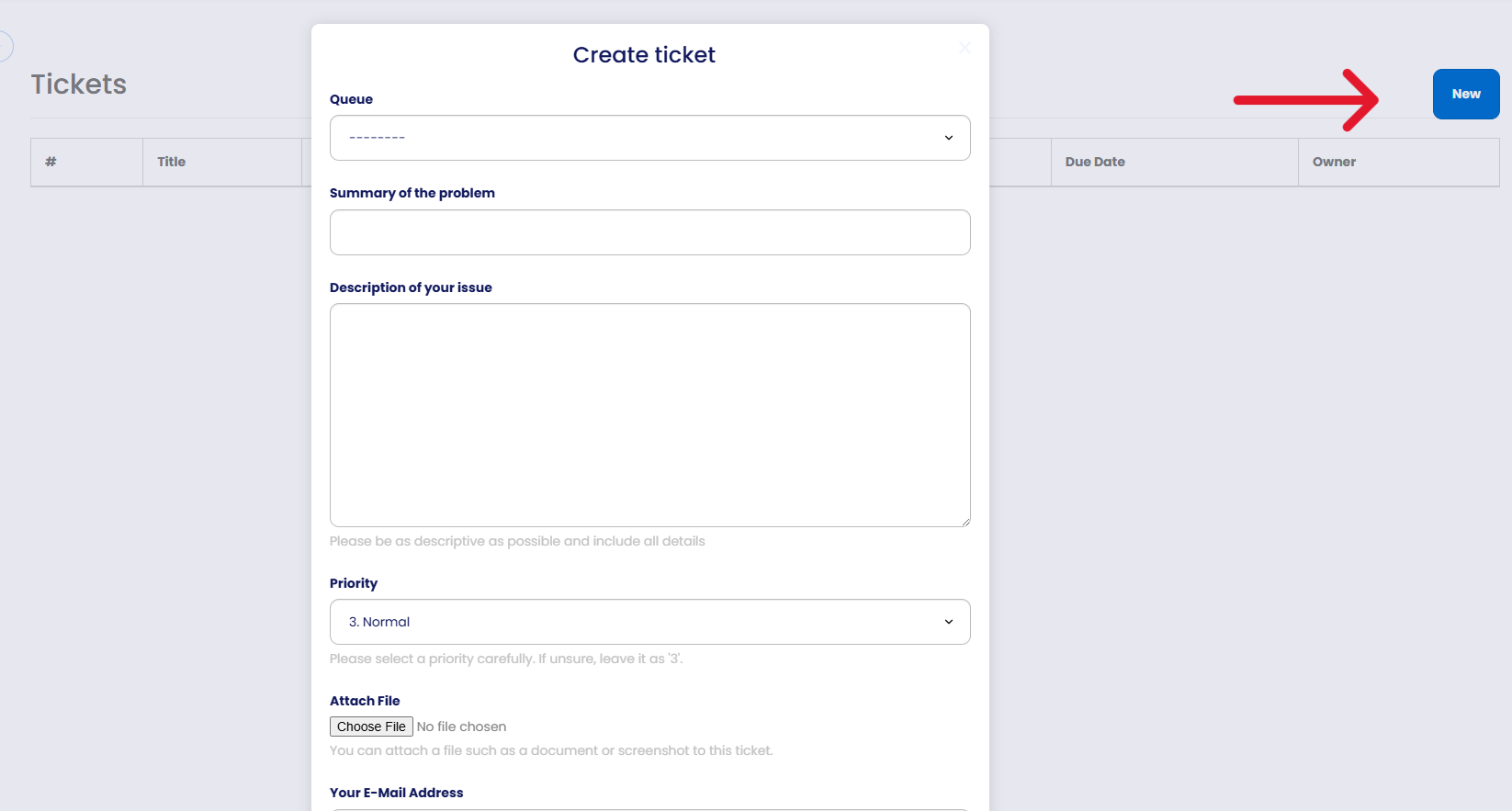
- Click the blue “New” button in the top-right of the Tickets page. A “Create ticket” pop-up will appear.
- Fill in the Create ticket form:
• Queue — pick the category that best fits your issue (e.g. Technical Problems).
• Summary of the problem — a short, descriptive title like “bulkwidgets.net — 403 error since this morning” (avoid “URGENT HELP” or “site broken”).
• Description of your issue — be as descriptive as possible: domain affected, what’s happening, what you expected, what you’ve already tried.
• Priority — leave this as “3. Normal” unless you’re genuinely down or in an emergency. Don’t mark every ticket high priority — it makes it harder for us to spot the truly urgent ones.
• Attach File — upload a screenshot or any relevant document.
• Your E-Mail Address — this is where you’ll receive replies, so double-check it’s correct! - Click “Submit” — and you’re done! You’ll get an email confirmation, and your ticket will appear in your Tickets list (more on what happens next below).
After you submit — what happens next?
Once your ticket is in, here’s what to expect:
- Email confirmation — you’ll get an email confirming the ticket has been received, with a link straight to it.
- Replies come via email AND your dashboard — when our team replies, you’ll be emailed. You can reply directly by email, or click through to view and reply on the ticket itself.
- Track all your tickets in one place — head to Helpdesk → Tickets any time to see every ticket you’ve ever opened, their status (Open / Closed), priority, and the date created.

💡 Tip:
Make sure the email address on your ticket is one you actually check — we send all replies and updates there first. If you’re not seeing replies, check your spam folder just in case!
What to include for the fastest fix
To help our support team resolve your issue as quickly and efficiently as possible, it’s important to provide clear, complete information when submitting a ticket. Below is a quick guide to what you should always include (and avoid!) to ensure faster replies and fewer back-and-forth messages.
1️⃣ Which domain or site the issue affects
If your account has multiple domains, please clearly state exactly which domain is experiencing the issue.
❌ Bad: “My site isn’t loading”
✅ Good: “My site bulkwidgets.net is showing a 403 error”
2️⃣ Clear description of the problem
Tell us:
- What is happening
- What you were expecting to happen
- Whether the issue just started, or has been happening for a while
Example:
“The site bulkwidgets.net started showing a 403 error this morning. I haven’t made any changes, and it was working fine yesterday.”
3️⃣ What you’ve already tried
If you’ve already cleared your browser cache, flushed DNS, restored a backup, or followed a relevant knowledge base guide, please mention it. This saves time and prevents us from suggesting steps you’ve already taken.
4️⃣ Any error messages or screenshots
If there’s an error showing (in the dashboard or on the live site), paste the full error text or attach a screenshot. This is extremely helpful.
5️⃣ Mention if it’s time-sensitive
We prioritize urgent issues like total site downtime or CDN errors. If something is time-sensitive, feel free to mention this — but please do so respectfully.
Pro tip — the perfect ticket
The fastest-resolving tickets usually look like this:
Domain: bulkwidgets.net
Issue: Site is stuck in “Activating CDN” even though nameservers are correct.
Tried: Waited 24 hours, cleared cache, confirmed nameservers are set correctly.
Screenshot: attached of DNS tab at registrar.
What not to do
- Don’t just say “my site’s broken” — we need specifics.
- Don’t submit multiple tickets for the same issue. This slows down resolution time for everyone.
- Don’t forget to check the Knowledge base first — your issue might already be solved there!
Respecting our support guidelines
We love helping, and our team is dedicated to providing fast, friendly assistance. But to protect the support experience for everyone, please keep the following in mind:
🚫 Spamming support
Opening repeated or unnecessary tickets slows things down for everyone. Our team reserves the right to close duplicate or spammy tickets and deprioritize excessive abuse of the system.
🚫 Abusive or rude behaviour
Aggression, rudeness, or harassment toward our team will result in support restrictions and may lead to account suspension. This is clearly outlined in our Terms & Conditions and will be enforced.
As outlined in our Terms & Conditions:
Excessive or repeated ticket submissions, cross-platform spamming (e.g., opening a live chat, sending a Telegram message, and submitting multiple tickets simultaneously), or rude or abusive behavior may result in delays — or even a temporary suspension of support access.
Use the correct channel for your need
Do not spam across multiple platforms
Do not open multiple tickets for the same issue
Doing so slows down support not just for you, but for all users in the queue. Help us help you by submitting a well-detailed ticket through the correct channel.
Still not sure what to include?
No problem! Just provide as much detail as you can, and we’ll guide you through the rest. Our goal is to fix your issue quickly — and clear, specific tickets help us do exactly that.
✅ Quick summary
Everything support-related lives under Helpdesk: Tickets (view and open tickets), Report a bug, Make a suggestion and the Knowledge base. Search any page with the ? Help button, and if you still need us, open a ticket with the domain affected, a clear description, what you’ve tried, and a screenshot. We’re here to help — but respect goes both ways.