
Every site we host is served through a CDN (content delivery network) that you choose when you add the site. Very occasionally the CDN you chose refuses to set up a particular domain. When that happens the site cannot go live on that CDN however long it waits – so instead of leaving it stuck in Activating CDN or Error, your site page tells you, and you can move the site to a different CDN yourself in a couple of clicks.
💡 The short version
Open the site, click Switch to another CDN in the yellow notice (or open the CDN tab), choose another CDN and confirm. Nothing on your site is deleted. A few minutes later the site is set up on the new CDN, and the site page shows the nameservers your domain needs.
What the yellow notice means
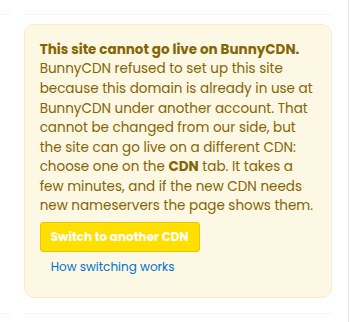
When a CDN turns a site down, the site page shows a yellow box that starts This site cannot go live on … and names the CDN. The sentence under it gives the reason in plain words, for example “this domain is already in use at that CDN under another account”.
It is not something that fixes itself with time, and it is not something we can override on the CDN’s side – the CDN has decided it will not carry that domain. The way out is to choose a different CDN for the site.
Why a CDN can refuse a site
- The domain is held or in use by another account at that CDN. A CDN only lets one account use a domain at a time. If the domain was added to that CDN before – by you on another service, a previous owner of the domain, or anyone else – the CDN refuses it until that account removes it, and only that account can.
- The certificate authority will not issue a certificate for the name. A CDN serves HTTPS with a certificate from a certificate authority, and some authorities refuse certain domain names outright. Another CDN that uses a different authority can usually serve the same name without a problem.
- The CDN does not accept the domain name at all. Some CDNs refuse particular names or name types. Again, a different CDN normally takes it.
Nothing is deleted
Your site, its files, its database and its settings all stay exactly as they are. A refusal only means that one CDN will not carry the domain. When you switch, the site is simply set up on the CDN you pick instead.
How to switch to another CDN
- Open the site in your dashboard.
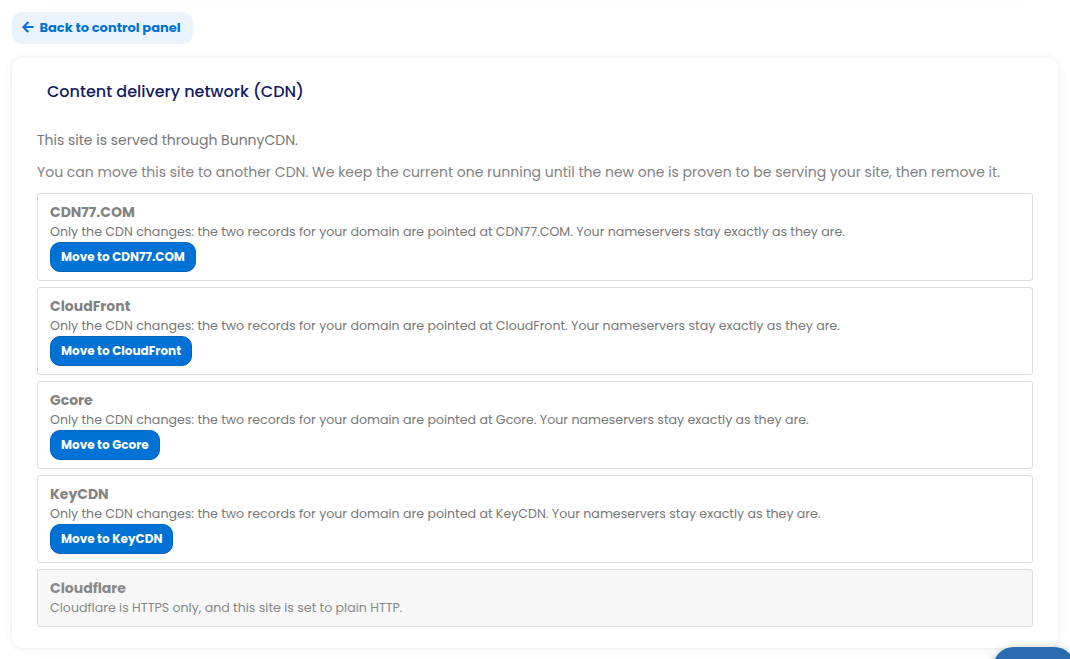
- In the yellow notice, click Switch to another CDN – or open CDN from the site’s control panel.
- The CDN tab lists the other CDNs this site can use, each with a short line saying what changes. A CDN that cannot take this site is greyed out with the reason (for example, one that only serves HTTPS when the site is set to plain HTTP).
- Click Move to … on the CDN you want.
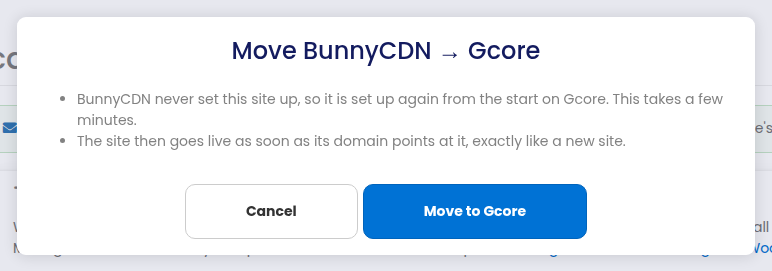
- Read the confirmation – it says in plain words what will happen – and click Move to … again to start.
What happens after you switch
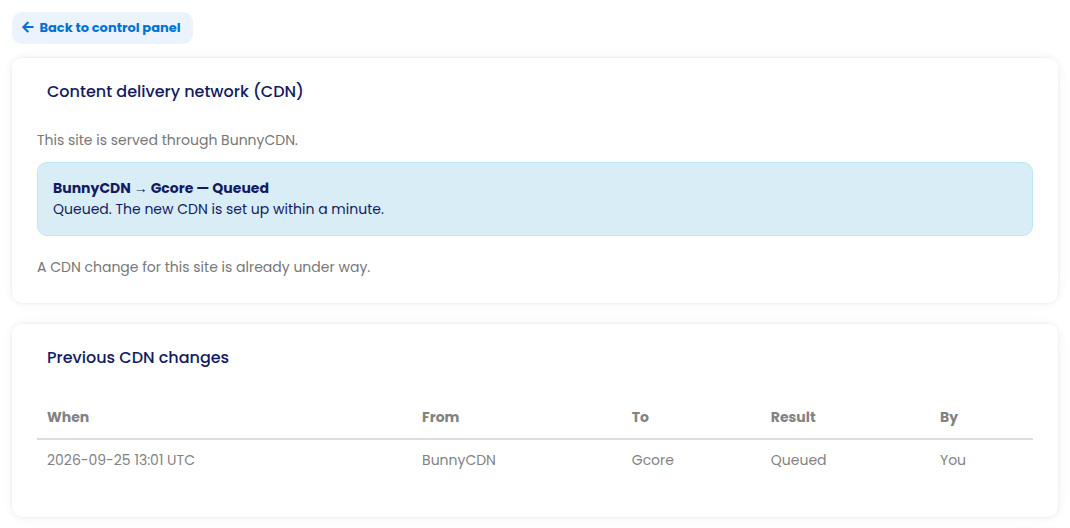
- The tab shows the change as Queued straight away. Within a minute or two the site starts being set up on the new CDN – you do not need to keep the page open.
- A site the old CDN never set up is set up again from the start on the new one, which usually takes a few minutes. The yellow notice disappears by itself once the site has left the CDN that refused it.
- After that the site behaves exactly like a newly added site: it goes live as soon as your domain points at it.
- Nameservers: if the site’s DNS stays where it is, your nameservers do not change. If the DNS has to move with the new CDN, the site page shows the new nameservers – set exactly those at your domain registrar. If your registrar account is connected, we set them for you.
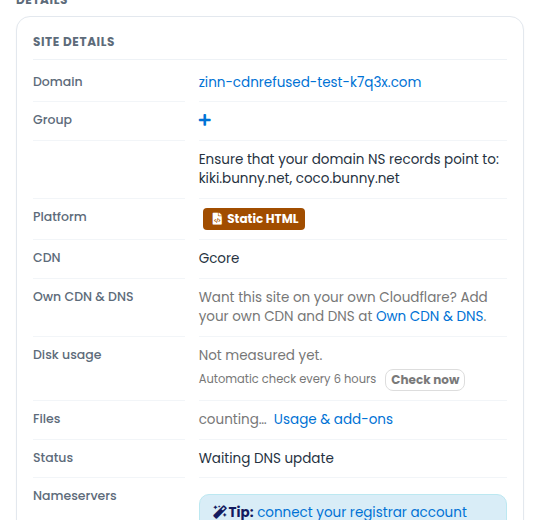
Stuck because the registrar lists the wrong nameservers
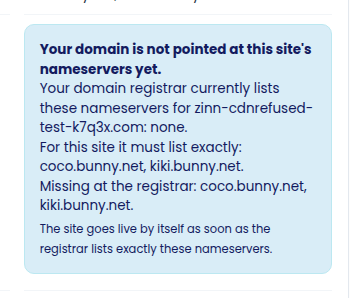
A site can also wait for its domain because the nameservers at your domain registrar are not exactly the ones the site needs – one of the pair is missing, there is a typo, or the domain still points at a different account. In that case the site page shows a blue box that starts Your domain is not pointed at this site’s nameservers yet. It lists what your registrar has now and what it must have, and names anything missing or to remove.
Set exactly the nameservers shown – no more, no fewer – at your registrar. The site goes live by itself once the registrar lists them; changes at a registrar can take a few hours to be seen everywhere. You do not need to switch CDN for this.
Still stuck?
If a site stays in Activating CDN for more than a day with no notice on its page, or the switch does not finish, open a support ticket with the site’s domain and we will look at it.