
Your website sends email through our mail servers: contact forms, order confirmations, password resets. Yahoo, Gmail and Outlook now check that such email is really allowed to use your domain, and they refuse it or put it in junk when it is not. We sign every message your website sends with your own domain, so the check passes. For that, one public record has to be in your domain’s DNS.
💡 Is there anything for me to do?
If we run your domain’s DNS (your nameservers point to us), no – we add the record and switch signing on for you. For a new site the record is added within minutes of creating it (before you even change your nameservers), and signing starts about two hours after the domain points to us. Only if your DNS is kept somewhere else does your site page show a box Make sure email from your website is delivered with the record to add.
Where you see it
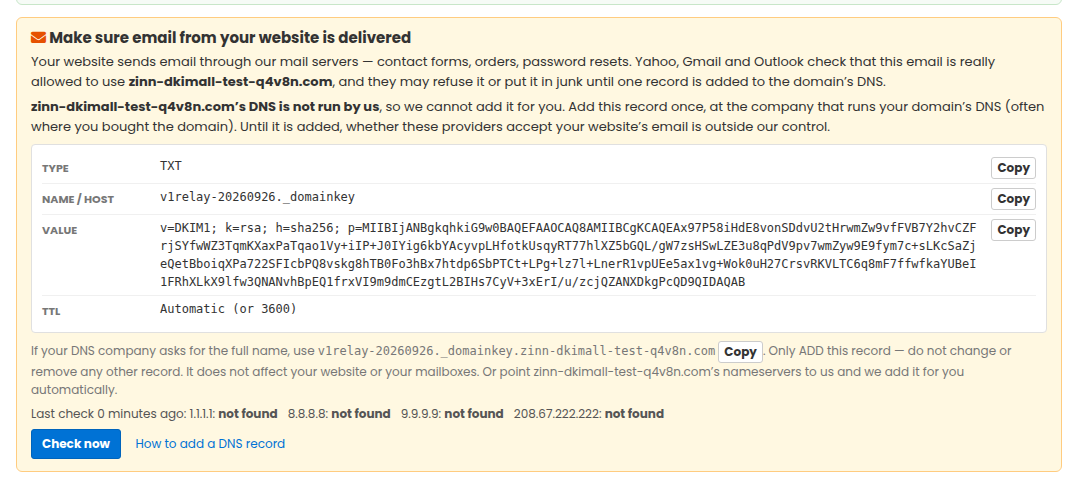
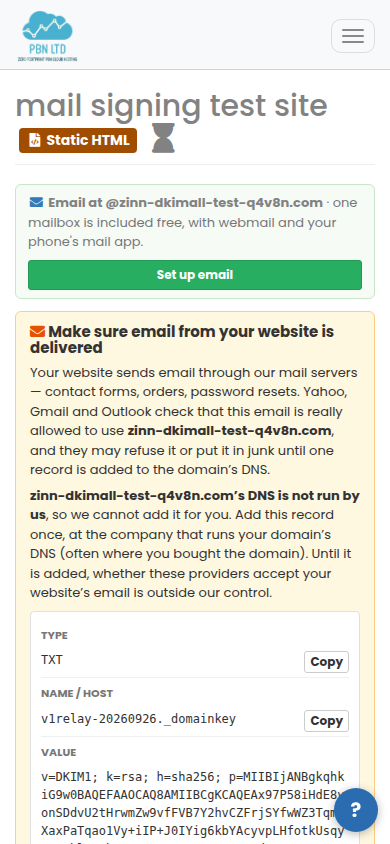
Open Sites and click the site. When your domain’s DNS is not run by us, the box appears near the top of the site page, and again at the top of the site’s Mail tab. It shows the record’s Type (always TXT), its Name / Host and its Value, each with a Copy button.
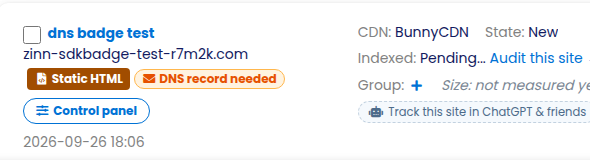
You can spot these sites without opening each one: on the Sites list they carry an orange DNS record needed badge next to the platform label. Click the badge to go straight to the box with the record. The badge disappears once the record is found.
Adding the record
- Sign in at the company that runs your domain’s DNS. It is often where you bought the domain; your site page shows the nameservers it uses.
- Open the DNS settings (sometimes called DNS records, DNS zone or Advanced DNS) for the domain and choose to add a record.
- Type: TXT.
- Name / Host: press Copy next to Name / Host in our box and paste it. If your DNS company asks for the full name, use the full name shown under the box instead.
- Value: press Copy next to Value and paste it exactly as it is. It is long – that is normal.
- TTL: leave it on automatic (or 3600). Save.
Only add this one record. Do not change or remove any other record: it does not affect your website, your mailboxes or anything else about your domain.
Checking it and switching it on
Back on the site page, press Check now. We ask four public DNS servers at once and show what each one answered. When all four see the record, the box turns green: we switch signing on automatically, usually within 2 hours, and the box then disappears. There is nothing else to do – please leave the record in place.
Not found yet? DNS changes can take up to an hour to be seen everywhere. You do not have to keep pressing the button: we check it for you regularly and switch it on as soon as it is there.
Prefer not to handle DNS yourself? Point your domain’s nameservers to us instead, and we add this record (and everything else your site needs) for you.
Why it matters
- Yahoo and AOL refuse email that is not signed by the domain it is sent from.
- Gmail and Outlook are more likely to put it in junk.
- Signing does not change who your email comes from or where replies go.
- Until the record is added, whether these providers accept email from your website is outside our control.
A DMARC record you may see in your DNS
When your website sends email through us, we run your domain’s DNS and the domain had no DMARC record, we also add one: a TXT record named _dmarc with the value v=DMARC1; p=none. It lets Gmail, Yahoo and Outlook confirm that email from your website is really from your domain. p=none means monitoring only: it never asks anyone to refuse or junk your email, and it does not send you any reports.
Already have your own DMARC record? We never add ours beside it or change it. If you add your own later, ours is removed automatically, so yours is the one that counts.