
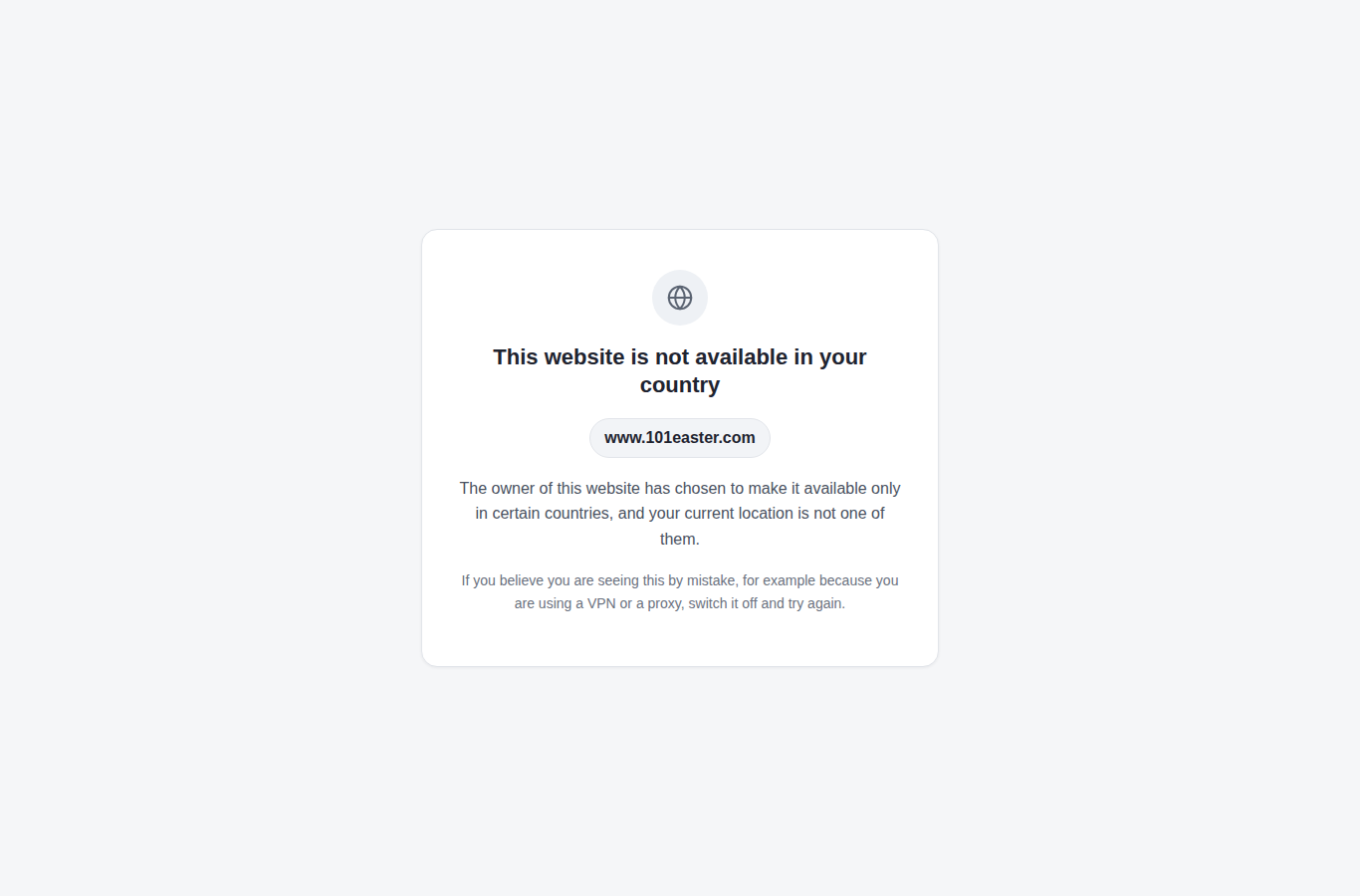
The country lock decides which countries can open a site. Lock it to one country (for example only the United Kingdom), to a list, or let everyone in except a list. A visitor from anywhere else gets a clean page saying This website is not available in your country, with your site’s name – never the site. It works on every kind of site we host and whichever CDN the site uses, and it is included free.
💡 Your rankings are safe
Leave Let search engines in on (it is on by default). Google, Bing, Apple and DuckDuckGo crawlers are recognised by the addresses those companies publish – not by what a visitor claims to be – and they see exactly the same site as your allowed visitors.
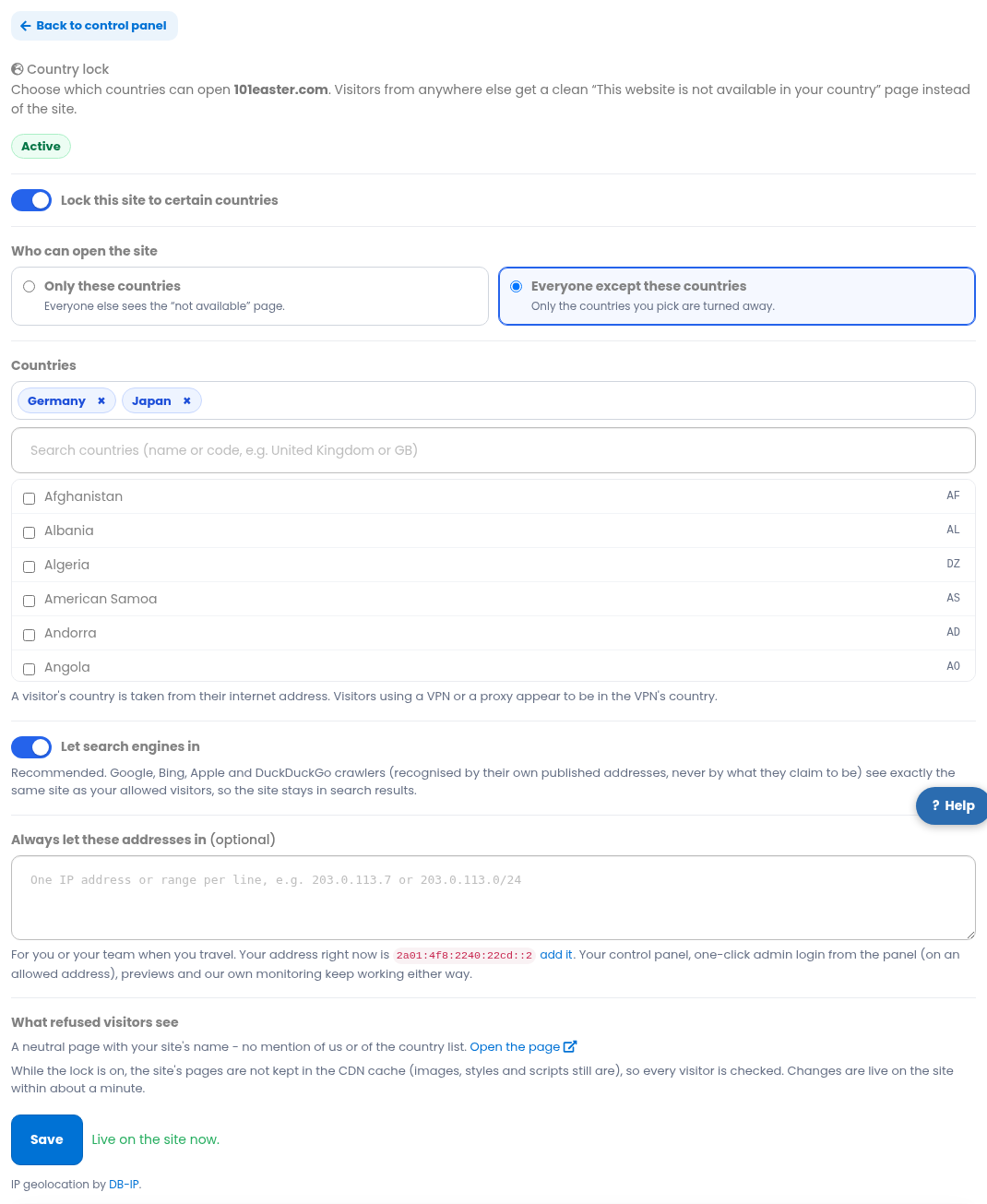
Locking a site to certain countries
- Open the site in your dashboard (Sites → the site’s name) and choose the Country lock tab.
- Switch on Lock this site to certain countries.
- Choose Only these countries (everyone else is turned away) or Everyone except these countries (only the countries you pick are turned away).
- Search for each country by name or two-letter code and tick it. The ones you picked show at the top; press × on one to remove it.
- Press Save. The status shows Being applied, then Active – usually within a minute.
What a turned-away visitor sees
A plain, neutral page with your site’s name and the words This website is not available in your country. It does not mention us, your hosting or the list of countries. It is sent with the status code 451 and is never stored by a CDN, so an allowed visitor can never be shown it by mistake. The Open the page link on the tab shows it to you.
Search engines
With Let search engines in on, the crawlers of Google, Bing, Apple and DuckDuckGo reach the site from wherever they crawl, and get exactly the page an allowed visitor gets – there is no special version for them. They are recognised by the address lists those companies publish, so someone who only pretends to be Googlebot is turned away like any other visitor.
Switch it off only if you do not want the site in search results at all: the crawlers are then turned away too, and the site drops out of Google and the other search engines.
Always letting yourself in
Under Always let these addresses in you can list up to 50 IP addresses or ranges that may open the site from any country – for example your own when you travel, or your team’s office. The tab shows your current address with an add it link.
Your dashboard, the site’s previews and our own monitoring keep working whatever you lock. The site itself – including its admin login page – follows the lock, so add your address before you travel to a country you have not allowed.
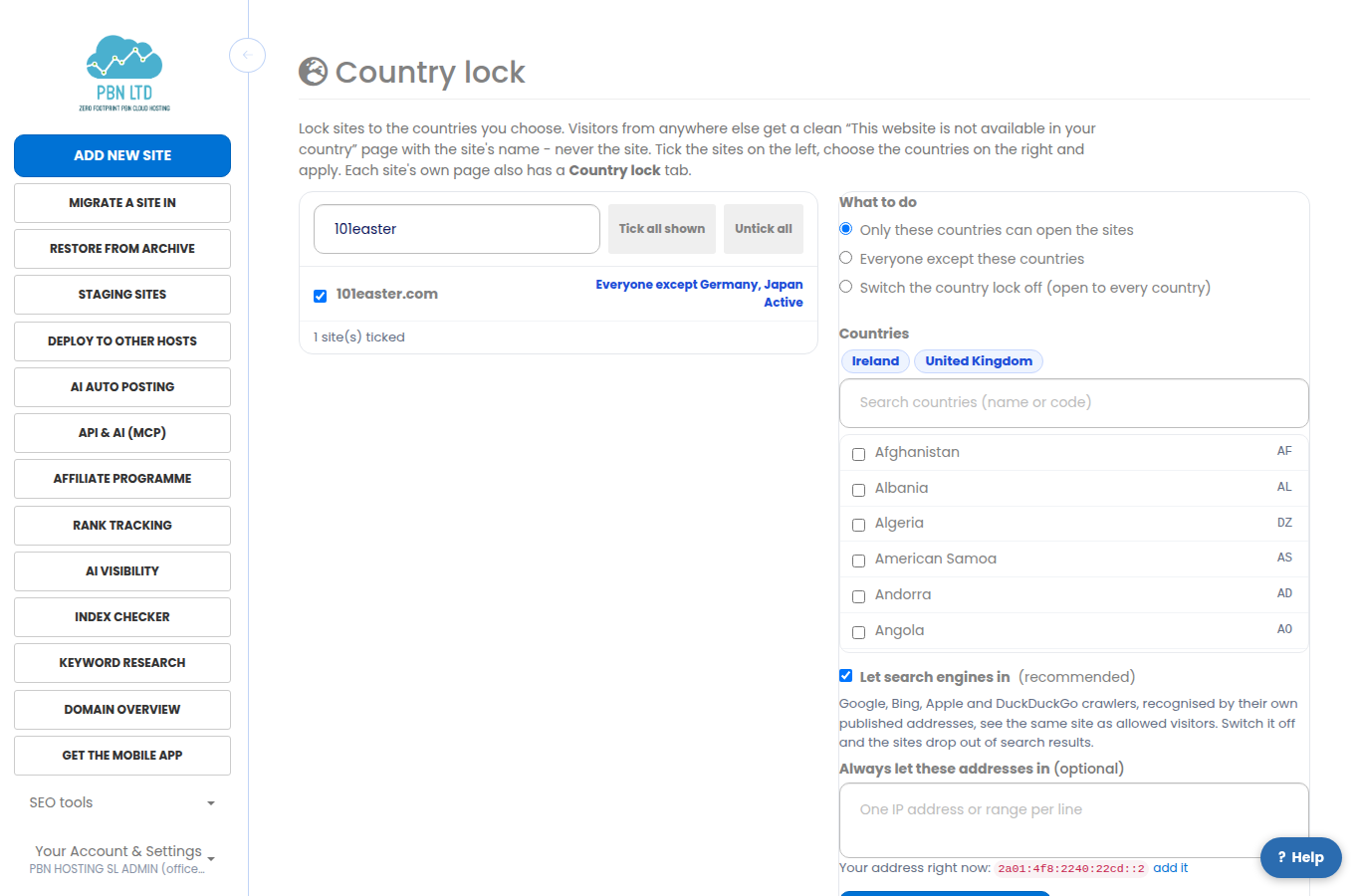
Locking many sites at once
- Go to Country lock – or tick sites on your Sites list and press Country lock in the selection bar.
- Tick the sites, choose what to do (only these countries, everyone except, or switch the lock off) and the countries.
- Press Apply to the ticked sites. Every site is done within about a minute.
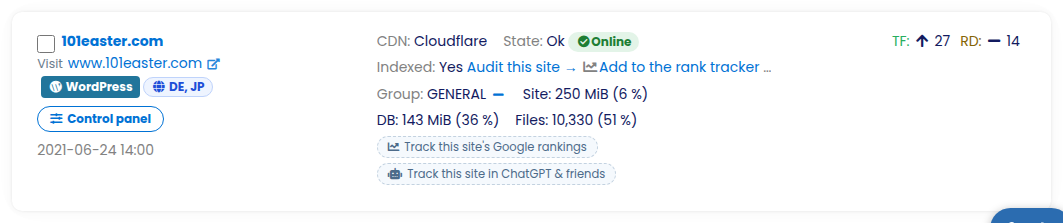
Locked sites carry a small globe badge with their countries on your Sites list.
Good to know
- A visitor’s country comes from their internet address. Someone using a VPN or a proxy counts as being in the VPN’s country – that is how every country lock on the internet works.
- While a lock is on, the site’s pages are not kept in the CDN’s cache, so every visitor is checked. Images, styles and scripts are still cached, so the site stays fast.
- Switching the lock off keeps your countries saved, so switching it back on is one click.
- It works for WordPress, static HTML, PHP, Joomla, Drupal, PrestaShop, OpenCart, Grav and MediaWiki sites, on every CDN.
- You can also read and set it through our API and MCP server:
GETandPUT /sites/{site_id}/country-lock. - IP geolocation by DB-IP.
Questions
- Can I lock a site to just one country? Yes – choose Only these countries and tick one country.
- I cannot open my own site. You are probably outside the countries you allowed, or on a VPN. Add your address under Always let these addresses in, or switch the VPN off.
- Will it hurt my SEO? Not with Let search engines in on – the crawlers see the same site as your visitors.
- Does it cost extra? No, it is included with your hosting.